EasyManua.ls Logo

Dell Latitude 5500 - User Manual

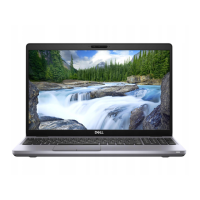
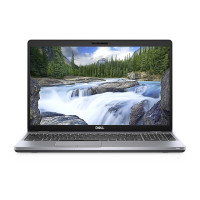
Dell Latitude 5500
136 pages
Print Icon
To Next Page IconTo Next Page
Loading...
Dell Latitude 5500
Service Manual
Regulatory Model: P80F
Regulatory Type: P80F001
September 2021
Rev. A04

Table of Contents

Other manuals for Dell Latitude 5500

Questions and Answers

  • M
    Mark DoyleAug 5, 2025
    What to do if the battery is swollen on my Dell Latitude 5500?
    • L
      Lori DunlapAug 6, 2025
      If you notice that the Lithium-ion battery in your Dell Laptop is swollen, immediately stop using the laptop. You should disconnect the AC adapter and allow the battery to fully discharge. It is important to replace the swollen battery and dispose of it properly. You may also contact Dell product support to explore options for replacing the swollen battery under your warranty or service contract.
  • K
    kentadamsAug 16, 2025
    How to perform a WiFi power cycle on a Dell Latitude 5500 Laptop?
    • M
      Matthew WilkinsAug 16, 2025
      To perform a WiFi power cycle on your Dell Laptop, follow these steps: first, turn off your computer. Then, turn off both the modem and the wireless router. Wait for 30 seconds. After waiting, turn the wireless router back on, then turn on the modem, and finally, turn your computer back on.
  • W
    wilsonmatthewAug 26, 2025
    How to drain residual flea power (perform hard reset) on a Dell Laptop?
    • R
      Ronald EdwardsAug 27, 2025
      To drain residual flea power and perform a hard reset on your Dell Laptop, please follow these steps: 1. Turn off your computer. 2. Disconnect the power adapter. 3. Remove the base cover. 4. Remove the battery. 5. Press and hold the power button for 20 seconds. 6. Install the battery. 7. Install the base cover. 8. Connect the power adapter. 9. Turn on your computer.

Summary

Working on your computer

Computer Safety Instructions

General safety guidelines for protecting the computer and ensuring personal safety during operations.

Essential Safety Precautions

Key safety measures to follow before and during any disassembly or repair procedures.

ESD Protection Procedures

Methods to prevent damage to electronic components from electrostatic discharge.

Technology and Components

USB Technology Explained

Details on USB evolution, speeds, features, Type-C, and applications.

HDMI 1.4 a Interface Features

Explanation of HDMI 1.4a features and advantages for digital video and audio.

Power Button LED Status

Interpretation of power button LED behavior for system status indication.

Disassembly and Reassembly

Base Cover Replacement

Instructions for detaching and reattaching the computer's bottom base cover.

Battery Replacement Procedure

Precautions, removal, and installation steps for the lithium-ion battery.

Memory Module Installation

Guide for removing and installing memory modules (RAM).

System Board Replacement

Detailed steps for removing and installing the main system board.

Display Assembly Replacement

Procedures for detaching and reattaching the entire display unit.

M.2 SSD Replacement

Steps for removing and installing the M.2 Solid State Drive.

BIOS Setup

Accessing BIOS Setup

Instructions on how to enter the BIOS setup utility upon system startup.

BIOS Configuration Options

Details on various configurable settings within the BIOS, including system information.

BIOS Update Procedures

Comprehensive guide for updating the system BIOS via different methods.

System and Setup Password Management

How to set, change, or delete system and BIOS setup passwords for security.

Troubleshooting

Swollen Battery Safety

Critical safety advice and procedures for handling swollen lithium-ion batteries.

Pre-boot System Diagnostics

Running hardware diagnostics before the operating system starts using Dell SupportAssist.

Built-in Self-Test (BIST)

Using built-in diagnostics for the system board and LCD screen.

Operating System Recovery

Steps to recover the operating system using Dell SupportAssist OS Recovery.

Residual Power Draining (Hard Reset)

How to drain residual electrical charge from the system for troubleshooting.

Dell Latitude 5500 Specifications

General IconGeneral
Processor Options8th Generation Intel Core i5-8265U, i5-8365U, i7-8565U, i7-8665U
Display15.6-inch FHD (1920 x 1080) Anti-Glare Non-Touch
MemoryUp to 32GB DDR4
StorageUp to 1TB PCIe SSD
GraphicsIntel UHD Graphics 620
Battery4 Cell 68Whr
Operating SystemWindows 10 Pro, Ubuntu 18.04 LTS
WirelessIntel Dual Band Wireless AC 9560 (802.11ac) 2x2 + Bluetooth 5.0

Related product manuals