EasyManua.ls Logo

Dell Latitude 7280 P28S - User Manual

Dell Latitude 7280 P28S
8 pages
Print Icon
To Next Page IconTo Next Page
Loading...
Latitude 7280
Quick Start Guide
Kiiralustusjuhend
Короткий посібник
1
Connect the power adapter and
press the power button
Ühendage toiteadapter ja vajutage toitenupule
Під’єднайте кабель живлення та натисніть кнопку живлення
2 Finish operating system setup
Lõpetage operatsioonisüsteemi seadistamine
Закінчіть налаштування операційної системи
Windows 10
Connect to your network
Ühendage arvuti oma võrku
Підключіться до своєї мережі
NOTE: If you are connecting to a secured wireless network, enter the password for the wireless
network access when prompted.
MÄRKUS! Kui ühendate arvuti turvatud raadiovõrku, siis sisestage sisenemiseks vajaduse korral
raadiovõrgu parool.
ПРИМІТКА: Якщо ви підключаєтеся до захищеної бездротової мережі, після підказки
введіть пароль для доступу до бездротової мережі.
Sign in to your Microsoft account orcreate alocal account
Looge oma Microsofti konto või looge kohalik konto
Увійдіть до свого облікового запису Microsoft або створіть локальний обліковий запис
Locate Dell apps in Windows 10
Otsige Delli rakendused süsteemist Windows 10
Знайдіть програми Dell у Windows 10
SupportAssist Check and update your computer
Kontrollige oma arvuti olekut ja värskendage
Перевірка наявності оновлень та оновлення комп’ютера
Ubuntu
Follow the instructions on the screen to finish setup.
Järgige ekraanil antavaid seadistamise lõpetamise juhiseid.
Для завершення налаштування виконуйте інструкції на екрані.
Question and Answer IconNeed help?

Do you have a question about the Dell Latitude 7280 P28S and is the answer not in the manual?

Overview

This document is a Quick Start Guide for the Dell Latitude 7280, providing essential information for initial setup and an overview of its features.

Function Description

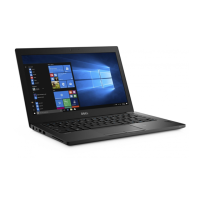
The Dell Latitude 7280 is a portable computer designed for various computing tasks, including productivity, communication, and entertainment. It runs on Windows 10 or Ubuntu operating systems, offering flexibility for different user preferences. The guide outlines the basic steps to get the device up and running, including power connection, operating system setup, and locating pre-installed Dell applications.

Important Technical Specifications

While detailed technical specifications are not explicitly listed in this quick start guide, the document highlights key components and ports that define the device's capabilities:

Processor/System: The device is capable of running Windows 10, indicating it has a processor and memory sufficient for modern operating systems. Connectivity:

  • Wired Network: Features a dedicated Network port for Ethernet connectivity.
  • Wireless Network: Supports Wi-Fi for wireless internet access.
  • USB Ports: Includes multiple USB 3.0 ports, with one featuring PowerShare functionality, allowing charging of external devices even when the laptop is off.
  • Video Output: Equipped with an HDMI port and a DisplayPort over USB Type-C (optional Thunderbolt™ 3), enabling connection to external displays.
  • Audio: Features a Headset port for audio input/output.
  • Card Readers: Includes a microSD port for memory expansion and an optional Smartcard reader.
  • SIM Card: A USIM port is available, suggesting potential for mobile broadband connectivity. Input Devices:
  • Keyboard: Standard laptop keyboard.
  • Touchpad: Integrated touchpad for navigation.
  • Power Button: Dedicated button for powering the device on/off. Camera and Audio:
  • Camera: Integrated camera with a status light.
  • Microphones: Built-in microphones for audio input. Security Features:
  • Security Cable Slot: Allows for physical security locking.
  • Fingerprint Reader: Optional fingerprint reader for biometric authentication. Other Sensors:
  • NFC Sensor: Optional Near Field Communication sensor for short-range wireless communication. Power: A dedicated Power connector port for the power adapter. Identification: Features a Service tag label and an Express Service Code for product identification and support. Regulatory Information: The regulatory model is P28S, and the regulatory type is P28S001. The computer model is Latitude 7280.

Usage Features

The Latitude 7280 is designed for ease of use, with features that facilitate quick setup and ongoing operation:

Initial Setup:

  • Power Connection: Simple process of connecting the power adapter and pressing the power button to start.
  • Operating System Setup: Guides the user through connecting to a network (Wi-Fi or wired) and signing into a Microsoft account or creating a local account for Windows 10. For Ubuntu, it directs users to follow on-screen instructions.
  • Network Connectivity: Provides clear instructions for connecting to a secured wireless network, including entering a password when prompted. User Interface:
  • Windows 10: Leverages the familiar Windows 10 interface for application management and system settings.
  • Ubuntu: Supports the Ubuntu operating system, offering an alternative environment for users. Dell Applications:
  • SupportAssist: A pre-installed Dell application that helps check and update the computer, monitor for issues, and automatically engage Dell Technical Support if needed. This feature simplifies maintenance and troubleshooting. Port Accessibility: The layout of ports (USB, HDMI, network, power, etc.) on the sides of the laptop allows for convenient connection of peripherals and external devices. Mobility: As a Latitude series laptop, it is designed for business and professional use, implying a focus on portability and durability.

Maintenance Features

The guide touches upon several aspects that contribute to the maintenance and support of the Dell Latitude 7280:

System Updates:
  • SupportAssist: This application is crucial for maintenance, as it helps users check for and install system updates, ensuring the software is current and secure. It also monitors the system for potential issues. Troubleshooting and Support:
  • SupportAssist: By monitoring for issues and potentially engaging Dell Technical Support, SupportAssist acts as a first line of defense for troubleshooting.
  • Service Tag and Express Service Code: These unique identifiers (located on the service tag label) are essential for obtaining support from Dell, allowing technicians to quickly access specific information about the device.
  • Online Resources: The guide provides links to Dell's support websites (Dell.com/support, Dell.com/support/manuals, Dell.com/support/windows, Dell.com/contactdell, Dell.com/regulatory_compliance) for comprehensive product support, manuals, and regulatory information. These resources are vital for self-help and detailed troubleshooting. Regulatory Compliance: The mention of regulatory and safety information (Dell.com/regulatory_compliance) indicates that the device adheres to various safety standards, which is an important aspect of long-term maintenance and safe operation. Software Environment: The ability to run either Windows 10 or Ubuntu allows users to choose an operating system that best suits their maintenance preferences, whether it's relying on Windows Update and built-in tools or leveraging the open-source community and package management of Ubuntu.

Dell Latitude 7280 P28S Specifications

General IconGeneral
BrandDell
ModelLatitude 7280 P28S
CategoryLaptop
LanguageEnglish

Related product manuals