EasyManua.ls Logo

Dell Latitude 7420 - User Manual

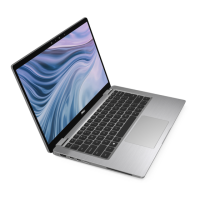
Dell Latitude 7420
85 pages
Print Icon
To Next Page IconTo Next Page
Loading...
Latitude 7420/Latitude 7420 2-in-1
Service Manual
Regulatory Model: P135G/P136G
Regulatory Type: P135G001/P136G001
July 2023
Rev. A04

Table of Contents

Other manuals for Dell Latitude 7420

Questions and Answers

  • K
    Kristie ParsonsAug 1, 2025
    What to do if Dell Latitude 7420 battery is swollen?
    • B
      brownbrandyAug 2, 2025
      If you observe swollen rechargeable Li-ion batteries in your Dell Laptop, discontinue using the laptop immediately. Then, discharge it by disconnecting the AC adapter and allowing the battery to drain completely. It is also recommended to replace and properly dispose of the swollen batteries. You may also contact Dell product support to explore options for replacing the swollen battery under your warranty or service contract.
  • A
    Ashley JohnsonAug 6, 2025
    What to do if TPM detection failure on Dell Latitude 7420?
    • D
      Douglas KingAug 6, 2025
      If you are experiencing a TPM detection failure on your Dell Laptop, try the following steps: First, disconnect all power sources (AC, battery, coin cell) and drain flea power by pressing and holding down the power button. Then, run the Dell Support Assist/Dell Diagnostics tool. If the problem persists after these steps, flash the latest BIOS version. If the issue still continues, confirm that the memory module is installed properly, and try resetting and swapping memory modules amongst the slots. As a last resort, reset the CMOS battery connection. If these steps do not resolve the problem, it may be necessary to replace the system board, the LCD module, or the RTS battery.
  • K
    Kyle Gonzalez Jr.Aug 10, 2025
    What to do if Dell Latitude 7420 has memory/RAM failure?
    • Z
      Zachary KnightAug 10, 2025
      In case of a memory or RAM failure in your Dell Laptop, try resetting and swapping the memory modules among the slots. If the issue persists, consider replacing the memory module.
  • S
    Steven HardyAug 15, 2025
    How to fix system board failure on a Dell Latitude 7420?
    • E
      ericamorganAug 15, 2025
      If you are experiencing a system board failure, including BIOS corruption or ROM errors, on your Dell Laptop, flash the latest BIOS version. If the problem continues after updating the BIOS, replace the system board.
  • G
    Gabriella BakerAug 19, 2025
    What to do if Dell Latitude 7420 says invalid memory installed?
    • L
      lori86Aug 19, 2025
      If your Dell Laptop indicates that invalid memory is installed, try resetting and swapping the memory modules among the slots. If the problem persists, replace the memory module.
  • D
    Diana FischerAug 23, 2025
    What to do if BIOS Recovery image is not found on Dell Latitude 7420?
    • J
      James HayesAug 23, 2025
      If the BIOS recovery image is not found on your Dell Laptop, flash the latest BIOS version.
  • A
    Ashley ClarkAug 27, 2025
    What to do in case of power rail failure on Dell Laptop?
    • T
      Tom WhiteAug 27, 2025
      If your Dell Laptop is experiencing a power rail failure, replace the system board.

Summary

Working on your computer

Safety instructions

Essential safety guidelines for working with the computer.

Service mode

Procedure to enter service mode for repairs without battery disconnection.

Before working inside your computer

Steps to take before starting internal computer procedures.

Safety precautions

Detailed safety measures to prevent damage and injury.

Electrostatic discharge-ESD protection

Methods and importance of protecting against ESD damage.

ESD field service kit

Components and usage of the ESD field service kit.

Transporting sensitive components

Guidelines for safely transporting sensitive computer parts.

After working inside your computer

Steps to follow after completing internal computer work.

Removing and installing components

Recommended tools

List of tools required for component removal and installation.

Screw List

Detailed list of screws used for various computer components.

Major components of your system

Visual identification of the main internal hardware components.

micro-SD card

Instructions for removing and installing the micro-SD card.

SIM card tray

Procedures for removing and installing the SIM card tray.

Base cover

Steps for removing and installing the computer's base cover.

Solid-state drive

Instructions for removing and installing the SSD.

WWAN card

Procedures for removing and installing the WWAN card.

Battery

Precautions and steps for removing/installing the rechargeable Li-ion battery.

Heat sink

Instructions for removing and installing the heatsink assembly.

Palmrest antenna module

Procedures for removing and installing the palmrest antenna module.

Display assembly

Steps for removing and installing the display assembly.

Audio board

Instructions for removing and installing the audio board.

Speakers

Procedures for removing and installing the speakers.

SmartCard reader

Steps for removing and installing the smart card reader.

System board

Detailed procedures for removing and installing the system board.

I;O board

Instructions for removing and installing the I/O board.

Power button with fingerprint reader

Steps for removing and installing the power button with fingerprint reader.

Keyboard

Procedures for removing and installing the keyboard.

Palmrest assembly

Instructions for removing and installing the palmrest assembly.

Software

Operating system

Supported operating systems for the Latitude 7420 laptop.

Drivers and downloads

Information on obtaining and installing system drivers.

BIOS setup

BIOS overview

Explanation of the BIOS and its function in managing computer data flow.

Entering BIOS setup program

Step-by-step guide to access the BIOS setup.

Navigation keys

Explanation of keys used for navigating BIOS setup menus.

One Time Boot menu

How to access and use the one-time boot menu.

System setup options

Overview of system setup configuration options.

Updating the BIOS

Procedures for updating the BIOS in Windows and via USB.

System and setup password

Information on setting, changing, and clearing system passwords.

Troubleshooting

Handling swollen rechargeable Li-ion batteries

Safety guidelines and procedures for swollen batteries.

Dell SupportAssist Pre-boot System Performance Check diagnostics

How to run hardware diagnostics using SupportAssist.

Built-in self-test (BIST)

Introduction to built-in self-test diagnostics for system components.

LCD Power rail test (L-BIST)

Procedure for testing the LCD power rail.

LCD Built-in Self Test (BIST)

How to perform a self-test on the laptop's LCD screen.

System-diagnostic lights

Interpretation of system diagnostic LED blink patterns for troubleshooting.

Recovering the operating system

Using Dell SupportAssist OS Recovery for system recovery.

Real-Time Clock (RTC Reset)

Procedure to reset the Real-Time Clock for system recovery.

Backup media and recovery options

Recommendations for creating backup and recovery media.

Wi-Fi power cycle

Steps to perform a Wi-Fi power cycle to resolve connectivity issues.

Drain residual flea power (perform hard reset)

How to drain residual power for hard reset and component safety.

Getting help and contacting Dell

Self-help resources

List of Dell resources for product information and support.

Dell Latitude 7420 Specifications

General IconGeneral
Harmonized System (HS) code84713000

Videos

How to replace LCD screen on Dell Latitude 7420

Related product manuals