EasyManua.ls Logo

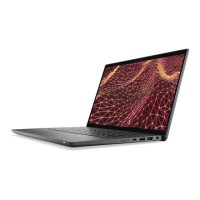
Dell Latitude 7430 - User Manual

Dell Latitude 7430
18 pages
Print Icon
To Next Page IconTo Next Page
Loading...
|
|
/
Quick Start
快速入 | 快速啟動 | Démarrage rapide | Quick Start
Mulai Cepat | クイックスタート | 빠른 시작 | Início rápido
Руководство по быстрому началу работы | Початок роботи
Brzi početak | Brzo pokretanje | Inicio rápido
ﻊﯾرﺳﻟا لﯾﻐﺷﺗﻟا הריהמ הלחתה
Regulatory Model/Type
管制型号/类型 | 管制型號/類型 | Type/Modèle réglementaire | Vorschriftenmodell/-Typ | Tipe/Model Resmi
規制モデル / タイプ | 규정 모델/유형 | Tipo ou modelo de normalização
Нормативная модель/тип | Модель/тип за нормативами | Regulatorni model/tip
Regulatorni model/tip Modelo/tipo regulatorio
ﻲﺑﺎﻗرﻟا زارطﻟا/عوﻧﻟا הניקת גוס/םגד
Información para NOM, o Norma Oficial Mexicana
La información que se proporciona a continuación se mostrará en los dispositivos que se describen en este
documento, en conformidad con los requisitos de la Norma Oficial Mexicana (NOM):
Importador:
Dell México, S.A. de C.V
Av. Javier Barros Sierra, no 540, Piso 10, Col. Lomas de Santa Fe
Delegación Álvaro Obregón, Ciudad de México. C.P. 01219
R.F.C: DME9204099R6
País de origen: Hecho en China

Latitude 7430
P135G
P135G002

Other manuals for Dell Latitude 7430

Questions and Answers

  • J
    Joseph WattsAug 19, 2025
    What to do if my Dell Latitude 7430 battery is swollen?
    • D
      Danielle OrtizAug 19, 2025
      If you notice that the battery in your Dell Laptop is swollen, discontinue using the laptop. To discharge the battery, disconnect the AC adapter and allow the battery to drain completely.
  • B
    brandongarciaAug 21, 2025
    What to do if my Dell Latitude 7430 battery swelling impacts performance?
    • Z
      Zachary NavarroAug 21, 2025
      If a swollen battery is impacting the performance of your Dell Laptop, replace the swollen battery and dispose of it properly.
  • L
    Latasha RodriguezAug 25, 2025
    What to do if no memory/RAM is detected in my Dell Latitude 7430 Laptop?
    • T
      Tamara KingAug 25, 2025
      If your Dell Laptop isn't detecting any memory or RAM, make sure the memory module is properly installed.
  • B
    barbarafoxAug 26, 2025
    What to do if my Dell Latitude 7430 has memory/RAM failure?
    • R
      rspencerAug 26, 2025
      If you are experiencing memory or RAM failure in your Dell Laptop, try resetting and swapping the memory modules among the slots.
  • N
    Nicole MasonAug 27, 2025
    What to do if my Dell Laptop has invalid memory installed?
    • T
      Timothy JuarezAug 28, 2025
      If your Dell Laptop indicates that invalid memory is installed, try resetting and swapping the memory modules among the slots.
  • M
    Michael HumphreyAug 30, 2025
    What to do if my Dell Laptop detects flash corruption by SBIOS?
    • M
      Melissa RodgersAug 30, 2025
      If SBIOS detects flash corruption in your Dell Laptop, press and hold the power button for over 25 seconds to perform an RTC reset.
  • A
    Alison McconnellSep 1, 2025
    What to do if my Dell Latitude 7430 has a system board/chipset error?
    • D
      Daniel WarnerSep 1, 2025
      If your Dell Laptop is showing a system board or chipset error, you should replace the system board.
  • M
    Mark HernandezSep 3, 2025
    What to do if my Dell Laptop has a power rail failure?
    • J
      Jennifer SteinSep 3, 2025
      If your Dell Laptop experiences a power rail failure, you should replace the system board.
  • T
    Taylor WilliamsSep 5, 2025
    What to do if my Dell Latitude 7430 Laptop has an unrecoverable SPI Flash Failure?
    • T
      Timothy GuzmanSep 5, 2025
      If your Dell Laptop experiences an unrecoverable SPI Flash Failure, you should replace the system board.
  • A
    Anthony MyersSep 7, 2025
    What to do if my Dell Latitude 7430 Laptop LCD failure (SBIOS message)?
    • A
      aaron63Sep 8, 2025
      If your Dell Laptop displays an LCD failure message from SBIOS, you should replace the LCD module.

Summary

Quick Start Guide

Regulatory Model and Type

Identifies the regulatory model and type for compliance purposes.

Mexican Official Standard (NOM) Information

Details related to the Mexican Official Standard (NOM).

MCMC Certification Mark

Windows System Information Check

Steps to verify system details within Windows.

Ubuntu System Information Check

Steps to verify system details within Ubuntu.

Importer and Origin Details

Safety and Regulatory Compliance

Accessing Regulatory Compliance Homepage

Guide to finding further safety information on the Dell compliance website.

Computer Cover Handling and Internal Access

Installing Internal Accessories Safely

Procedures for removing and installing internal computer parts.

FCC Certification and System Integrity

Filler Brackets for FCC Compliance

Importance of filler brackets for FCC certification and airflow.

Power Adapter Technical Specifications

Adapter Input Voltage and Current

Specifications for the power adapter's input voltage and maximum current.

Adapter Input Frequency Range

Details the required input frequency for the power adapter.

Adapter Output Voltage and Current

Specifications for the power adapter's output voltage and current.

Maximum Adapter Operating Temperature

The highest permissible operating temperature for the power adapter.

Connecting Power to Your Device

Power Cable and Adapter Connection Steps

Procedure for connecting the power adapter or cable to the computer and display.

Powering On Your Laptop

Initial Computer Power-On Procedure

How to turn on the computer and display for the first time.

Icon Guide: Power, USB, and Thunderbolt Ports

Power Adapter and USB Port Icons

Icons for power adapters and various USB types, including PowerShare functionality.

Thunderbolt and eSATA Port Icons

Icons for Thunderbolt ports with Power Delivery and eSATA ports.

Icon Guide: Network, Video, and Audio Interfaces

Network, Video, and Audio Connector Icons

Icons for network, VGA, DVI, HDMI, DisplayPort, and audio ports.

External Graphics and IR Emitter Icons

Icons for external graphics ports and infrared emitters.

Icon Guide: Audio and Speaker Configurations

Microphone, Line-in, and Speaker Output Icons

Icons for microphone input, line-in, and various speaker outputs.

Speaker System and S;PDIF Audio Icons

Icons representing different speaker configurations and S/PDIF digital audio.

Icon Guide: System Status and Slots

Screen Rotation and Card Slot Icons

Icons for screen rotation lock, SIM, ExpressCard, and media card slots.

System Status and Activity Light Icons

Icons for power, battery status, and hard drive activity indicators.

Icon Guide: Wireless Connectivity Status

Wi-Fi Status Light Icon

Icon for the Wi-Fi wireless connectivity status light.

Bluetooth Status Light Icon

Icon for the Bluetooth wireless connectivity status light.

Laptop Exterior Views and Port Identification

Identification of Laptop Ports and Connectors

Labels for various ports like USB, HDMI, audio, and card slots.

Dell Latitude 7430 Specifications

General IconGeneral
Processor12th Gen Intel Core i5/i7
RAMUp to 32GB DDR4
GraphicsIntel Iris Xe Graphics
BluetoothBluetooth 5.2
Display14-inch FHD (1920 x 1080)
StorageUp to 1TB SSD
Operating SystemWindows 11 Pro
Battery4-cell 58 Whr
PortsHDMI 2.0
WirelessWi-Fi 6E (802.11ax)
SecurityFingerprint reader, Smart Card reader, TPM 2.0

Related product manuals