Need help?
Do you have a question about the Dell P102F002 and is the answer not in the manual?
Connect the power adapter and press the power button to turn on the computer.
Follow on-screen instructions to finish the operating system setup.
Access essential Dell applications for system support and information.
Identifies components on the display side, including microphones and camera.
Details the microSD card reader, audio jack, USB ports, and lock slot.
Lists the power connector, power LED, HDMI port, and USB Type-C port.
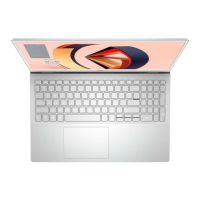
Highlights the power button, fingerprint reader, keyboard, and touchpad.
Shows the speakers, base cover, and service tag label on the bottom.
Lists function key combinations for various system controls.
Specifications for processor, chipset, bus width, and memory.
Details memory configurations and supported storage drive types.
Lists external and internal ports, including USB, HDMI, network, and M.2.
Specifications for audio controller, graphics cards, and front camera.
Details Ethernet and wireless module specifications.
Information on power adapter wattage, battery type, and operating conditions.
Covers display panel specs, luminance, and keyboard layout.
Details touchpad functionality and security features like TPM.
Lists security software and environmental operating conditions.
Step-by-step guide for obtaining and installing necessary device drivers.
Accessing the boot menu and configuring the boot device sequence.
Overview of BIOS setup and how to navigate its options.
Settings for Secure Boot, boot modes, and key management.
Enable/disable camera, audio, USB, and other integrated hardware.
Configure storage controller modes and adjust display brightness.
Manage network connections and optimize power settings.
Configure TPM, Secure Boot, and password protection.
Procedures for updating BIOS and managing OS recovery.
Customize keyboard settings and pre-boot behavior.
Configure processor performance, virtualization, and system logs.
Guides for updating BIOS using Windows or the F12 menu.
Steps for setting, changing, or deleting system and setup passwords.
Information on how to reach Dell for technical assistance and service.
 General
| Category | Laptop |
|---|---|
| RAM | 8GB DDR4 |
| Storage | 256GB SSD |
| Model | P102F002 |
| Operating System | Windows 10 |
| Graphics | Intel UHD Graphics 620 |
| Battery | 3-cell, 42Whr |


 To Next Page