Need help?
Do you have a question about the Dell P108F and is the answer not in the manual?
Enables the operating system to load and initiates the computer's setup process.
Controls hardware, serving as the base for other software operations.
Facilitates communication and settings adjustment for system board components.
Microsoft updates that fix and optimize the operating system.
Enables and enhances the functionality of the media-card reader.
Enhances data storage virtualization and protection against drive failure.
Optimizes video performance and adds functionality beyond the native VGA driver.
Enables and enhances the computer's audio controller.
Includes drivers for security features like fingerprint sensors.
Installs Dell-specific applications like Dell Update and Power Manager.
Drivers for Wi-Fi, Bluetooth, and Ethernet adapters.
Step-by-step guide to update the BIOS using the Windows operating system.
Procedure to reset BIOS settings to factory defaults if the computer fails to boot.
Instructions for enabling and configuring TPM security within the BIOS.
Instructions on how to find available drivers and applications for your computer.
Software for Intel chipset components, often not included in the OS.
Importance of installing latest Windows updates for system stability and security.
Driver for the built-in media card reader, typically Realtek.
Software for managing SATA/RAID storage and protecting against data loss.
Driver for optimal graphics performance, beyond the basic VGA driver.
Driver for the computer's audio controller, enhancing sound capabilities.
Driver for the fingerprint sensor, enabling biometric authentication.
Application for managing power settings and battery health.
Drivers enabling wireless network connectivity.
Information and drivers for connecting peripherals via the WD19 docking station.
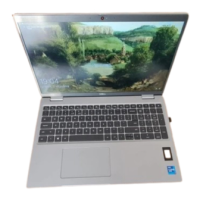
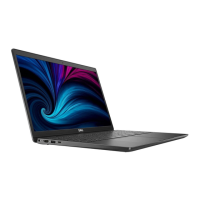
The Dell Latitude 3530 is a business-oriented laptop designed for productivity and reliability, primarily running on Windows operating systems. This re-imaging guide focuses on providing system administrators with the necessary steps to reinstall the operating system, drivers, and applications to ensure optimal performance and address software-related issues.
The Latitude 3530 serves as a versatile computing platform, capable of handling a wide range of business tasks. Its core function is to provide a stable and efficient environment for users to perform their daily work, whether it involves document creation, data analysis, communication, or multimedia consumption. The re-imaging process, as detailed in this guide, is crucial for maintaining the device's functionality and security over its lifespan. It allows for the complete removal of existing software, including any corrupted files or malicious programs, and the installation of a fresh, validated software stack. This ensures that the operating system, drivers, and applications work in harmony, delivering the best possible user experience. The guide emphasizes the importance of installing Dell-recommended software and settings, which have been tested and validated for this specific model, to enhance optimal performance.
The Latitude 3530, once properly re-imaged, offers a robust set of features for everyday use. The re-imaging process itself is a critical usage feature for system administrators, enabling them to restore the device to a known good state. The guide outlines a specific order of reinstallation, starting with the BIOS, followed by the Windows operating system (Windows 10 or Windows 11), and then various drivers and applications. This structured approach ensures that all components are recognized and function correctly.
Key drivers and applications covered in the re-imaging sequence include:
The guide stresses that installing drivers from non-Dell websites can lead to performance issues, corrupted operating system files, blue screen errors, unexpected shutdowns, or malicious software infections. Therefore, downloading drivers exclusively from the Dell Drivers & Downloads website is strongly recommended.
The Latitude 3530's re-imaging guide itself serves as a crucial maintenance tool for system administrators. It provides a structured approach to resolving software-related issues and ensuring the long-term health of the device.
Key maintenance features facilitated by the guide include:
In essence, the Latitude 3530, supported by this comprehensive re-imaging guide, offers a robust and manageable computing solution for businesses, with clear pathways for installation, usage, and ongoing maintenance.
 General
| RAM | 8GB DDR4 |
|---|---|
| Storage | 256GB Solid State Drive |
| Display | 1920 x 1080 |
| Graphics | Intel HD Graphics 620 |
| Operating System | Windows 10 |

 To Next Page