NOTE: Ensure that your computer is in Service Mode. For more information see, step 6 in Before working inside your
computer.
2. Remove the base cover.
About this task
NOTE: This procedure applies only to computers shipped with an M.2 2230 solid-state drive installed.
NOTE: The M.2 solid-state drive installed on your computer depends on the configuration ordered. The M.2 slot supports
one of the following solid-state drives:
● M.2 2230 solid-state drive
A mounting bracket for the M.2 2230 solid-state drive is required. The mounting bracket is provided if the M.2 2230
solid-state drive is shipped with the computer.
If you are replacing the M.2 2230 solid-state drive with a new M.2 2230 solid-state drive, use the existing mounting
bracket to install the latter.
● M.2 2280 solid-state drive
If you are replacing the M.2 2280 solid-state drive (shipped with the computer) with an M.2 2230 solid-state drive, a
mounting bracket for the M.2 2230 solid-state drive is required. Please contact Dell support to purchase the mounting
bracket for the M.2 2230 solid-state drive.
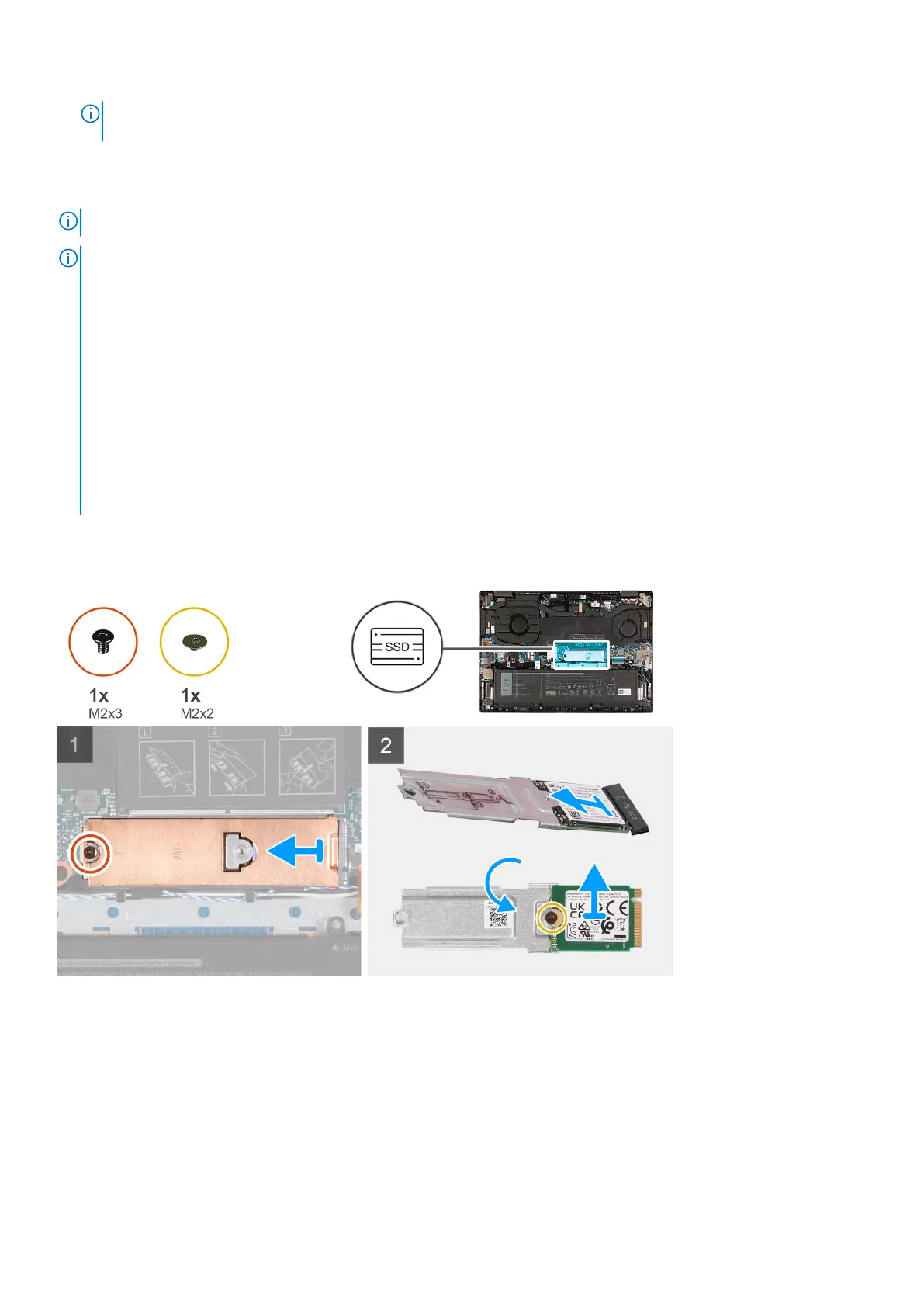
The following image(s) indicate the location of the M.2 2230 solid-state drive and provides a visual representation of the
removal procedure.
Steps
1. Remove the screw (M2x3) that secures the M.2 thermal shield to the system board.
2. Slide and lift the M.2 thermal shield off the M.2 2230 solid-state drive assembly.
3. Turn over and place the M.2 2230 solid-state drive assembly on a dry and flat surface.
4. Remove the screw (M2x2) that secures the M.2 2230 solid-state drive to the M.2 mounting bracket.
5. Lift the M.2 2230 solid-state drive off the M.2 mounting bracket.
20
Removing and installing components



 To Next Page