44 Operating the Monitor Operating the Monitor 45
Setting the Maximum Resolution
In Windows Vista
®
, Windows
®
7 or Windows
®
8/Windows
®
8.1 :
1. For Windows
®
8 / Windows
®
8.1 only, select the Desktop tile to switch to
classic desktop.
2. Right-click on the desktop and click Screen resolution.
3. Click the Dropdown list of the Screen resolution and select 1920 x 1080.
4. Click OK.
In Windows
®
10:
1. Right-click on the desktop and click Display Settings.
2. Click Advanced display settings.
3. Click the Dropdown list of the Resolution and select 1920 x 1080.
4. Click Apply.
If you do not see 1920 x 1080 as an option, you may need to update your
graphics driver. Depending on your computer, complete one of the following
procedures:
If you have a Dell desktop or portable computer:
• Go to www.dell.com/support, enter your service tag, and download
the latest driver for your graphics card.
If you are using a non-Dell computer (portable or desktop):
• Go to the support site for your computer and download the latest
graphic drivers.
• Go to your graphics card website and download the latest graphic
drivers.
Using the Tilt, Swivel, and Vertical Extension
NOTE: This is applicable for a monitor with a stand. When any other
stand is bought, please refer to the respective stand setup guide for
set up instructions.
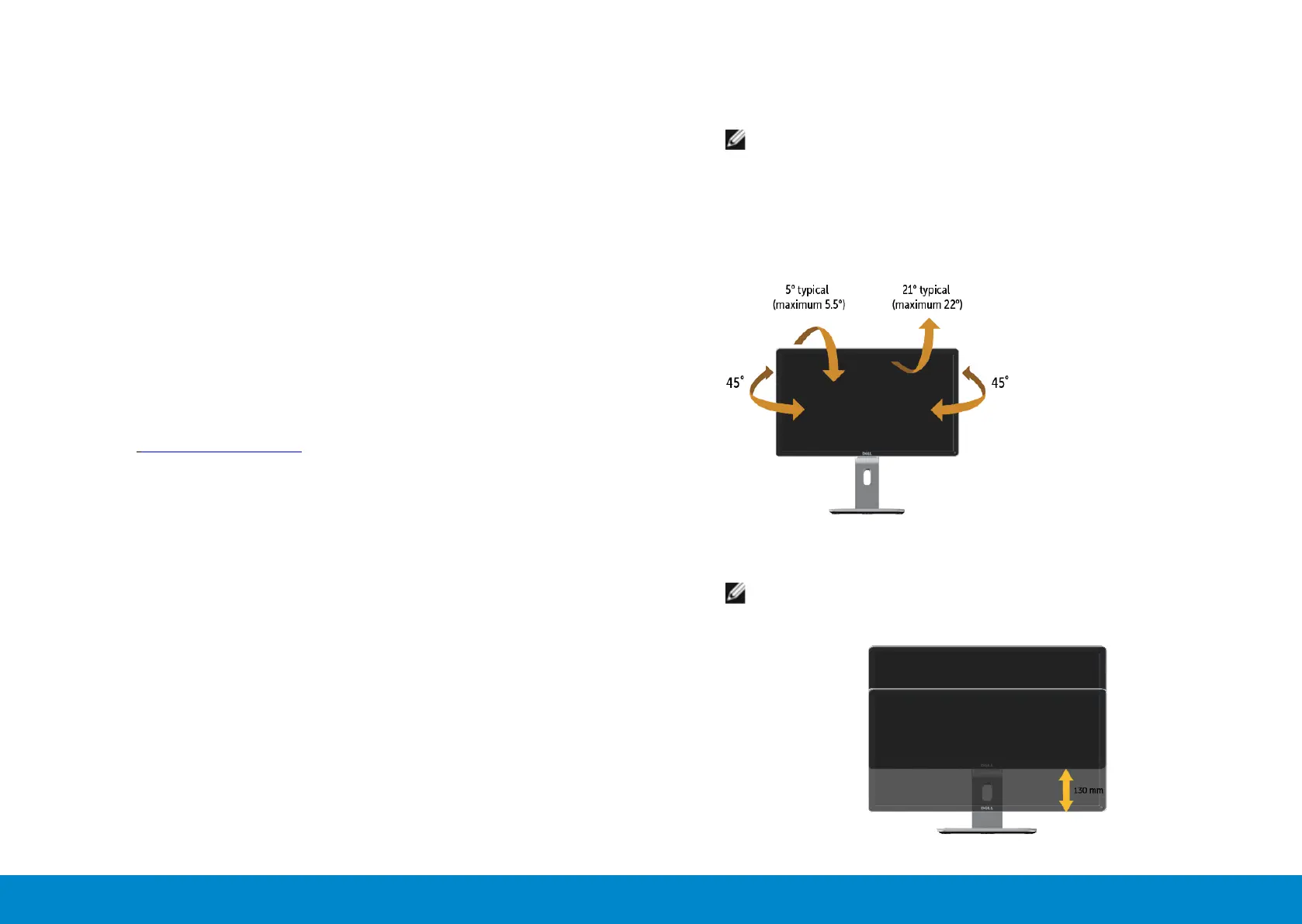
Tilt, Swivel
With the built-in pedestal, you can tilt the monitor for the most comfortable
viewing angle.
Vertical Extension
NOTE: The stand extends vertically up to 130 mm. The figure below
illustrates how to extend the stand vertically.


 To Next Page