EasyManua.ls Logo

Dell P26T001 - User Manual

Dell P26T001
61 pages
Print Icon
To Next Page IconTo Next Page
Loading...
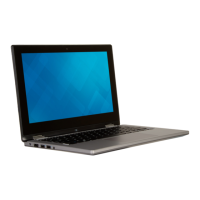
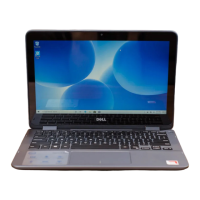
Inspiron 3181 2-in-1
Service Manual
Regulatory Model: P26T
Regulatory Type: P26T001
October 2020
Rev. A01

Table of Contents

Other manuals for Dell P26T001

Questions and Answers

  • B
    Brittany BrownAug 18, 2025
    Why won't my Dell P26T001 Chromebook turn on?
    • C
      Craig Barber Jr.Aug 18, 2025
      If your Dell Chromebook won't power on, there could be several reasons. First, remove all external devices. If it starts, reconnect devices one at a time to find the problem device. The battery might be too low, so plug it into the AC adapter and charge for at least an hour. Your Chromebook might be in shipping mode; turn it off, plug in the AC adapter, and turn it on again. If charging doesn't help, try a hard reset, using a different AC adapter, or turning on with battery power only.
  • H
    hansennicoleAug 20, 2025
    What to do if my Dell P26T001 Laptop Chromebook screen is blank?
    • T
      Tracy DavidsonAug 21, 2025
      If your Dell Chromebook screen is blank, ensure the Chromebook is powered on. If using battery, plug it in and press the power button. You can also restart the Chromebook by holding the power button until it turns off, then turning it back on. As a last resort, reset or recover the Chromebook.
  • L
    Laurie SullivanAug 23, 2025
    How to fix a Dell P26T001 Chromebook touchpad that is not responding?
    • P
      powellmatthewAug 23, 2025
      If your Dell Chromebook's touchpad isn't responding, try these steps. First, tap the Esc key several times. Then, drumroll your fingers across the touchpad for a few seconds. Restart the Chromebook by holding the power button until it turns off, then turn it back on. If the cursor still doesn't move, try logging in from the Guest account using the tab key. If the issue occurs with a non-owner account, delete and recreate the user account. As a last resort, reset or recover the Chromebook.
  • M
    Michelle CurtisAug 26, 2025
    How to troubleshoot audio issues on a Dell P26T001 Laptop Chromebook?
    • C
      Carla BurchAug 26, 2025
      To troubleshoot audio issues on your Dell Chromebook, first ensure the device isn't muted and try adjusting the volume. Reboot the Chromebook. Try playing audio from various sources, including YouTube and local audio files.
  • K
    Kelly JohnstonAug 27, 2025
    How do I fix a Dell P26T001 Chromebook screen that is too dark?
    • M
      Megan NavarroAug 27, 2025
      If your Dell Chromebook screen isn't operating properly, try adjusting the brightness using the brightness keys at the top of the keyboard. Also, check the display settings in the status area to ensure there are no issues with mirrored or extended displays. Rebooting the Chromebook may also resolve the issue. If the screen issues persist, reset or recover the Chromebook.
  • M
    Mary CarsonAug 30, 2025
    What to do if Dell Laptop Chromebook speakers are not responding?
    • D
      Darren AndersonAug 30, 2025
      If your Dell Chromebook's speakers aren't responding, unplug the device from all cables (USB, headphones, and displays). Try playing audio from various sources, including YouTube and local audio files. Reboot the Chromebook. If audio still doesn't respond, reset or recover the Chromebook.
  • D
    David KrauseSep 1, 2025
    What to do if the top row of keys (Hotkeys) are not responding on Dell P26T001 Laptop Chromebook?
    • M
      Monica WhiteSep 1, 2025
      If the top row of keys (hotkeys) on your Dell Chromebook aren't responding, and the affected key is volume or brightness, check that you are not at the upper or lower limit for that setting. If the backward or forward buttons don't work, check that the same icons in a web browser are not grayed out. Restart the Chromebook. Try using the keys in the Guest account. If issues persist with a non-owner account, delete and recreate the user account. As a last resort, reset or recover the Chromebook.
  • R
    rmeyersSep 3, 2025
    What to do if Chrome OS stops responding on Dell P26T001?
    • E
      Edward DanielSep 3, 2025
      If Chrome OS stops responding on your Dell Laptop, turn off the computer. Disconnect all peripheral devices, and remove all USB devices and media cards. Disconnect the AC adapter. Press and hold the power button for 10 seconds. Reconnect the AC adapter, and turn on the system. If the issue persists, reset or recover the Chromebook.
  • S
    shannonwrightSep 5, 2025
    How do I resolve Bluetooth issues on my Dell P26T001 Laptop Chromebook?
    • N
      Nicholas MatthewsSep 6, 2025
      To resolve Bluetooth issues on your Dell Chromebook, first ensure the Bluetooth device is supported. Try disabling and re-enabling Bluetooth connectivity from the status area. Restarting the Chromebook can also help. If issues persist, reset or recover the Chromebook.
  • J
    Johnny LawsonSep 8, 2025
    How to fix blurry images from my Dell P26T001 Chromebook camera?
    • K
      Kevin SmithSep 8, 2025
      If your Dell Chromebook camera isn't operating properly, check that it's not blocked by a privacy screen or other obstruction. Try using different apps that use the camera, such as Google+ Hangout or the onboard camera app. Reboot the Chromebook. If issues persist, reset or recover the Chromebook.

Dell P26T001 Specifications

General IconGeneral
ModelDell P26T001
CategoryLaptop
RAM8GB DDR4
Storage256GB SSD
Resolution1920x1080
Operating SystemWindows 10 Pro
Battery42 Wh

Related product manuals