Troubleshooting 55
Troubleshooting Tips
If you experience problems with your projector, see the following
troubleshooting tips. If your problem persists, please contact Dell.
4
Troubleshooting
Problem Possible Solution
No image appears on the
screen
•
Ensure that you have chosen the correct
input source on the INPUT SOURCE
menu.
•
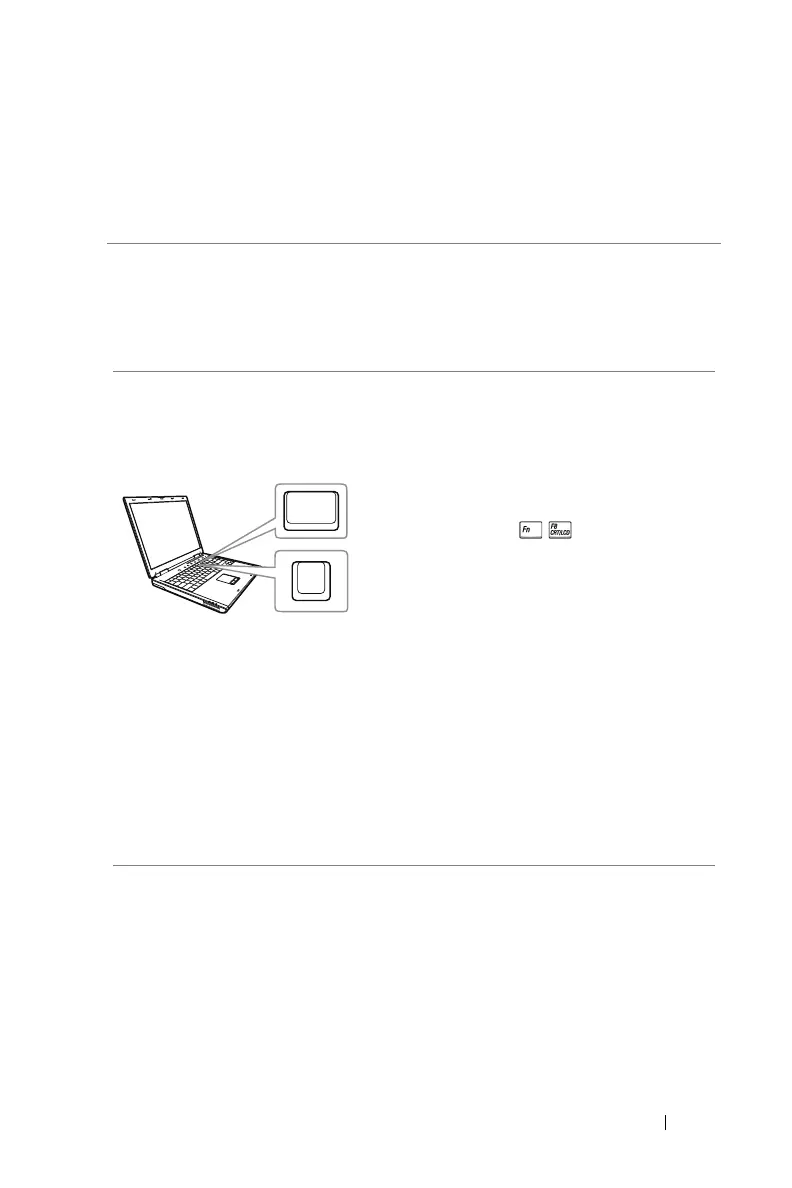
Ensure the external graphics port is
enabled. If you are using a Dell laptop
computer, press (Fn+F8). For
other computers, see your respective
documentation. If images are not
displayed properly, please upgrade the
video driver of your computer. For Dell
computers, see www.dell.com/support.
•
Ensure that all the cables are securely
connected. See "Adjusting Projector
Image" on page 12.
•
Ensure that the pins of the connectors are
not bent or broken.
•
Use the Test Pattern in the Projector
Settings of the Advanced Settings menu.
Ensure that the colors of the test pattern
are correct.


 To Next Page