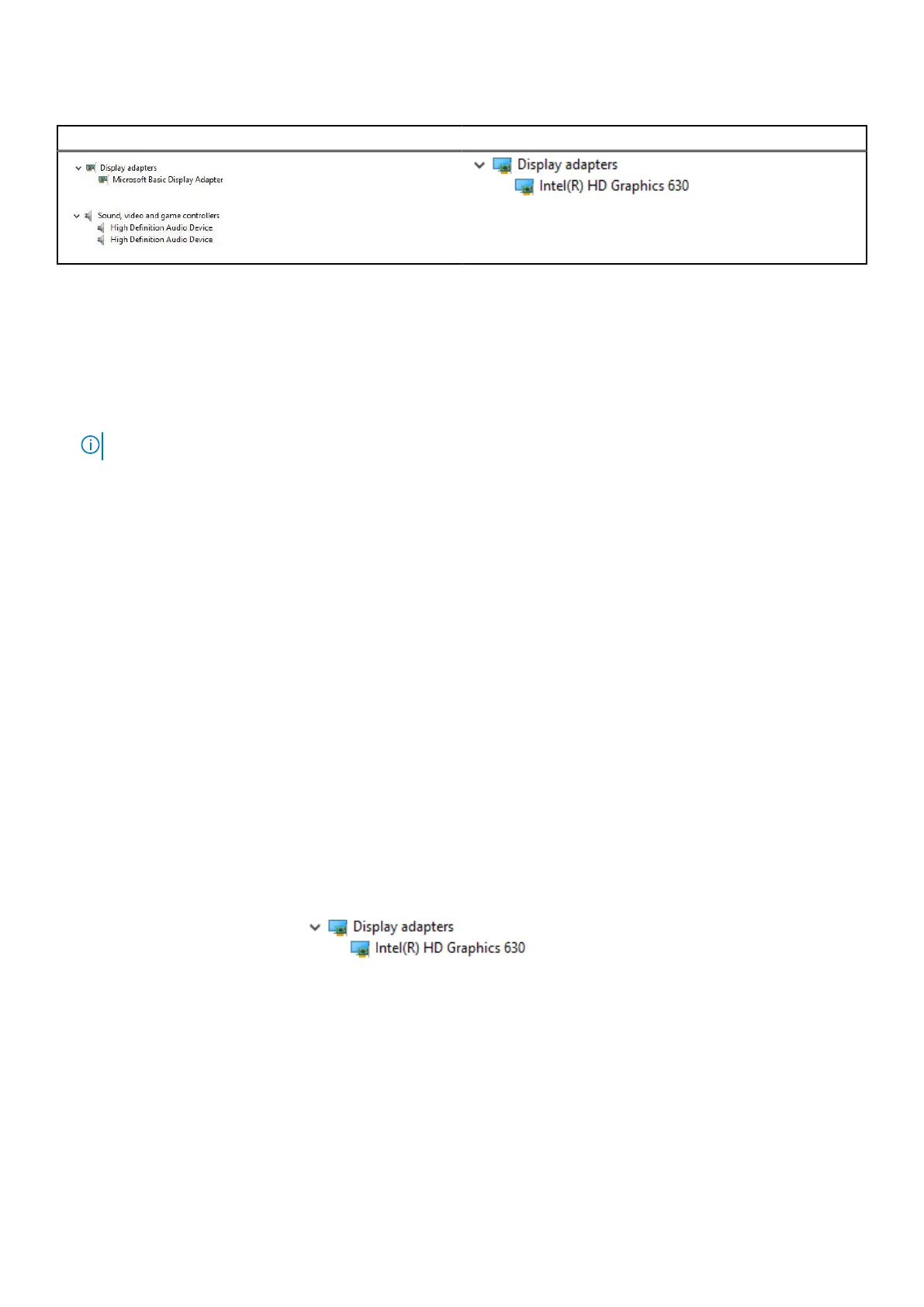
Table 5. Intel HD Graphics drivers
Before installation After installation
Downloading drivers
Steps
1. Turn on the notebook.
2. Go to Dell.com/support.
3. Click Product Support, enter the Service Tag of your notebook, and then click Submit.
NOTE: If you do not have the Service Tag, use the auto detect feature or manually browse for your notebook model.
4. Click Drivers and Downloads.
5. Select the operating system installed on your notebook.
6. Scroll down the page and select the driver to install.
7. Click Download File to download the driver for your notebook.
8. After the download is complete, navigate to the folder where you saved the driver file.
9. Double-click the driver file icon and follow the instructions on the screen.
Display options
This laptop has the following display options:
● 14.0-inch HD Anti-glare (!366 x 768)
● 14.0-inch FHD Anti-glare (1920 x 1080)
● 14.0-inch FHD Touch (1920 x 1080)
Identifying the display adapter
Steps
1. Right Click the Start menu.
2. Select Device Manager.
3. Expand Display adapters.
The display adapters are displayed.
Changing the screen resolution
Steps
1. Right click on the desktop and select Display Settings.
2. Tap or click Display settings.
The Setting window is displayed.
3. Scroll down and select Advanced Display Settings.
The Advanced Display Setting is displayed.
4. Select the required resolution from the drop-down list and tap Apply.
64
Technology and components



 To Next Page