EasyManua.ls Logo

Dell PN9315A - User Manual

Dell PN9315A
18 pages
Print Icon
To Next Page IconTo Next Page
Loading...
Dell
XPS
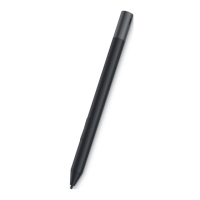
Active Pen
PN9315A
User’s Guide
Regulatory Model: PN9315A

Questions and Answers

  • P
    patricia93Aug 6, 2025
    What to do if Dell PN9315A pen shows as Not Connected?
    • S
      Stephanie SullivanAug 6, 2025
      If your Dell Tablet Accessories pen shows as Not Connected under the Bluetooth devices list, it might not be paired correctly. To fix this, install the latest Bluetooth driver for your device. Alternatively, remove the pen from your Bluetooth list and pair it again.
  • T
    Thomas WalkerAug 12, 2025
    Why I am unable to pair the pen with my Dell PN9315A Tablet Accessories?
    • W
      wilsonmichaelAug 12, 2025
      If you're unable to pair the pen with your Dell Tablet Accessories, first ensure you're using a supported Dell device, as the pen is only compatible with specific models. Also, make sure the Bluetooth driver on your device is up to date; if it's outdated, install the latest version.
  • C
    Christopher DavisAug 18, 2025
    Why pressing the top button does not wake up my Dell Tablet Accessories?
    • J
      Jessica CardenasAug 18, 2025
      If pressing and holding the top button or pressing the top button twice in succession does not wake up your Dell computer or tablet from connected standby, your device may not support the connected standby feature. Ensure that you are using this feature on computers and tablets that support it.
  • J
    jonathanmcknightAug 25, 2025
    How to fix screenshot capture with Dell PN9315A?
    • A
      Austin DavisAug 25, 2025
      If pressing the top button twice in succession does not capture a screenshot on your Dell Tablet Accessories, it might be because the Windows update KB2968599 is not installed on your device. Install the Windows update KB2968599 from the Microsoft website to resolve this.
  • J
    James WilliamsAug 30, 2025
    What to do if Dell PN9315A pen does not work?
    • M
      manuelfoleyAug 30, 2025
      If your Dell Tablet Accessories pen does not work, or the Bluetooth pairing light does not turn on, there could be several reasons. It might be an unsupported device, in which case the pen will only work with supported Dell devices. The battery could be fully drained, so connect the device to the charging area of your computer. The pen might not be paired with your device, or the device has lost pairing; in this case, remove the pen from the list of Bluetooth devices and manually repair it with your device. Also, boot up DPM to check the function assignment of the barrel buttons.

Summary

Whats in the box

Features

Setting up your PN9315 A

Connecting and charging your device

Instructions for charging and activating the pen via tablet connection.

Manual Bluetooth pairing

Step-by-step guide for manual Bluetooth pairing of the pen.

Dell Peripheral Manager

Holding your PN9315 A

Specifications

Replacing the pen nib

Tile

Troubleshooting

Statutory information

Regulatory statement

Getting help and contacting Dell

Dell PN9315A Specifications

General IconGeneral
BrandDell
ModelPN9315A
CategoryTablet Accessories
LanguageEnglish

Related product manuals