Features
5
Feature Functionality
2
Features
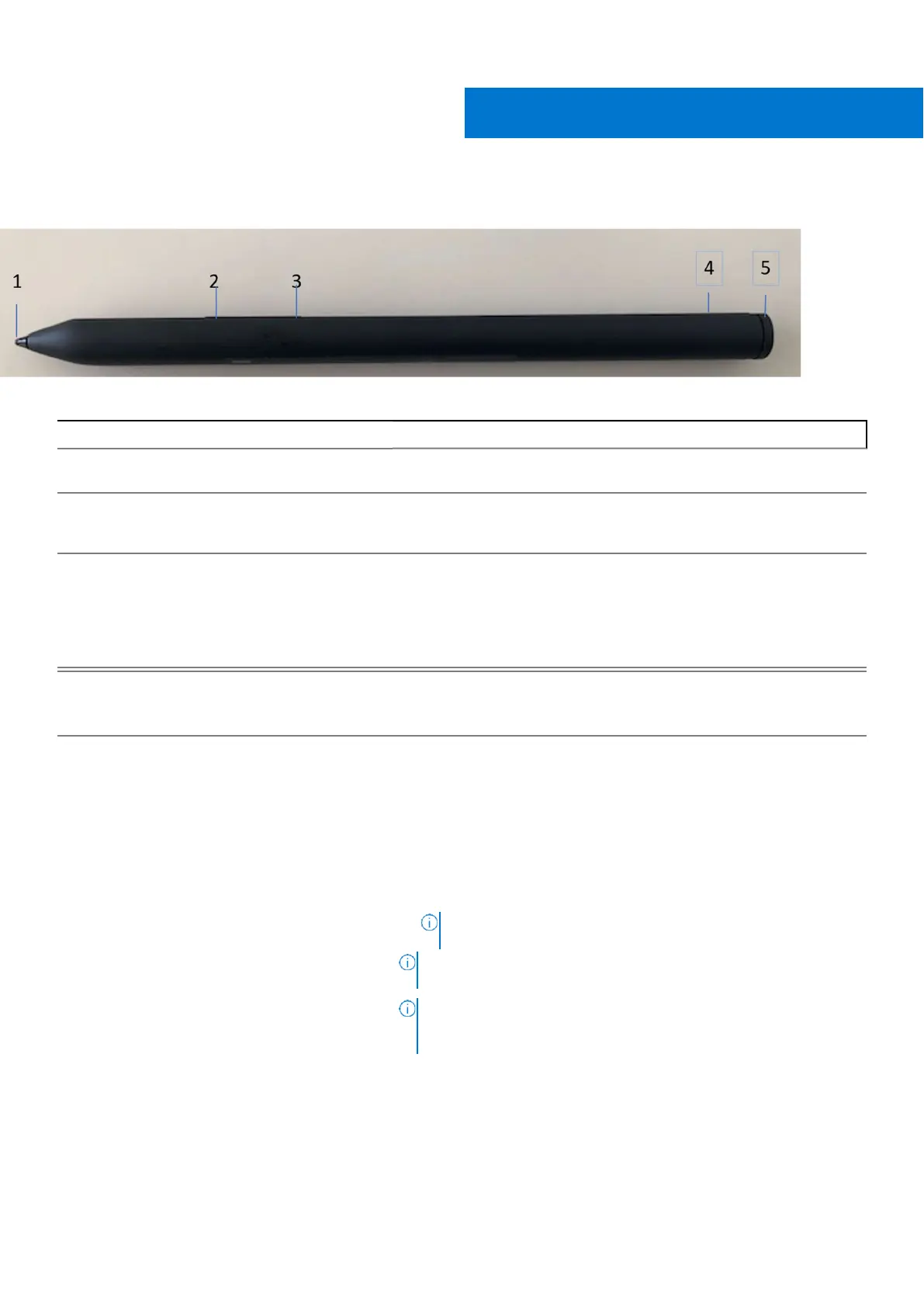
Table 1. Features and functionality of your PN9315A
1
Tip Move the tip over a touch screen to move the pointer. Enables you to
write, draw, and select objects.
2
Bottom barrel button Press and hold this button and move the tip over the area you want to
erase. To change the functionality of this button, see Dell Peripherals
Manager.
3
Top barrel button ● Press this button to open the context menu or perform a right- click.
To change the functionality of this button, see Dell Peripherals
Manager.
● Press and hold top and bottom barrel button for 3 seconds to enable
Bluetooth pairing mode. This also allows your pen to pair with Tilevia
Bluetooth.
4
LED indicator A blinking white light indicates the pairing mode is enabled. A solid white
light indicates the pairing is complete. For information on pairing your
PN9315A with a Bluetooth device, see Pairing with a Bluetooth device.
5
Top button
Before Bluetooth pairing your PN9315A with your computer:
● Press and hold for 3 seconds to enable pairing mode.
After Bluetooth pairing your PN9315A with your computer:
●
Single Press — Launch PN9315A menu
●
Double Press — Take a screenshot
● Long Press (1.5s) — Launch Sticky Notes
●
Press and hold or press twice in succession to wake your Bluetooth
paired computer from sleep.
NOTE:
This feature is only available on system that support
Modern Standby mode.
NOTE:
These functions are available only in Windows 10 and
Windows 11.
NOTE:
These functions can be changed by re-programming button
functionality in Dell Peripheral Manager (DPM).
For
instructions
on
how to install DPM, see Installing Dell Peripheral Manager.
With Microsoft Powerpoint in Presentation mode:
● Press and hold to go to the next slide
● Press twice in quick succession to return to the previous slide


 To Next Page