EasyManua.ls Logo

Dell PowerProtect DM5500 - User Manual

Dell PowerProtect DM5500
2 pages
Print Icon
To Next Page IconTo Next Page
Loading...
Dell PowerProtect Data Manager Appliance
DM5500
Quick Start Guide
List of IP Addresses for the PowerProtect DM5500
WARNING: Strictly follow the instructions in the following procedure. Otherwise, the system may become unusable.
WARNING: Remove the drives and PSUs before mounting or unmounting the appliance from the rack. Note the slot number of each drive and temporarily label them before
removal, so the drives can be replaced correctly in the appropriate slot. Replacement of drives in incorrect slots may result in data loss or unavailability.
The PowerProtect DM5500 documentation and videos are available at https://www.dell.com/support.
Firewall Ports
Ensure that the ports are open on the firewall, for the appliance to access network
as required and function correctly.
The PowerProtect Data Manager Appliance Security Configuration Guide for
DM5500 or PowerProtect Data Manager Appliance Installation Guide for DM5500
provides more information. The PowerProtect DM5500 user documents are on the
Dell Support site (https://www.dell.com/support).
PowerProtect DM5500 supports configuration using IPv4 addresses during
deployment.
When you reserve the IP addresses, the management IP must be registered in
DNS, with forward and reverse lookup entries, while data IPs are not required
to beregistered. The DNS hostnames must contain only alphabets, numbers,
andhyphen (-).
NOTE: For separate management and data networks, make sure to have a
management IP assigned from a management subnet and a data IP assigned
from a data subnet. For more information on the Separate Management and
Backup network IP address and ranges see the PowerProtect Data Manager
Appliance Installation Guide for DM5500.
IP Components
—–
.
—–
.
—–
.
—–
iDRAC for console access
—–
.
—–
.
—–
.
—–
Manages the management/control traffic
—–
.
—–
.
—–
.
—–
Manages the data traffic
—–
.
—–
.
—–
.
—–
Manages the data traffic
(Optional but recommended)
Pre-requisites for System Configuration
License requirement
If the appliance is connected to a network with a working internet connection, the
DM5500 automatically and securely downloads the DM5500 software license.
NOTE: Ensure that the port 443 (HTTPS) is open for the automatic download
to work.
Alternatively, go to the Dell Licensing Portal from the order fulfillment notification or
go directly to Software Licensing Central (https://licensing.dell.com). Toobtain
the licenses, use either the License Authorization Code (LAC) or Sales Order
number received through an email during the order fulfillment process.
Network and credentials requirement
NOTE: It is recommended to configure the switch ports in trunk mode and
allow the required VLANs over those ports.
NOTE: Make sure the switch ports connected to DM5500 are 1500 MTU
configured.
NOTE: Values for netmask and gateway will be required from backup network
if separate backup and management networks are selected.
Ensure that you have the values for the following management network
components:
Product and Service tag
Subnet Mask
Gateway
Primary DNS Server
Secondary DNS Server (optional)
Domain Name
Time Zone
SMTP Server (optional)
Administrator Email
Administrator Password
FQDN
Primary NTP Server IP Address
Secondary NTP Server IP Address
(optional)
VLAN number
Dell Support credentials (recommended)
Location
Management IPs
Data IPs
Security Officer Username (optional,
but strongly recommended)
Security Officer Password (optional,
but strongly recommended)
Setup Hardware
Install the 2U DM5500 appliance in a rack, and then connect the relevant ethernet
and power cables.
Type of switch NIC type Speed Cable required
25 Gb SFP28 SFP28 25 Gb LC-to-LC with SR optical GBICs
or twinax
10 Gb SFP+ SFP+ (optical) 10 Gb LC-to-LC with SR optical GBICs
or twinax
1 Gb or 10 Gb RJ45 10 GbBASE-T (RJ45) 1 Gb or 10 Gb
(depending on
the switch)
UTP/STP with RJ45
(CAT5e/CAT6 for iDRAC and
1 Gb uplinks, CAT6a/CAT7 for
10 Gb uplinks)
Copper port connections
3
2
10
IDRACLOM PCIe
Slot1
Management IP Ports
Data Ports PSU 2Service
Ports
PSU 1
PCIe
Slot 3
PCIe
Slot 2
PCIe
Slot4
PCIe
Slot 5
11
11
22
22
3
2
10
IDRACSwitch 1Switch 2
11
11
22
22

Optical port connections
3
2
10
IDRACLOM PCIe
Slot1
Management IP Ports
Data Ports PSU 2Service
Ports
PSU 1
PCIe
Slot 3
PCIe
Slot 2
PCIe
Slot4
PCIe
Slot 5
11
11
22
22
3
2
10
IDRACSwitch 1Switch 2
11
11
22
22

Other manuals for Dell PowerProtect DM5500

Questions and Answers

Summary

List of IP Addresses for the PowerProtect DM5500

Pre-requisites for System Configuration

License requirement

DM5500 downloads software license via internet. Port 443 (HTTPS) must be open for automatic download.

Network and credentials requirement

Configure switch ports in trunk mode with required VLANs and 1500 MTU. Gather network details for configuration.

Firewall Ports

Setup Hardware

Plug in five ethernet cables

Connect ethernet cables for iDRAC and network connections to the DM5500 appliance, including management and data traffic.

Plug-in the power cables

Connect redundant AC power sources to the DM5500 appliance. A UPS is recommended to prevent power interruptions.

Configure DM5500

Connect Service Computer

Connect a service computer to a Base-T port using CAT5/CAT6 cable and assign static IP 192.168.100.98.

Access DM5500 UI

Ping DM5500 at 192.168.100.100 and connect to the DM5500 UI using URL https://192.168.100.100.

Login and Initial Setup

Log in with default credentials (admin/dm<serial number>) and follow onscreen instructions for configuration.

Summary

List of IP Addresses for the PowerProtect DM5500

Pre-requisites for System Configuration

License requirement

DM5500 downloads software license via internet. Port 443 (HTTPS) must be open for automatic download.

Network and credentials requirement

Configure switch ports in trunk mode with required VLANs and 1500 MTU. Gather network details for configuration.

Firewall Ports

Setup Hardware

Plug in five ethernet cables

Connect ethernet cables for iDRAC and network connections to the DM5500 appliance, including management and data traffic.

Plug-in the power cables

Connect redundant AC power sources to the DM5500 appliance. A UPS is recommended to prevent power interruptions.

Configure DM5500

Connect Service Computer

Connect a service computer to a Base-T port using CAT5/CAT6 cable and assign static IP 192.168.100.98.

Access DM5500 UI

Ping DM5500 at 192.168.100.100 and connect to the DM5500 UI using URL https://192.168.100.100.

Login and Initial Setup

Log in with default credentials (admin/dm<serial number>) and follow onscreen instructions for configuration.

Overview

The Dell PowerProtect Data Manager Appliance DM5500 is a dedicated hardware solution designed to streamline and secure data management operations, offering a comprehensive platform for data protection, backup, and recovery. This appliance integrates hardware and software to provide a robust and efficient system for managing diverse data environments, from small businesses to enterprise-level organizations. Its primary function is to centralize data protection, making it easier to implement backup policies, ensure data integrity, and facilitate rapid recovery in the event of data loss or system failure.

One of the core usage features of the DM5500 is its simplified deployment and configuration. The appliance supports IPv4 addresses for configuration, allowing for straightforward integration into existing network infrastructures. Users are guided through the process of reserving IP addresses, with specific instructions for registering management IPs in DNS for both forward and reverse lookup entries, enhancing network discoverability and management. The system is designed to accommodate separate management and data networks, providing flexibility and optimizing network traffic flow. This separation ensures that management operations do not interfere with data transfer, maintaining high performance for backup and recovery tasks. The appliance also emphasizes network security by requiring specific firewall ports to be open, ensuring that the DM5500 can access necessary network resources and function correctly while maintaining a secure perimeter.

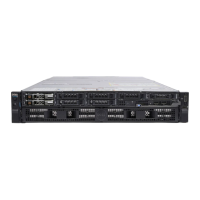
Hardware setup is a critical usage feature, and the DM5500 is designed for ease of installation in a standard rack. Users are instructed to install the 2U appliance and connect the relevant Ethernet and power cables. The guide provides clear recommendations for different types of network switches and corresponding NIC types, including SFP28 for 25 Gb, SFP+ for 10 Gb, and RJ45 for 1 Gb or 10 Gb connections, along with the appropriate cable requirements (e.g., LC-to-LC with SR optical GBICs or twinax for optical, UTP/STP with RJ45 for copper). This detailed guidance ensures optimal network connectivity and performance. The appliance also features redundant AC power sources, enhancing reliability and ensuring continuous operation. The recommendation to use an Uninterrupted Power Supply (UPS) further underscores its focus on maintaining data availability and system uptime.

Initial configuration of the DM5500 involves connecting a service computer to a Base-T port and assigning a static IP address to facilitate access to the appliance's user interface. The process includes verifying network connectivity by pinging the appliance's default IP address and then logging into the UI using default credentials. Once logged in, users follow on-screen instructions to complete the setup, which includes configuring various network components such as subnet mask, gateway, primary and secondary DNS servers, domain name, time zone, and optional SMTP server and NTP server settings. The system also supports the configuration of Dell Support credentials, location, management IPs, data IPs, and optional security officer usernames and passwords, allowing for comprehensive customization and secure management.

Maintenance features are integral to the DM5500's design, focusing on ensuring long-term reliability and data integrity. The appliance supports automatic and secure downloading of software licenses when connected to the internet, simplifying the licensing process. For environments without direct internet access, users can manually obtain licenses from the Dell Licensing Portal, providing flexibility for various network configurations. The system also highlights the importance of proper hardware handling, such as removing drives and PSUs before mounting or unmounting the appliance from the rack, and labeling them to ensure correct replacement. This attention to detail in hardware maintenance helps prevent data loss or unavailability due to incorrect component placement.

The DM5500's architecture is built to support robust data protection strategies. It is designed to manage various types of data traffic, including management/control traffic and data traffic, with optional configurations for enhanced performance and segregation. The appliance's ability to integrate with existing network infrastructures, coupled with its detailed setup and maintenance guidelines, makes it a powerful tool for organizations seeking to enhance their data protection posture. The comprehensive documentation and support resources available on the Dell Support site further empower users to effectively deploy, configure, and maintain the DM5500, ensuring that their data remains secure and accessible. The inclusion of a Quick Resource Locator (QRL) provides immediate access to additional documentation and videos, simplifying troubleshooting and information retrieval for users. This holistic approach to design, deployment, and support underscores the DM5500's commitment to delivering a reliable and user-friendly data management solution.

Dell PowerProtect DM5500 Specifications

General IconGeneral
ModelPowerProtect DM5500
TypeData Protection Appliance
DeploymentOn-premises
Power SupplyDual redundant power supplies
Form Factor2U appliance
Supported ProtocolsNFS, CIFS, FC
Network Connectivity10GbE
ProcessorIntel Xeon Scalable
RAID SupportYes
Storage CapacityUp to 1.5 PB
Usable CapacityVaries based on configuration and data reduction
Operating SystemPowerProtect OS

Related product manuals