
 Need help?
Do you have a question about the Dell PR03X and is the answer not in the manual?
Instructions for connecting cables and external devices to the E-Port.
Steps to verify the laptop's setup process before docking.
Steps to power the E-Port and place the laptop for docking.
Information on using the E-Port's security features like locks and cable slots.
Explains power button and docking light indicators for laptop status.
Guide on connecting the E-Port to multiple monitors using different video outputs.
Instructions on how to safely disconnect the laptop from the E-Port.
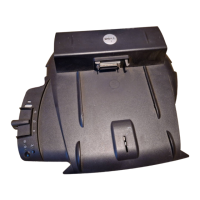
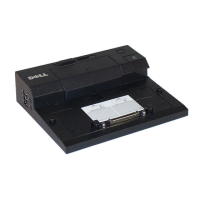
The Dell E-Port is a docking station designed to enhance the functionality and connectivity of Dell E-Family laptop computers. It serves as a central hub, allowing users to connect their laptop to a variety of external devices and peripherals, effectively transforming a portable laptop into a more robust desktop workstation. This device is specifically engineered for compatibility with Dell E-Family laptops, ensuring seamless integration and optimal performance. It is important to note that the E-Port is not compatible with previous series of Dell laptop computers, emphasizing its tailored design for the E-Family line.
The primary function of the E-Port is to provide port replication, which means it offers a comprehensive array of connectors that mirror and expand upon the ports typically found on a laptop. This feature is particularly beneficial for users who frequently move their laptop between different work environments, as it eliminates the need to repeatedly plug and unplug multiple cables. With the E-Port, users can simply dock their laptop and instantly gain access to a full suite of external devices, streamlining their workflow and reducing setup time.
One of the key usage features of the E-Port is its extensive connectivity options. It includes an RJ-45 network connector, enabling a wired network connection for reliable and high-speed internet access. For audio needs, the E-Port provides two audio connectors, allowing users to connect headphones or speakers and a microphone, facilitating clear communication and immersive audio experiences. The device boasts a total of six USB 2.0 connectors, with three conveniently located on the left side and two on the back. These ports support a wide range of USB 2.0 compliant devices, such as mice, keyboards, external hard drives, and printers, offering ample connectivity for various peripherals. Additionally, one of the USB ports is a versatile USB or eSATA connector, supporting both standard USB devices and Dell-powered E-Family or standard self-powered eSATA devices, providing flexible storage expansion options.
For display connectivity, the E-Port is well-equipped to support single or dual monitor setups, catering to users who require extended screen real estate for multitasking or specialized applications. It features a DisplayPort connector, which allows for the connection of external monitors equipped with a DisplayPort interface. For broader compatibility, DisplayPort can also be used with HDMI and DVI monitors via an optional dongle, available from Dell.com. A Digital Video Interface (DVI) connector is also included for connecting external monitors with a digital video interface, ensuring high-quality digital video output. Furthermore, a VGA video connector is provided for connecting to external monitors that utilize the analog VGA standard, offering backward compatibility with older display devices. This comprehensive array of video outputs makes the E-Port a versatile solution for various display configurations.
The E-Port also incorporates an AC adapter connector, which is crucial for powering both the docking station and the docked laptop. It is important to use the Dell AC adapter that came with the E-Port to prevent potential damage to the docking station or the laptop. The E-Port can draw power from its own AC adapter, the laptop's AC power, or the laptop's battery, offering flexibility in power management. When the AC adapter is connected to the E-Port, it also charges the laptop's battery, ensuring that the laptop is ready for mobile use when undocked.
Another notable usage feature is the E-Monitor stand connector, which allows the E-Port to be integrated with a compatible monitor stand, available from Dell.com. This integration can create a more ergonomic and organized workspace, elevating the monitor to a comfortable viewing height and reducing desktop clutter.
The physical design of the E-Port includes several user-friendly elements. It features a battery bar adjuster, which can be slid to the left to retract the battery bar for laptops with batteries that extend beyond the back of the laptop, or to the right to extend the battery bar for laptops without such extended batteries. This thoughtful design ensures a secure and stable fit for various laptop models within the E-Family. The docking process itself is straightforward: users align the laptop with the E-Port and push down until it clicks into place. The E-Port can accommodate laptops that are either turned on or off during docking.
For security, the E-Port is equipped with a lock/unlock switch and a security cable slot. The lock/unlock switch allows users to secure the laptop to the E-Port by moving the switch toward the front (locked position) and unlock it by moving it toward the back (unlocked position) before pressing the eject button. A red indicator in the security cable slot visually confirms that the E-Port is unlocked. The security cable slot enables the attachment of an antitheft device, typically a metal-stranded cable with a locking mechanism, to deter unauthorized removal of the laptop and docking station. This feature is particularly valuable in shared office spaces or public environments where physical security is a concern.
The E-Port also provides clear visual indicators for its operational status. The power button light indicates the power status of the E-Port or a docked laptop. The docking light, located on the eject button, provides information about the AC power and docking status of both the E-Port and the laptop. These lights help users quickly ascertain whether the laptop is properly docked, receiving power, and in its intended operational state (e.g., Hibernate, Standby, On).
In terms of maintenance features, while the E-Port itself does not require extensive user maintenance, proper handling and care are crucial for its longevity and optimal performance. Users are advised not to pick up the laptop or the E-Port when they are docked together, as this can damage the connectors on both devices. This caution highlights the importance of separating the laptop from the docking station before moving them. Ensuring that the device is placed on a flat surface with enough space to support the laptop when docked also contributes to its stability and prevents accidental damage.
Before initial use, it is essential to ensure that the laptop's operating system has completed its setup process and that the battery is installed. This preparatory step ensures that the laptop recognizes the E-Port and its connected peripherals correctly. If an external monitor is attached, users might need to use keyboard shortcuts (e.g.,
Overall, the Dell E-Port is a robust and versatile docking solution that significantly enhances the usability of Dell E-Family laptops by providing extensive connectivity, security features, and a streamlined docking experience, making it an invaluable tool for users seeking to maximize their productivity in a desktop environment.
 General
| Product Type | Docking Station |
|---|---|
| Device Type | Port replicator |
| Connectivity Technology | Wired |
| Data Link Protocol | Ethernet, Fast Ethernet, Gigabit Ethernet |
| Model | PR03X |
| Category | Computer Hardware |
| Input Voltage | 100-240V AC |
| Output Voltage | 19.5V DC |
| Power | Power adapter |
| Compatibility | Dell laptops |


 To Next Page