26 | Operating the monitor
Icon Menu and
sub-menus
Description
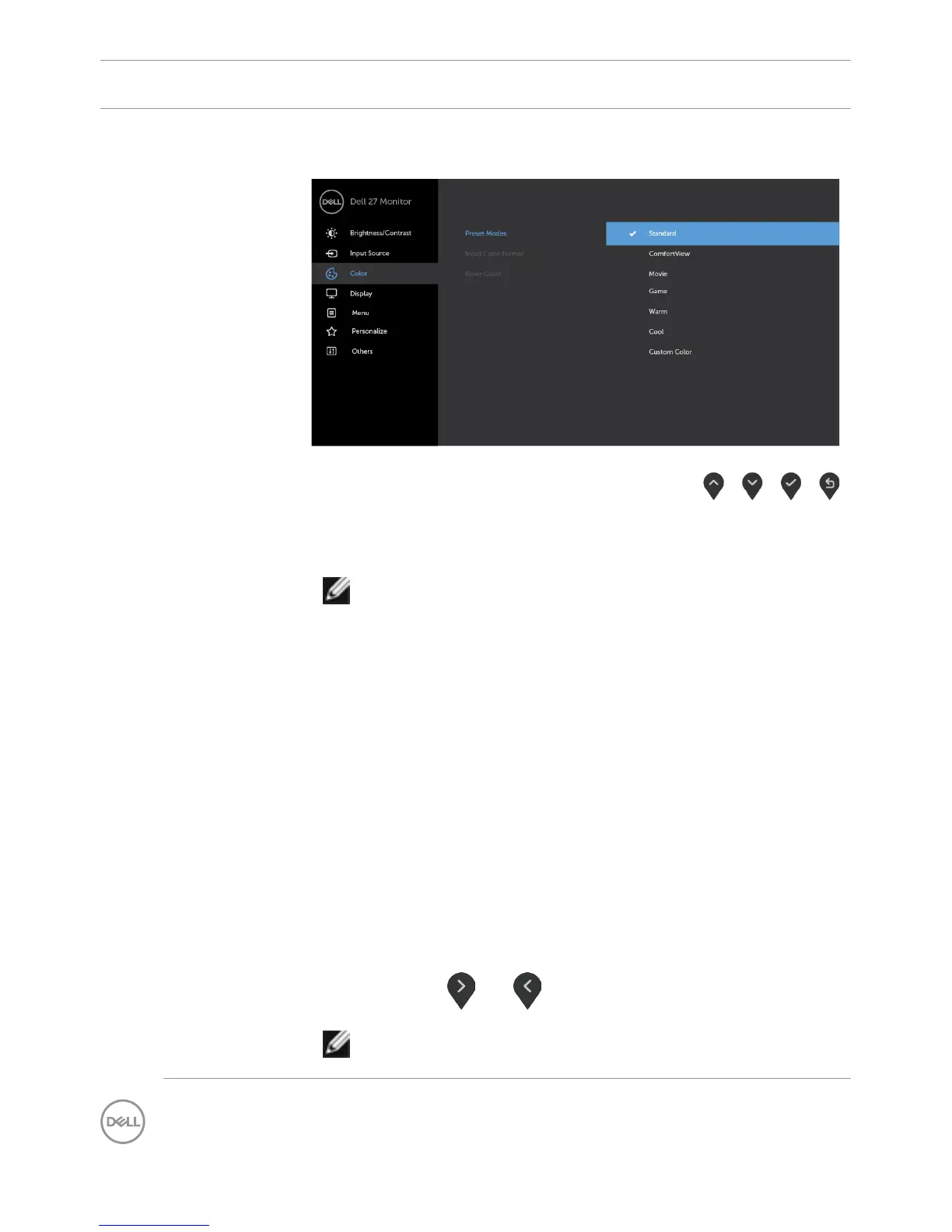
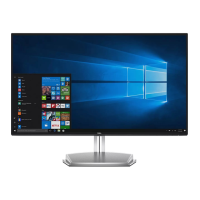
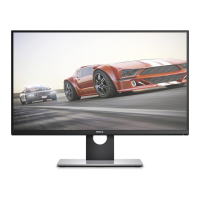
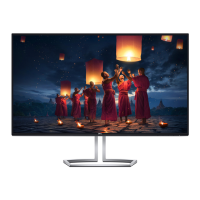
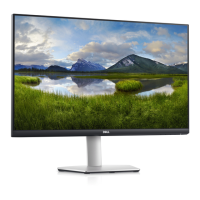
Preset Modes When you select Preset Modes, you can choose Standard,
ComfortView, Movie, Game, Warm, Cool, or Custom Color
from the list.
•Standard: Default color settings. This is the default preset
mode.
•ComfortView: Decreases the level of blue light emitted from
the screen to make viewing more comfortable for your eyes.
NOTE: To reduce the risk of eye strain and neck/arm/back/
shoulders pain from using the monitor for long periods of time,
we suggest that you:
• Set the screen about 20 to 28 in. (50-70 cm) from your eyes.
• Blink frequently to moisten or lubricate your eyes when
working with the monitor.
• Take regular and frequent breaks for 20 minutes every two
hours.
• Look away from your monitor and gaze at a distant object at
20 feet away for at least 20 seconds during breaks.
• Perform stretches to relieve tension in the neck/arm/back/
shoulders during the breaks.
•Movie: Loads color settings ideal for movies.
•Game: Loads color settings ideal for most gaming applications.
•Warm: Increases the color temperature. The screen appears
warmer with a red/yellow tint.
•Cool: Decreases the color temperature. The screen appears
cooler with a blue tint.
•Custom Color: Enables you to manually adjust the color
settings. Press and to adjust the Red, Green, and Blue
values, and also to create your own preset color mode.
NOTE: When Smart HDR is ON, Movie and Game preset
modes operate with backlight local dimming.


 To Next Page