Shortcut key /
Brightness/Contrast
3
Menu
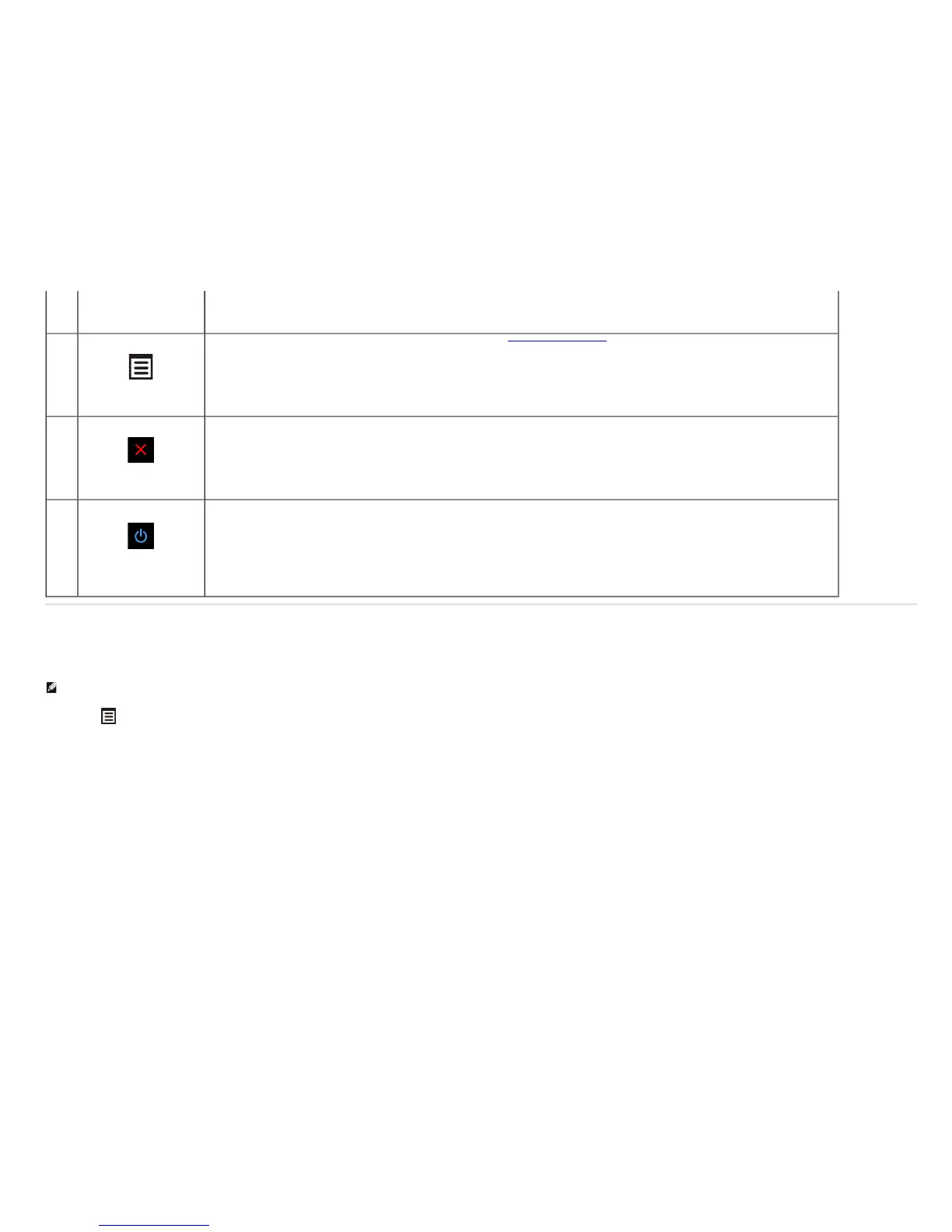
Use this button to launch the on-screen display (OSD) and select the OSD Menu. See Accessing the Menu System
.
4
Exit
Use this button to go back to the main menu or exit the OSD main menu.
5
Power
(with power light indicator)
Use this button to turn the monitor on and off.
The Blue LED indicates the monitor is on and fully functional. An amber LED indicates DPMS power save mode.
Using the On-Screen Display (OSD) Menu
Accessing the Menu System
NOTE: If you change the settings and then either proceed to another menu or exit the OSD menu, the monitor automatically saves those changes. The changes are also saved if you change the settings and then wait for the OSD menu to
disappear.
1. Push the
button to launch the OSD menu and display the main menu.
Main Menu for analog (VGA) Input


 To Next Page