48 | Operating the monitor
Icon Menu and
submenu
Description
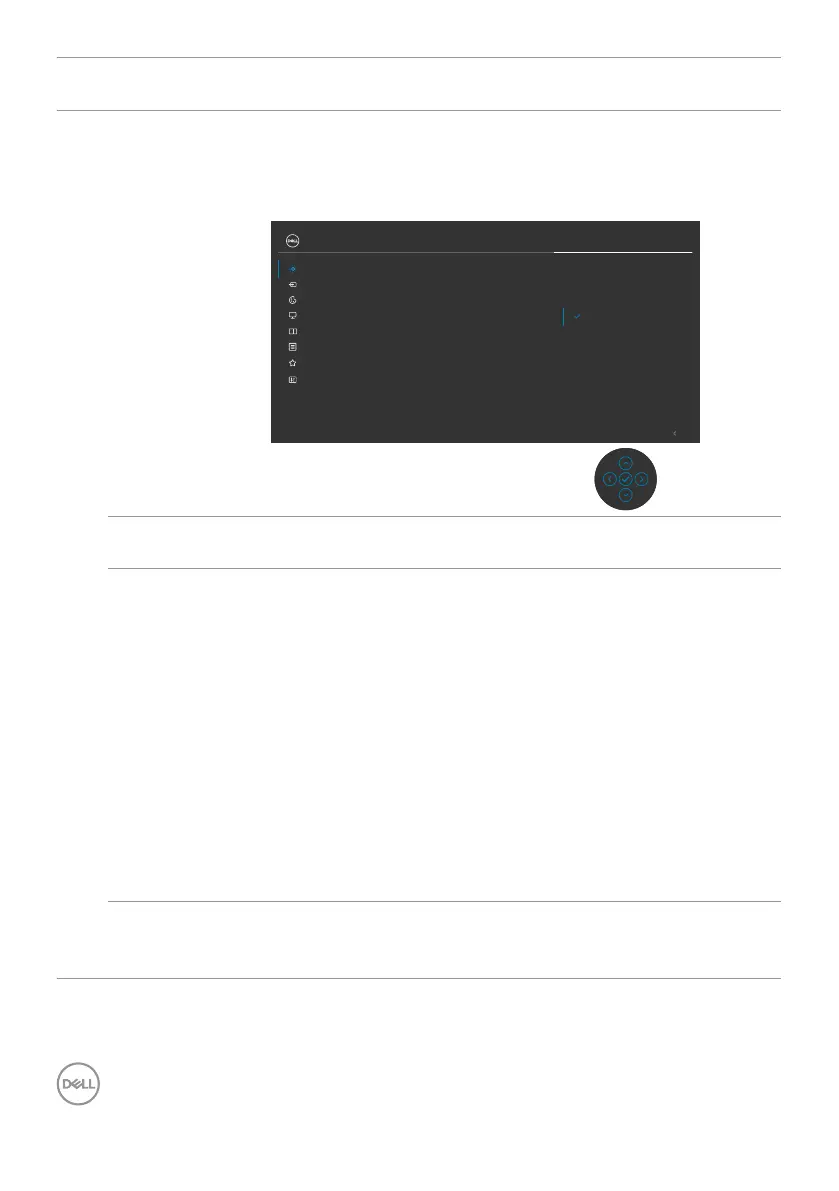
Auto
Brightness
Range Level
When Auto Brightness is turned on, adjust the range level
of the Auto Brightness.
NOTE: When Auto Brightness is turned off, this function
is not available.
Input Source
Color
Brightness/Contrast
Display
Exit
PIP/PBP
Personalize
Others
Menu
UltraSharp 27 Monitor
Contrast
Auto Brightness
Auto Color Temp.
Reset Brightness/Contrast
Primary Monitor for Sync
Brightness
Auto Brightness Range Level
Low
Mid
High
Auto Color
Temp.
Turns on Auto Color Temp and adjusts the monitor RGB
color settings in accordance with the ambient light.
Primary
Monitor for
Sync
When either Auto Brightness or Auto Color Temp. is
turned on and multiple Dell monitors that support this
function are connected through MST, the monitors will
adjust their brightness or RGB settings according to the
ambient light condition detected by the primary monitor.
NOTE: The selected monitor in Dell Display Manager (DDM)
is the primary monitor. To change the primary monitor, select
the preferred monitor in DDM. Refer to the DDM user guide
for details.
NOTE: When Auto Brightness and Auto Color Temp. are
both turned off, this function is not available.
NOTE: If the primary or secondary monitor breaks off from
the MST, it also breaks off from the monitor sync.
Reset
Brightness/
Contrast
Resets all settings under the Brightness/ Contrast menu
to the factory defaults.




 To Next Page