EasyManua.ls Logo

Denon DN-F350 - User Manual

Denon DN-F350
56 pages
Print Icon
To Next Page IconTo Next Page
Loading...
DN-F350
User Guide
English ( 3 – 12 )
Guía del usuario
Español ( 13 – 22 )
Guide d’utilisation
Français ( 23 – 32 )
Guida per l’uso
Italiano ( 33 – 42 )
Benutzerhandbuch
Deutsch ( 43 – 52 )
Appendix
English ( 53 )

Questions and Answers

  • M
    Michael DavisAug 12, 2025
    What to do if audio from my Bluetooth device does not play through the Denon DN-F350?
    • C
      Christopher HallAug 12, 2025
      If audio from your Bluetooth device isn't playing through the Denon Media Player, ensure that your Bluetooth device is correctly paired and connected. Also, confirm that the Bluetooth antenna is properly connected to the terminal on the rear panel. Try moving your Bluetooth device closer to the unit to improve the signal reception and remove any obstacles like walls or furniture that might be blocking the signal.
  • T
    Timothy KnightAug 16, 2025
    What to do if no device appears even when a USB device is inserted into my Denon Media Player?
    • M
      Melissa SandersAug 16, 2025
      If your Denon Media Player isn't recognizing a USB device, try these steps: First, disconnect and reconnect the USB device to ensure it’s securely inserted. Verify that the USB device is a mass storage class or compatible with MTP. Check that the USB device is formatted using a FAT16 or FAT32 file system. Avoid using a USB hub or extension cable. Note that the unit does not supply power to USB devices, so if your USB device requires external power, connect it to a power source. Keep in mind that not all USB devices are guaranteed to work and some may not be recognized.
  • M
    Marisa HernandezAug 19, 2025
    What to do if the Denon Media Player unit does not produce any sound, or the sound is distorted?
    • K
      kimswansonAug 19, 2025
      If your Denon Media Player isn't producing sound or the sound is distorted, check that all cable, device, and media connections are secure and correct. Also, make sure none of the cables are damaged. Verify that the settings on your amplifier, mixer, etc., are correct.
  • F
    Frances RobertsAug 23, 2025
    What to do if files on a USB device do not appear on my Denon DN-F350?
    • L
      Lucas SchmittAug 25, 2025
      If files on a USB device aren't appearing on your Denon Media Player, ensure that the files are in a supported file format. Files not supported by the unit will not appear. Also, make sure the USB device uses a supported folder structure: up to 999 folders (up to 8 folder levels, including the root) and up to 999 files. If your USB device is partitioned, ensure the files are in the first partition, as the unit will not show other partitions.
  • S
    Sean MartinAug 27, 2025
    What to do if files on a SD card or USB device cannot play on Denon DN-F350 Media Player?
    • K
      Kevin BurtonAug 27, 2025
      If files on an SD card or USB device cannot play on your Denon Media Player, make sure the files are of a supported file format. Files that are not supported by this unit will not appear. Also, confirm that the files are not copyright-protected, as the unit cannot play copyright-protected files.
  • S
    scott46Aug 31, 2025
    Why connecting my Bluetooth device to the Denon DN-F350 Media Player requires a PIN?
    • G
      garciacatherineAug 31, 2025
      If your Denon Media Player asks for a PIN when connecting your Bluetooth device, enter 0000 as the PIN. Some older Bluetooth devices might require this.
  • T
    Tim Wallace MDSep 4, 2025
    How to fix file names that do not appear properly on Denon Media Player?
    • S
      Stephanie DunnSep 4, 2025
      To resolve file names not appearing correctly on your Denon Media Player, ensure that the files are using only supported characters. Unsupported characters will be replaced with a “.”.
  • Z
    Zachary PittmanSep 7, 2025
    How to turn on Denon DN-F350 if it doesn't power on?
    • J
      Jon DouglasSep 7, 2025
      Make sure the Denon Media Player is connected to a power outlet.

Summary

Features and Front Panel

Front Panel Controls Overview

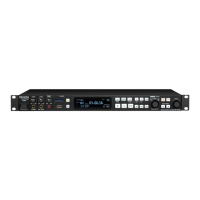
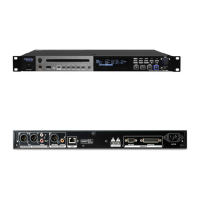
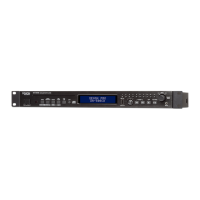
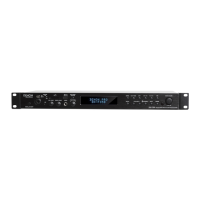
Detailed explanation of buttons, ports, and displays on the DN-F350 front panel.

Rear Panel Connections

Remote Control Functions

Setup and Wiring

Remote Control Operation Details

Battery Replacement and Usage

Guide on how to replace the remote control battery and important usage precautions.

Core Operation Procedures

Selecting Media Playback Source

How to choose between Line, SD, Aux, USB, and Bluetooth inputs.

Playing Audio from SD Card

Steps to insert an SD card and play audio files.

Advanced Operation Modes

Additional Functions and Information

Firmware Update Procedure

Instructions on how to update the DN-F350 firmware via USB.

Troubleshooting Common Issues

Denon DN-F350 Specifications

General IconGeneral
USB PortYes
Remote ControlYes
DisplayLCD
Audio Formats SupportedMP3, WAV
Output ConnectorsXLR, RCA
Dimensions482 x 44 x 220 mm
Media TypeUSB, SD Card
Power100-240V, 50/60Hz

Related product manuals