9
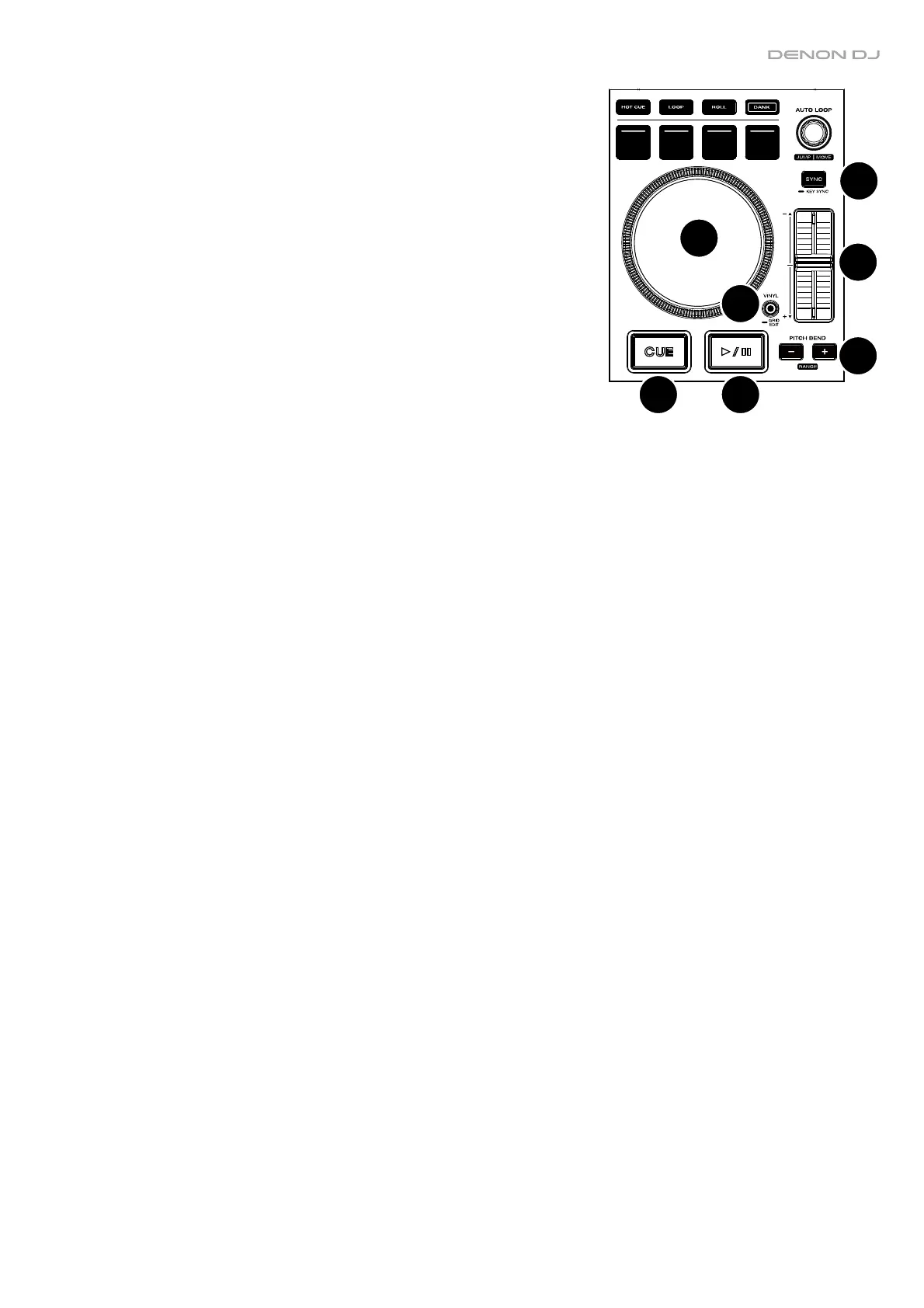
22. Sync: Press this button to activate sync. When Key Lock is activated, the
track’s key will remain the same even if you adjust its speed.
Key Sync: When a track is playing back, press and hold this button to
activate key sync to that track.
23. Pitch Fader: Move this fader to adjust the speed (pitch) of the track.
Press and hold Shift and then press one of the Pitch Bend buttons to
adjust the total range.
24. Pitch Bend –/+: Press and hold one of these buttons to momentarily
reduce or increase (respectively) the speed of the track.
Press and hold Shift and then press one of these buttons to set the range
of the pitch fader.
25. Platter: This capacitive, touch-sensitive platter controls the audio playhead
when the wheel is touched and moved.
26. Vinyl: Press this button to activate/deactivate a “vinyl mode” for the
platter. When activated, you can use the platter to “scratch” the track as
you would with a vinyl record. When deactivated (or if you are touching
only the side of the platter), move the platter to temporarily adjust the
track’s speed.
Press and hold Vinyl to enter/exit Grid Edit Mode.
27. Cue: During playback, press this button to return the track to the initial cue point and stop playback. To move the
initial cue point, make sure the track is paused, move the platter to place the audio playhead at the desired location,
and then press this button. If the deck is paused, press and hold this button to temporarily play the track from the
initial cue point. Release the button to return the track to the initial cue point and pause it. To continue playback
without returning to the initial cue point, press and hold this button and then press and hold the Play button, and
then release both buttons.
During playback, press and hold Shift and then press this button to set the initial cue point.
28. Play/Pause: This button pauses or resumes playback.
Press and hold Shift and then press this button to “stutter-play” the track from the initial cue point.
22
23
24
25
26
27 28


 To Next Page