EasyManua.ls Logo

Denver TAQ-80062 - User Manual

Denver TAQ-80062
14 pages
Print Icon
To Next Page IconTo Next Page
Loading...
ENGLISH / ENGLISH
TAQ-80062
Question and Answer IconNeed help?

Do you have a question about the Denver TAQ-80062 and is the answer not in the manual?

Overview

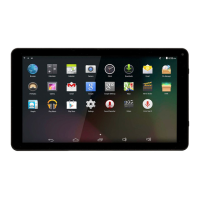
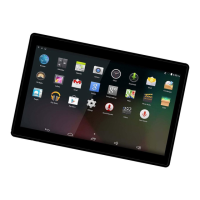
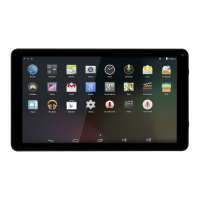
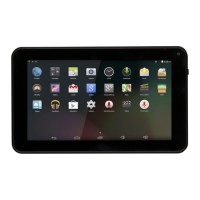
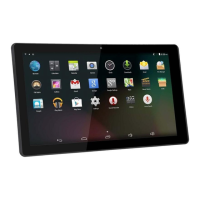
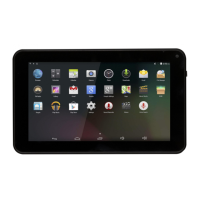
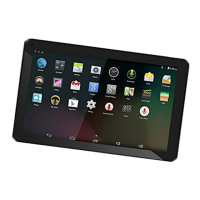
This document describes the DENVER TAQ-80062 tablet PC, a portable electronic device designed for various functions including internet browsing, multimedia playback, and application usage.

Function Description

The DENVER TAQ-80062 is a tablet PC running on the Android™ 4.1.1 operating system. Its primary functions include:

  • Internet Connectivity: Supports Wi-Fi (IEEE 802.11 b/g/n) for wireless internet access, enabling web browsing, email, and online applications.
  • Multimedia Playback: Capable of playing music and videos, with a 3.5mm headphone jack for audio output and a 1W built-in speaker.
  • Photography and Video Recording: Features a front-facing camera (0.3MP) and a rear camera (2.0MP) for taking pictures and recording videos.
  • Application Support: Comes with preinstalled applications such as a browser, calculator, calendar, camera, clock, downloads, email, ES File Explorer, Flash Player, gallery, Gmail, Google, music, OWL Player, Play Store, settings, sound recorder, and Superuser. Users can also download and install additional applications from marketplaces or other sources, provided the tablet is configured to allow installations from non-Market sources.
  • File Management: Allows for transferring files (music, videos, photos, files) to and from a computer via a USB connection.
  • Email Communication: Supports setting up and managing email accounts, including POP3, IMAP, and Exchange server types.
  • Bluetooth Connectivity: Enables wireless connection to other Bluetooth devices for file transfer and other functions.

Important Technical Specifications

  • RAM: 1GB DDR3
  • Storage: 8GB flash built-in, expandable via a microSD card slot (up to 32GB supported).
  • Display: 8-inch TFT LCD with a resolution of 1024x768, featuring a capacitive touchscreen.
  • Wi-Fi Networking: IEEE 802.11 b/g/n
  • Audio Output: 3.5mm headphone jack.
  • PC Interface: USB 2.0 high speed.
  • Additional Features: Built-in microphone, 0.3MP front camera, 2.0MP rear camera, 1W speaker.
  • Operating System: Android™ 4.1.1
  • Power: Rechargeable Li-poly battery, powered by a DC 5V, 2A power adapter.

Usage Features

  • Power On/Off: The tablet is turned on by pressing and holding the Power key until the LCD screen appears. To turn off, press and hold the Power key until the power off menu appears, then touch "OK."
  • Screen Standby: The screen can be turned on or off to conserve battery power by pressing the Power key once. The screen timeout can be adjusted in the Display menu (15 seconds to 30 minutes).
  • Screen Unlocking: After the screen turns off, it can be unlocked by dragging the lock icon across the screen towards the slide lock icon on the right.
  • Volume Adjustment: Volume can be adjusted using the V-/V+ buttons.
  • Navigation: The ESC button allows users to return to a previous screen.
  • Application Access: Applications can be opened by touching their icons on the home screen or in the Launcher.
  • Wi-Fi Connection: To connect to Wi-Fi, navigate to Settings > WIRELESS & NETWORKS > Wi-Fi, slide the switch to "On," select an available network, and enter the password if required.
  • Email Setup: Email accounts can be set up via the Email icon in the App menu, requiring email address and password. Manual configuration is also possible for specific server types (POP3, IMAP, Exchange).
  • File Transfer: Connect the tablet to a computer using the provided Mini-USB to USB cord. On the tablet, press the USB icon, select "USB Connected," and then "Turn On USB Storage" to enable file transfer. To end the session, press "Turn Off USB Storage."
  • Bluetooth Pairing: Enable Bluetooth in Settings > WIRELESS & NETWORKS > Bluetooth, then select a device from the list to pair and transfer files.

Maintenance Features

  • Reset Function: In case of system anomalies or unresponsiveness, a reset can be performed using a needle or paper clip on the RESET button located on the side of the device. This can resolve issues like the device not turning on, incorrect system operation, or display distortion.
  • Battery Management: To conserve battery life, users should turn off Wi-Fi when not in use and be aware that high volume, frequent use, and certain environmental temperatures can drain the battery faster. The lithium-ion battery is internal and should only be replaced by a skilled engineer; it must be recycled or disposed of separately from household waste.
  • Charging: Only the original adapter supplied with the product should be used for charging.
  • Environmental Care: The device should not be exposed to heat, water, moisture, or direct sunlight.
  • Software Updates: If troubleshooting fails, upgrading the firmware from a PC and restarting the device is suggested.
  • Disposal: The product contains electric and electronic equipment and batteries that must be disposed of separately from household waste, in accordance with local regulations, to prevent harm to health and the environment. Users should submit used batteries to appropriate designated facilities for recycling.

Safety Information

  • Electrostatic Discharge (ESD): In ESD tests, manual operation (power ON/OFF switch) was required to resume normal operation.
  • Hearing Protection: To prevent possible hearing damage, avoid listening at high volume levels for extended periods, especially when using earphones.
  • Battery Safety: Do not attempt to open the tablet or replace the battery yourself. The battery should not be incinerated.
  • Heat: It is normal for the device to get warm when running multiple applications, using the screen at its brightest setting, or when charging.
  • Wi-Fi Connectivity: Ensure the wireless network is working, the device is within range of the router, and the correct security password is used.
  • Email Setup: Verify Wi-Fi connectivity, correct email settings, and accurate system time for email account setup.
  • Sound Issues: Check volume settings and verify audio file integrity if there is no sound from earphones.
  • File Copying: Ensure the device is correctly connected to the computer, there is sufficient memory space, and the USB cable is not broken.

Denver TAQ-80062 Specifications

General IconGeneral
BrandDenver
ModelTAQ-80062
CategoryTablet
LanguageEnglish

Related product manuals