Need help?
Do you have a question about the DESKHAUS APEX PRO/6 and is the answer not in the manual?
Critical warnings for safe installation and operation, including fire/shock risks and user limits.
Lists all components and hardware required for assembly.
Lists the necessary tools for the assembly process.
Steps to calibrate the desk height for accurate measurements.
Instructions for raising and lowering the table using the handset.
How to set and save preferred seated and standing desk heights.
How to automatically reach saved standing or sitting heights.
Instructions for setting up timed activity reminders.
Details on upper/lower limits, handset locking, and vibration mode.
Explains common error codes (E01-E13, H01, LOC) and their solutions.
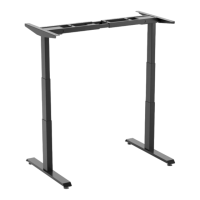
The Deskhaus Apex Pro/6 is a height-adjustable desk frame designed for ergonomic workspaces. This product assembly instruction manual outlines the steps for setting up the desk and provides detailed information on its operation, including height calibration, memory functions, and troubleshooting.
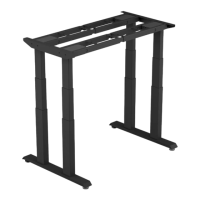
The Apex Pro/6 is a robust and versatile desk frame that allows users to seamlessly switch between seated and standing positions. It features six columns, providing enhanced stability and a wide range of height adjustments. The desk is controlled via a handset with a SmartPaddle, enabling precise height adjustments and access to various settings. The frame is designed to support a desk surface (not included in the frame kit) and integrates control boxes and power cords for a clean and organized setup. The height-adjustable mechanism is powered by multiple columns, ensuring smooth and synchronized movement.
The Apex Pro/6 offers a comprehensive set of features to enhance user experience and promote ergonomic practices:
Height Adjustment: The primary function of the desk is its height adjustability. Users can raise or lower the desk by holding the paddle up or down, respectively. Releasing the paddle stops the movement at the desired height.
Height Calibration: For accurate height readings, the desk requires initial calibration. This involves holding the down button until the desk reaches its lowest height, then releasing it. If the displayed height doesn't match the actual measurement, further steps are provided to adjust the reading. This includes holding the down button again until the LED display reads "Reset," then pressing the "M" or side button until the numeric display flashes. Users can then use the Up or Down buttons to match the displayed height with the actual measurement. The calibration process concludes by waiting for the display to return to "Reset," then holding the down button until the desktop lowers slightly, rises slightly, and the display reverts to the numeric height setting.
Memory Function: The desk allows users to save preferred seated and standing heights for quick recall.
Automatic Height Recall: Once seated and standing heights are saved, users can automatically move the desk to these positions:
Activity Reminders: To encourage movement and reduce prolonged sitting, the desk can be set to provide activity reminders. Press and hold the side button on the handset for 5 seconds to enter the settings. Pressing the side button again will access the activity reminder settings. Users can then use the paddle to adjust the timer duration between 30, 40, and 50 minutes. Press the side button to confirm the setting. The reminder can be canceled by re-entering this menu.
Upper and Lower Limit Settings: Users can define specific upper and lower height limits for the desk. This feature is accessed through the settings menu, navigated with the paddle. The side button is used to enter the settings and select or cancel a limit.
Locking Handset: The handset can be locked to prevent unintended adjustments. This setting is found within the settings menu. While locking is an option, it is generally not recommended as the handset should be easily adjustable for optimal use.
Vibration Mode: The desk includes a vibration mode, which can be toggled on or off through the vibration settings in the menu.
The manual emphasizes the importance of proper assembly and provides guidelines for maintaining the desk's functionality, particularly concerning troubleshooting and resetting the base.
Resetting the Base: This is a crucial maintenance feature, especially when encountering error codes or after a power outage. If the display shows an error code, hold the down button until "Reset" appears, then release. Hold the down button again until the base reaches its lowest height and displays the height number readout. This completes the reset process and often resolves many operational issues.
Troubleshooting Guide: The manual includes a detailed troubleshooting section with error codes (E01-E13, H01, LOC) and corresponding solutions. These solutions often involve checking connections, ensuring no obstructions, verifying weight limits, and performing a base reset. For instance, error codes E01-E06 relate to column movement issues, often resolved by checking for interference, verifying weight limits, or replacing components if mechanical failure is suspected. Error codes E07-E12 indicate problems with column port connections, requiring users to verify plugs are seated correctly and potentially re-plug columns or replace components if ports are damaged. Error code E13, related to control box master/slave connection, involves checking cord connections and potentially replacing the control box. H01 indicates a control box duty cycle issue (continuous movement or high room temperature), suggesting the desk needs to rest. LOC signifies a locked handset or a handset circuit error, which can be resolved by performing an unlock operation or replacing the handset.
General Warnings: The manual includes important warnings to ensure safe operation and longevity of the desk. These include using two or more people for moving the product, ensuring no obstacles in the unit's path, maintaining appropriate cord lengths, keeping children away from the base, avoiding liquids near electrical components, not sitting or standing on the base/work surface, and not opening any components. The desk is designed for a 10% duty cycle (two minutes on, eighteen minutes off), and a reset is required after a power outage or if the power cord is unplugged.
By following these instructions and utilizing the provided features, users can effectively assemble, operate, and maintain their Deskhaus Apex Pro/6 for a reliable and ergonomic workspace.
 General
| Type | Standing Desk |
|---|---|
| Frame Material | Steel |
| Adjustable Height | Yes |
| Height Adjustment | Electric |
| Material | Steel |
| Tabletop Material | Laminate |
| Weight Capacity | 350 lbs |
| Features | Programmable presets |


 To Next Page