- 4 -
1.2 Install SIM Card and Memory Card
SIM Card
SIM card contains your phone number, memory storage and details of network
service.
Install SIM card
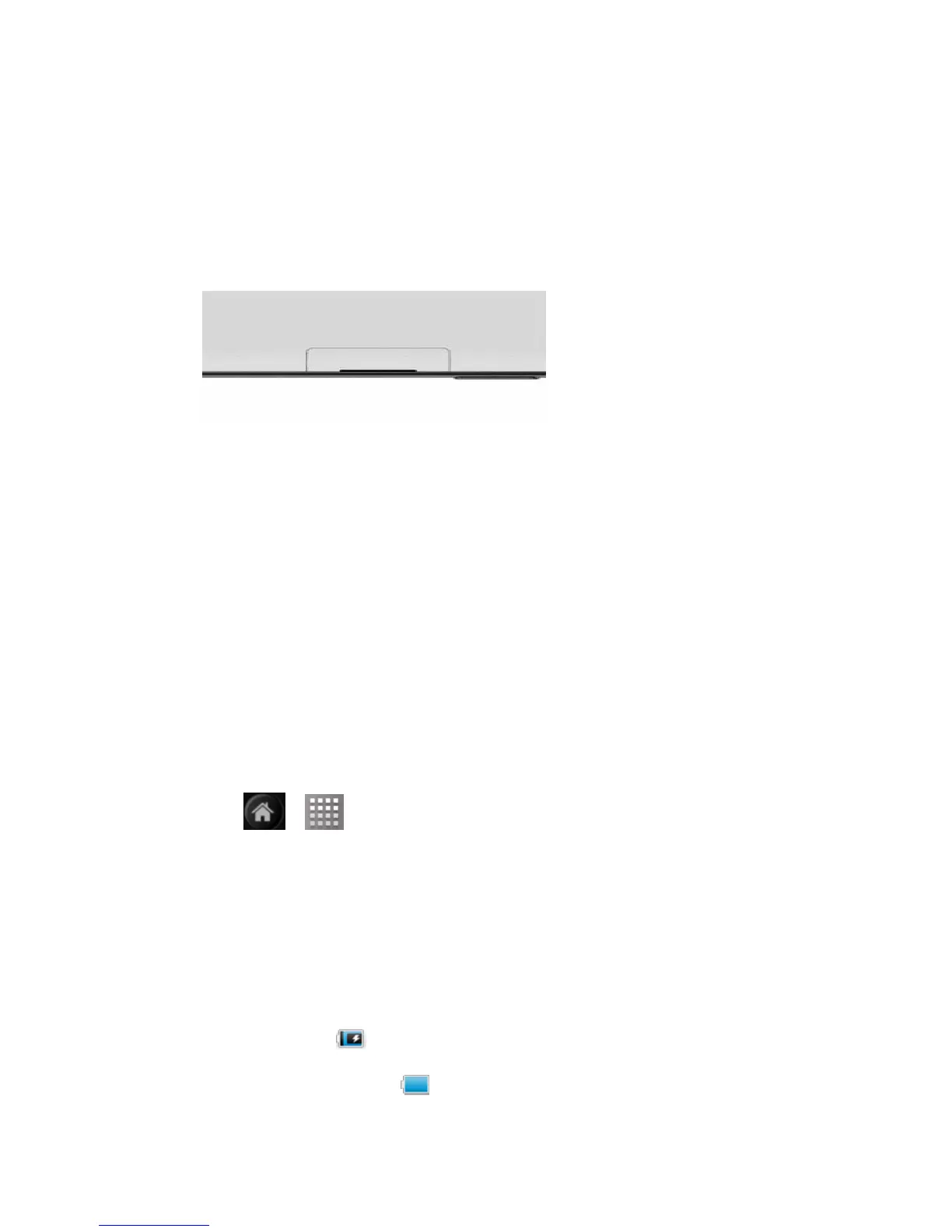
Insert SIM card.Ensure golden touch points towards the back, and the
chamfering near the side of SIM card slot,push SIM card into card slot.
SIM card slot
Remove SIM card
Noted:please turn off before removed SIM card.
Using your fingertips press the memory card lightly,and then memory card will
popup from the card slot.
Memory Card
You need a SD card to store photos,music,vedio and other data.
Install Memory Card
1. Put the golden touch points towards the back, insert memory card;
2.Push memory card into card slot.
Remove Memory Card
1.Please make sure micro SD and equipment disconnect before removed.
Press
> > set > SD card and Device Memory > unload SD card
2. Using your fingertips press the memory card lightly,and then memory
card will popup from the card slot.
1.3 Charging and Headphones
Charging
The battery power are generally not full of power.
Insert charging line,put the charger plug into electrical socket outlet,start
to charge.
When charging,
icon appeared in the state bar. When the battery is
completely full of electricity, icon appeared in the state bar.


 To Next Page