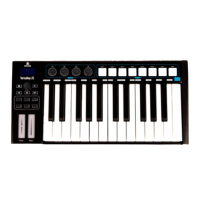
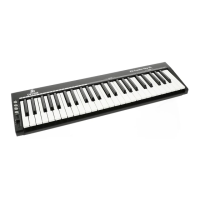
Connecting the VersaKey to a computer or laptop
The VersaKey should be automatically recognised as a generic MIDI input and output
device as soon as it is connected to a computer or laptop. If you’re using an application that
supports MIDI input, go to the settings and select the VersaKey as the MIDI INPUT device.
Connecting the VersaKey via analogue 5-pin DIN
Every VersaKey keyboard comes fitted with a 5-pin DIN port that supports a MIDI OUT
signal so that the VersaKey can also be used as a secondary keyboard for other keyboards
and workstations that support this, or to control a synthesizer module.
Powering the VersaKey
The VersaKey is powered via USB when connected to a laptop or computer. If you’re setting
the VersaKey for use without a laptop or computer, then a USB power supply can be used,
or a 5V DC power supply can be connected to the power input. This power supply must be
fitted with a centre-positive, 5.5mm x2.1mm DC plug and provide a minimum power of
500mA at 5V DC.
Making Sound/Music with the VersaKey
A MIDI keyboard like the VersaKey cannot produce sound on its own, but sends a specific
signal to another device or software to control the sounds that that device or software is able
to generate. This can be a software package or an external synthesizer.
Adjusting the Velocity
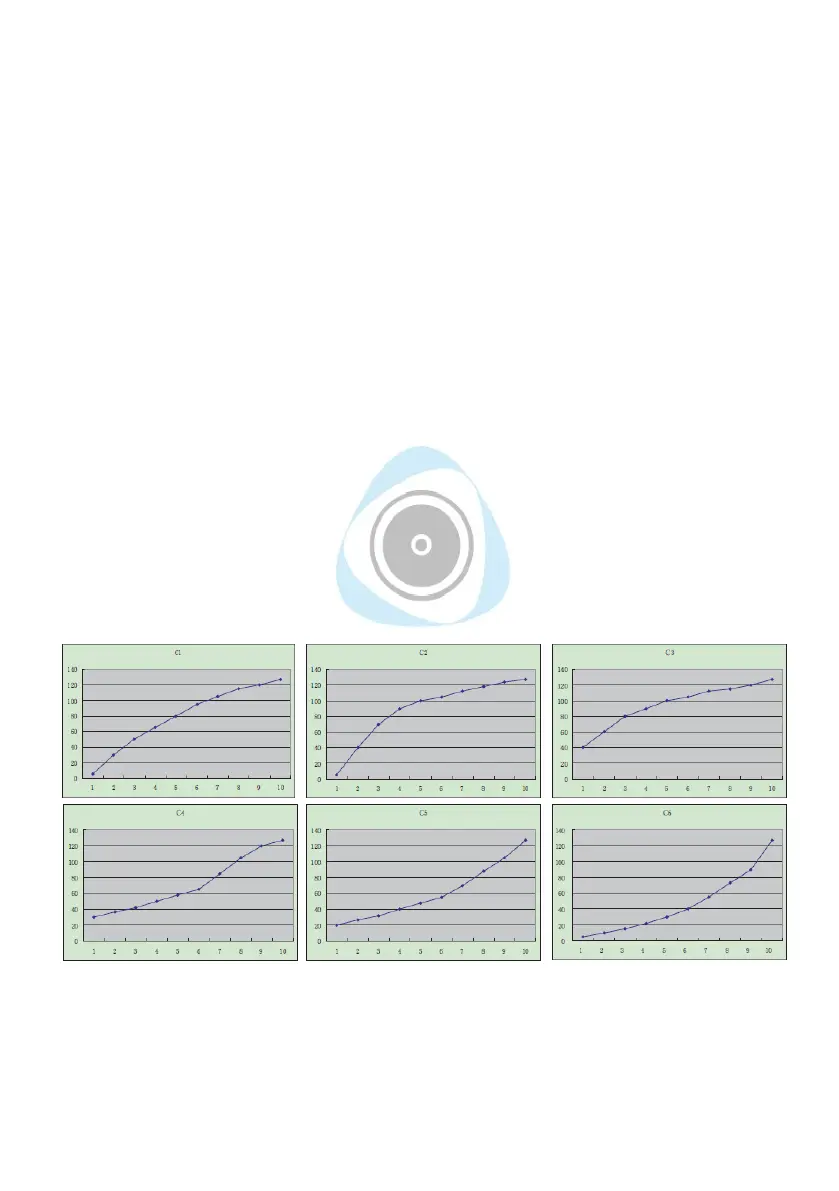
Whenever any key is struck, a specific ‘curve’ including information about the intensity of the
key-strike is sent to the software or external hardware being used. Since everyone’s playing
style is different, and you may already be used to a different key response, there are 6
different curves that can be selected. The 1st curve is the default setting.
To adjust the curve, simply follow these steps:
– Press the EDIT key
The information included in this user manual is subject to change at any time and without notification:
Version:
1.0
Date and author initials: 02-11-2020 RV Revision date and author initials: -



 To Next Page