15 Introduction
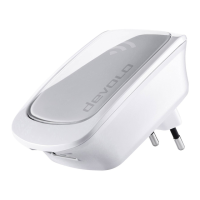
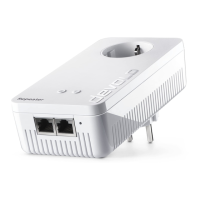
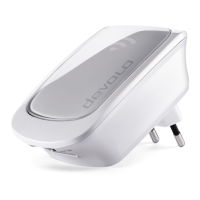
devolo WiFi 6 Repeater 5400
2.2.1Add button
This button controls the following functions:
Connecting the WiFi 6 Repeater 5400 to the
router via WPS
1 If the device is still set to factory defaults,
press the Add button for approximately 3 to 9
seconds to activate WPS.
2 Then press the WPS button on your router
within 2 minutes.
For information about the WPS function/ac-
tivation of your WiFi router, refer to the cor-
responding product documentation.
Now the WiFi 6 Repeater 5400 is connect-
ed to the router.
Connecting Wi-Fi clients to the
WiFi 6 Repeater 5400 via WPS
1 Press the Add button for approximately 1 to 3
seconds to activate WPS.
2 Then either press the WPS button of the Wi-Fi
device you are adding or enable the WPS
mechanism in the Wi-Fi settings of the Wi-Fi
device. Now the devices exchange their secu-
rity IDs and establish a secure Wi-Fi connection.
Now the desired Wi-Fi clients are connect-
ed to the WiFi 6 Repeater 5400.
3 If the Wi-Fi connection is switched on and you
want to copy these settings to a devolo Magic
or Wi-Fi adapter, continue reading Chapter
4.7.5 Config Sync.
WPS is one of the encryption standards de-
veloped by the WiFi Alliance. The objective
of WPS is to make it easier to add devices to
an existing network. For more detailed in-
formation, refer to Chapter 4.5.8 Wi-Fi Pro-
tected Setup (WPS).
When the WPA3 encryption standard is
enabled, the WPS function is not available for
technical reasons.
For more information about this, refer to
Chapters 4.5 Wi-Fi and 4.5.8 Wi-Fi Pro-
tected Setup (WPS).
WiFi_6_Repeater_5400.book Seite 15 Dienstag, 31. Mai 2022 6:26 18


 To Next Page
 Loading...