Driver and Application Installation
Step1:
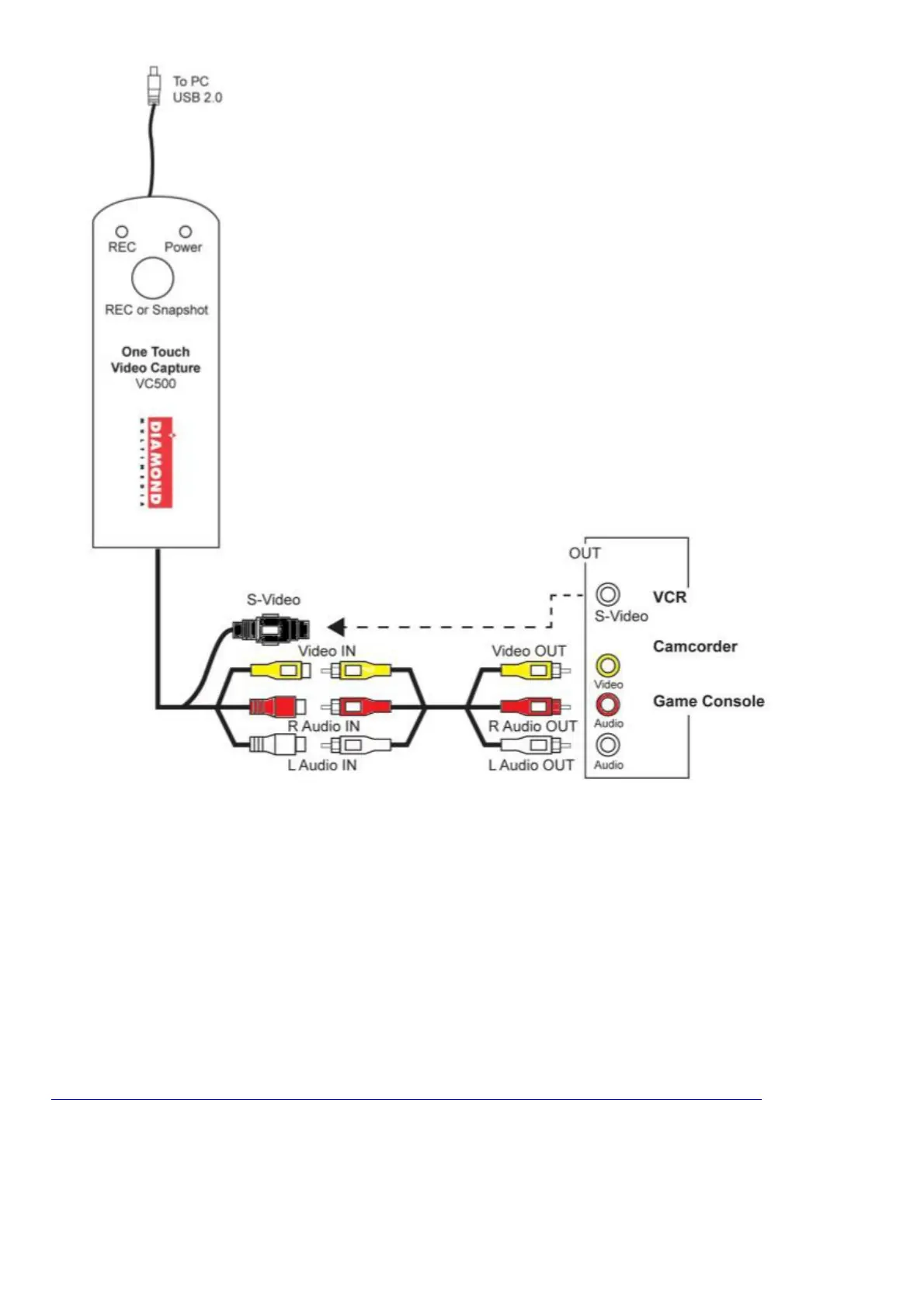
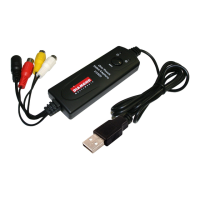
Insert the VC500 USB capture device into your USB Port. Note: the blue light should come on. If it does not or if the
light is red there is a hardware problem and you should try another USB port. Once plugged in Windows may display
“New Hardware Device” found. Please choose “Cancel” and continue to the next step.
Step2:
Insert the installation CD and open up the CD contents. Note: you may have to double click on your CD/DVD drive
while the disk is in the drive to see the contents of the disk. Select and run VC500.EXE. If you get a windows User
Account Control message, click Yes to allow the app to run. You will see the menu below:
If you do not have a CD/DVD drive you can download the complete installation CD from the link below:
http://www.dmmdownload.com/downloads/CURRENT/PVR/VC500W10PD_Complete_install.zip
Note: Do not throw away your installation CD sleeve, the serial number to activate the Cyberlink Power Director 12
application is printed on the back.



 To Next Page