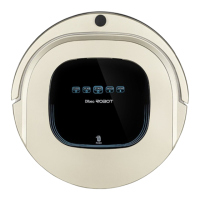
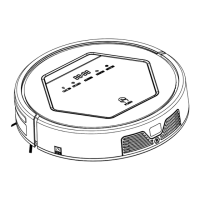
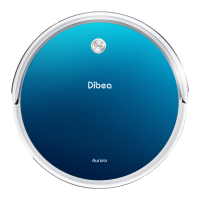
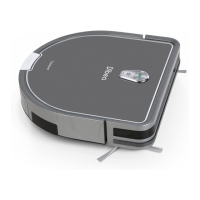
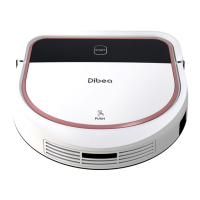
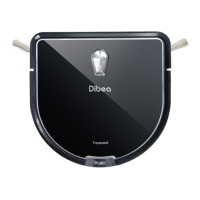
Product ComponentsProduct ComponentsProduct ComponentsProduct Components
Display PanelDisplay PanelDisplay PanelDisplay PanelDisplay Panel
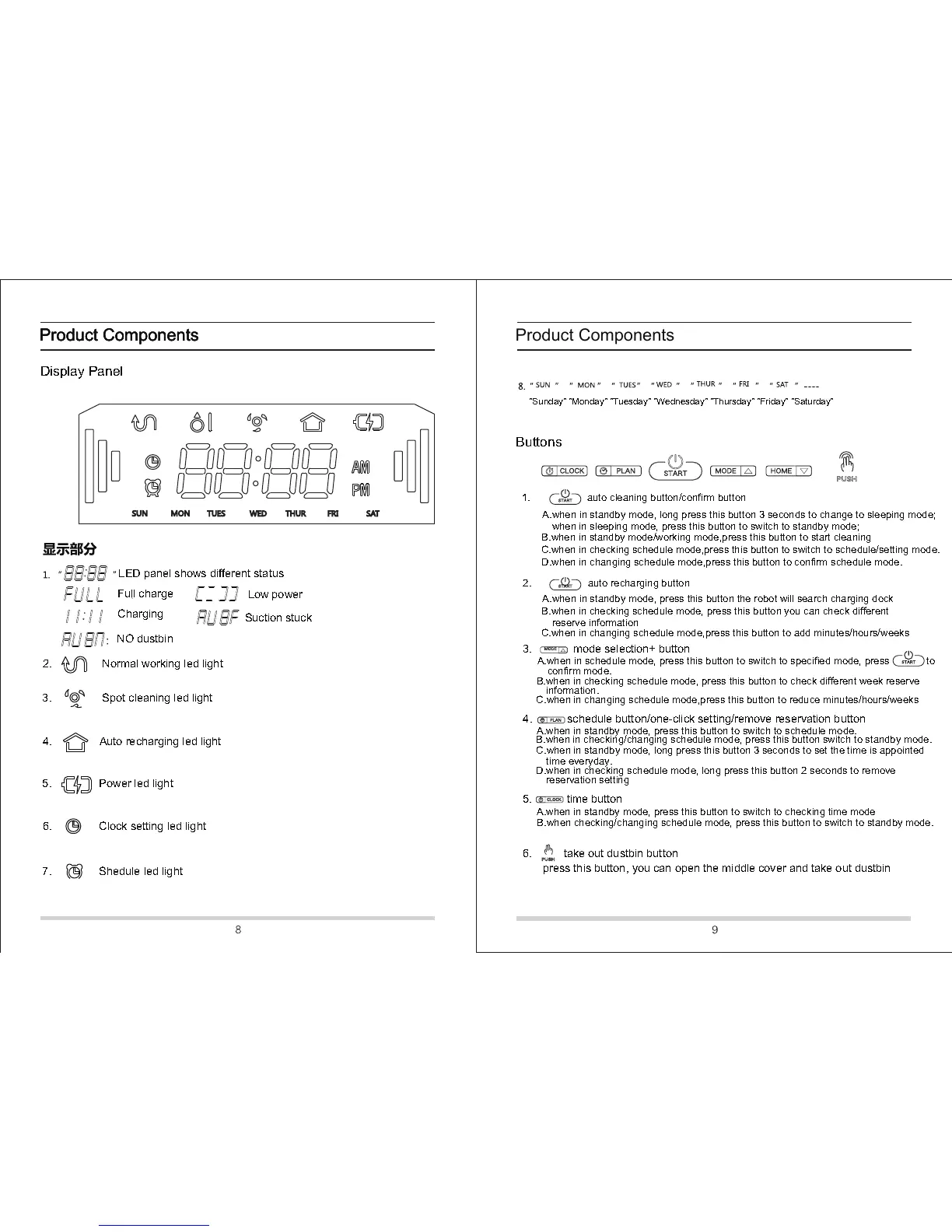
LED panel shows different meaning
LED panel shows different status
2. Normal working led light
3. Spot cleaning led light
4. Auto recharging led light
6. Clock setting led light
Product ComponentsProduct ComponentsProduct ComponentsProduct Components
"Sunday" "Monday" "Tuesday" "Wednesday" "Thursday" "Friday" "Saturday"
ButtonsButtonsButtonsButtons
1. auto cleaning button/confirm button
A.when in standby mode, long press this button 3 seconds to change to sleeping mode;
when in sleeping mode, press this button to switch to standby mode;
B.when in standby mode/working mode,press this button to start cleaning
D.when in changing schedule mode,press this button to confirm schedule mode.
2. auto recharging button
A.when in standby mode, press this button the robot will search charging dock
C.when in checking schedule mode,press this button to switch to schedule/setting mode.
B.when in checking schedule mode, press this button you can check different
C.when in changing schedule mode,press this button to add minutes/hours/weeks
3. mode selection+ button
A.when in schedule mode, press this button to switch to specified mode, press to
B.when in checking schedule mode, press this button to check different week reserve
C.when in changing schedule mode,press this button to reduce minutes/hours/weeks
4. schedule button/one-click setting/remove reservation button
A.when in standby mode, press this button to switch to schedule mode.
B.when in checking/changing schedule mode, press this button to standby mode.
C.when in standby mode, long press this button 3 seconds to set the time is appointed
B.when in checking/changing schedule mode, press this button switch to standby mode.
D.when in checking schedule mode, long press this button 2 seconds to remove
A.when in standby mode, press this button to switch to checking time mode
B.when checking/changing schedule mode, press this button to switch to standby mode.
6. take out dustbin button
6. take out dustbin button
press this button, you can open the middle cover and take out dustbin


 To Next Page
 Loading...