Product OperationProduct OperationProduct OperationProduct Operation
Note:
The scheduled time of scheduling by robot panel is based on the robot clock.
For example, if you set 9:00 to be the scheduling time, the robot will start cleaning every 9:00
(robot clock). So you should set the robot clock first before scheduling.
Once the robot is scheduled, it will start cleaning automatically at the scheduled time everyday.
2. Scheduling by remote control
A. Scheduling time setting
Make sure the robot is in standby/ charging mode, long press on the remote control,
and go into the scheduling mode.
Press PLAN button until the remote displays flashed figure "00:00"
After scheduling time is setted, use remote control press"On/Off" button, display panel
show the scheduling time.
Note: When scheduling, the figures displayed on the screen is the delayed time. For example,
02:30 on the screen means the robot will start working 2 and a half hours later from now on.(The
"00" means hour while the right one means minute.) Once the time is scheduled, the robot will
always work according to the setting everyday.
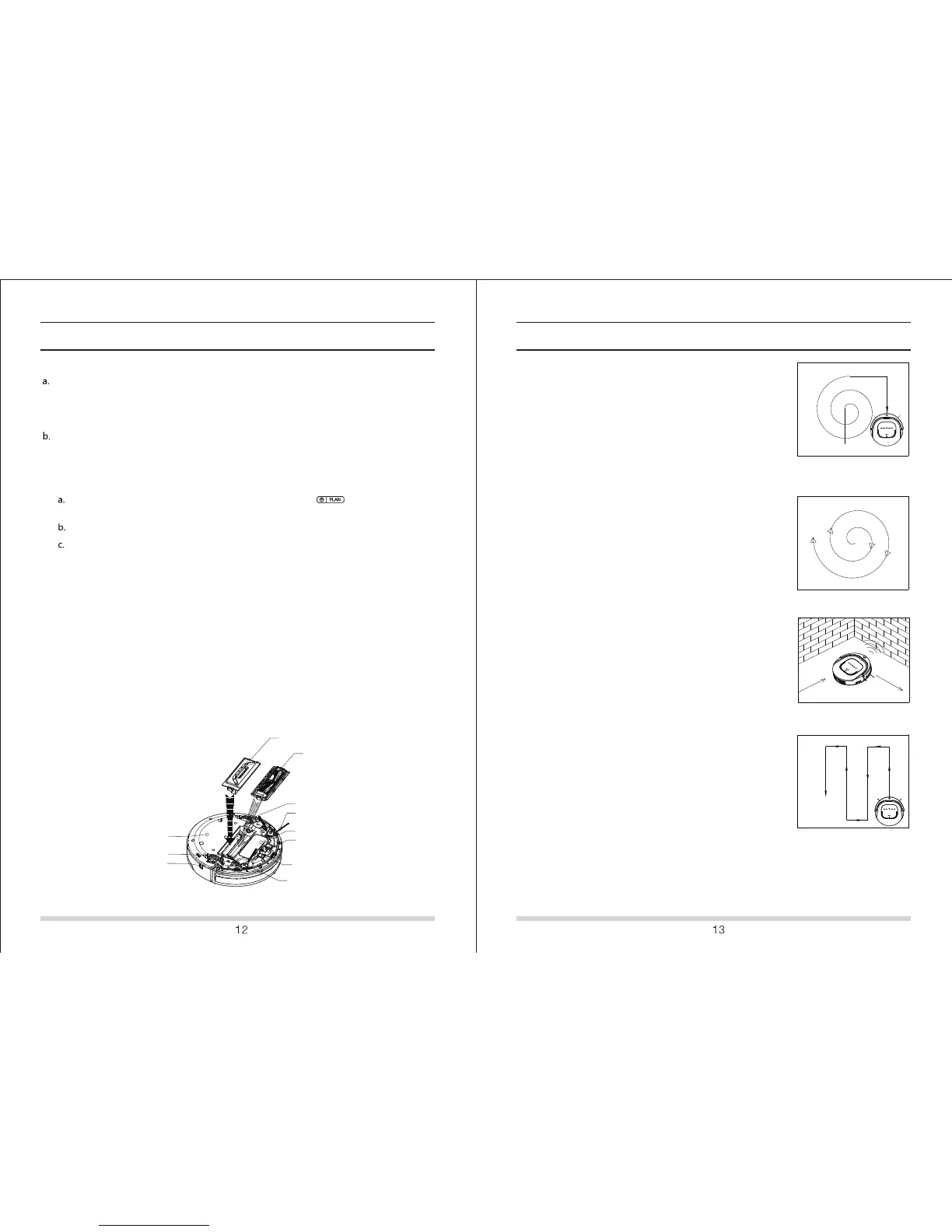
1. Random cleaning mode
2. Spiral Cleaning
3. Edge cleaning
In random cleaning mode, robot will cleaning straightly,
and will turn direction randomly when meet obstacles,
just in order to
clean effeciently.
In spiral cleaning mode, robot
will clean in a spiral
pattern. It is suitable for an open area.
4 .
4 cleaning modes:
cleaning. The robot will clean along the obstacles.
Zig-Zag cleaning mode is suitable for open area or the
environment with less obstacles.
In cleaning mode, press MODE to choose edge
Zig-Zag cleaning
.
Press ON/OFF again, scheduled setting will
be cancelled.
B. Cancel scheduling
( If the robot shows 00:00 on panel, then the scheduling is cancelled. If not, press ON/ OFF again).
Product OperationProduct OperationProduct OperationProduct Operation
Random cleaning
Spiral cleaning
Edge cleaning
Zig-Zag cleaning
Switching suction and rolling brushSwitching suction and rolling brushSwitching suction and rolling brushSwitching suction and rolling brush
Suction and rolling brush can be switched on the botton of robot as picture below:
suction assy
rolling brush
wheel
side brush
battery cover
nose wheel
charging pole
wheel
charging socket
bottom cover
side brush


 To Next Page