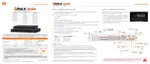
4.6.2. Backup Video Playback
If [ADD VIEWER] is selected, the backup image can be reviewed on a PC with no need to install
additional software. Once the backup device (USB) is connected to a PC, the files will appear in
the exported folder.
1. To play recorded data, open the exported folder and double-click the
“MultiBackupViewer” file. In the backup player, open the video data file (SSF format)
that you wish to playback.
2. To p l ayback, a single channel, click the [SINGLE CH] tab () and select an SSF file
then drag it into the viewing area.
3. To playback, multiple channels, click the [MULT I CH] tab and “Search” to open the
folder that keeps all SSF files.
You can print or export an image and digital zoom by using the icons () at the bottom-left of
the player window.
Option MENU
Various settings are available in the OPTIONS window of the
backup player software.
• Use Delnterlace: Some PCs do not support
“Delnterlace”. In this case, the user can uncheck the De-
lnterlace checkbox in the “Option” menu.
• Show Image Info on Snapshot: Image information will
be added as text overlay when exporting an image.
• Show POS Data on the video channel: POS data that
has been backed up can be displayed during playback.



 To Next Page
 Loading...