User’s Manual
27
How to use EDID Emulation Mode
1. Dynamic mode
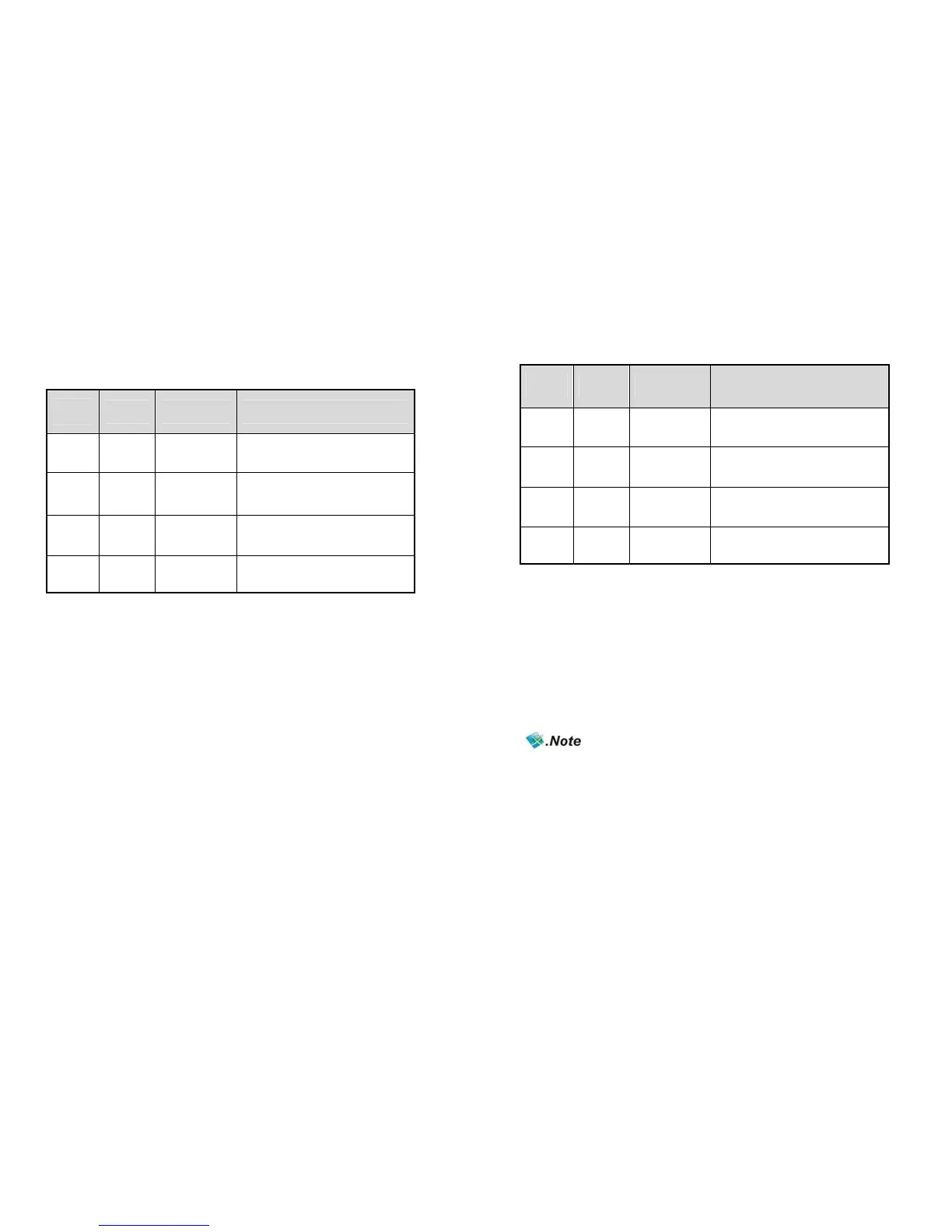
Function
Number
Mode
Summary
Description
F1 Normal
Safety
configuration
Intersection of all those display
devices
F2 MaxAudio Max audio
Video : Intersection of all those display
devices
Audio: it takes maximum value.
F3 Copy 1st HDMI Port
Follow EDID information of the display
device connected 1
st
HDMI output.
F4 MaxAll
Max all
capability
Joining EDID information of all those
display devices.
How to set Dynamic mode.
1. Keep touching “F” key on front over 2sec.
2. All LEDs of input1~4 are blinking after pre-registered mode LED blinking.
3. Select No. 1~4.
4. Selected LED function Number (input1~input4) is blinking and be set. .
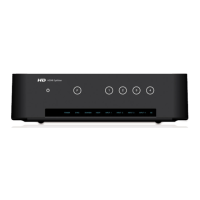
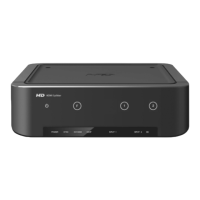
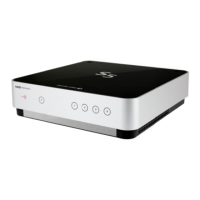
NEXD HDMI Splitter
2
2. Static mode
Function
Number
Mode
Summary
Description
F5 SD SD mode
Audio : 2Ch, PCM
Video : 480i,p/60Hz, 576i,p/50Hz
F6 720P Force 720p
Audio : 2Ch, PCM
Video : 720p/50,60Hz
F7 1080i Force 1080i
Audio : 2Ch, PCM
Video : 1080i/50,60Hz
F8 1080p Force 1080p
Audio : 2Ch, PCM
Video : 1080p/50,60Hz
How to set Static mode.
1. Double-click “F” key.
2. All LEDs of input1~4 are blinking after pre-registered mode LED blinking.
3. Select No. 1~4.
4. No.1->F5 No.2->F6 No.3->F7 No.4->F8
5. Selected LED function Number (input1~input4) is blinking and be set. .
- When above functions are selected, “EE” LED will be ON except F1.
- In case of using remote control, select F1~F8 after pressing "F" key.



 To Next Page