Listening to Records
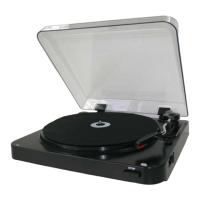
1. Place a record on the turntable over central spindle (8). Place the EP (45 RPM) adapter (10) over the central
spindle when playing 17cm EP records.
2. Set the Speed Selector (4) to 33 or 45 rpm according to the record.
3. Release the Tone Arm Holder (2) and remove the protective cap from the stylus (5).
4. Lift the Tone arm (1) with the Tone Arm Lift Lever (3).
5. Move the tone arm to the beginning of the record or to the start of a particular track.
6. Gently lower the tone arm onto the record with the Tone Arm Lift Lever to start playing.
7. When the record is finished the tone arm will automatically stop and return to the Tone Arm Holder.
8. To stop play manually at any time, lift the tone arm from the record and return it to the holder.
Storing Records as Digital Music Files
(via USB to computer)
Installing Audacity Software
Install the Audacity software in your Computer
(supplied disc matches with the device):
- Insert the Audacity disc into CD drive of your
computer.
- Click “My Computer” on the desktop.
- Double-click “CD drive” to view contents of the
Audacity disc.
- Double-click “Audacity Set Up” & follow the
instruction to install the software.
Install USB Driver
- Make sure the Audacity disc remains in your CD
drive.
- Use supplied USB cable to connect the device to
your computer.
- Follow screen instruction to install the USB driver.
Running the Software
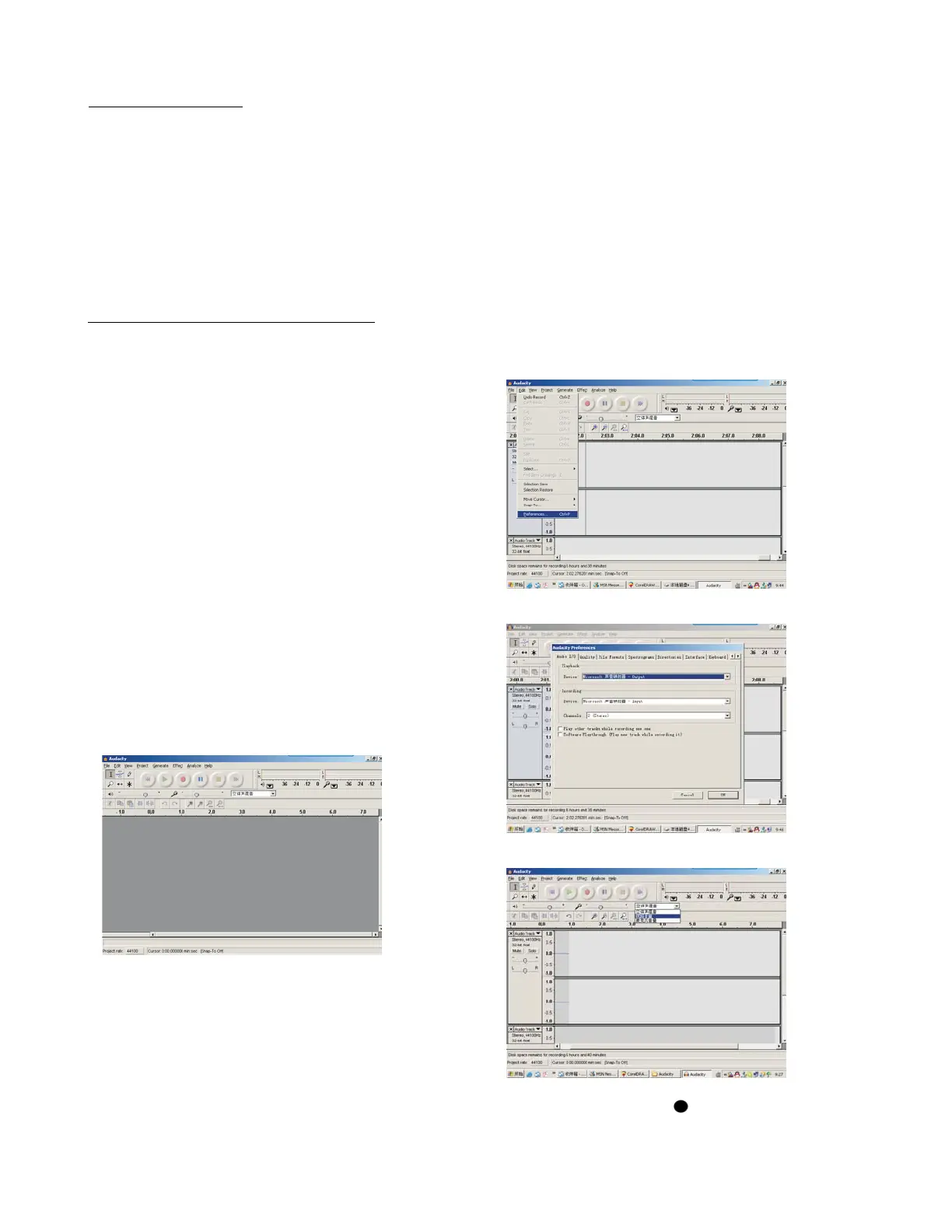
1.Double-click the Audacity software showing red and
orange “balls” wearing blue headphone, and go to
the following interface:
2. Use the attribute controls button at top of the
screen, go to beginning, Play, Record, Pause, Stop
and go to end. Use the File, Edit, View, Project,
Generate, Effect and Analyze menu to Save, Export
and edit the music.
3. Select preference at bottom of the menu which
will open up Audacity Preference. You can set the
Audio I/O, Quality, File Formats, Spectrograms,
Directories, Interface, Keyboard and Mouse in the
Audacity preference Interface.
Audacity Preference
4.Adjust output and input volume.
5. Select record button ( ) to record the disc, left
and right tracks will show on the interface;
3


 To Next Page