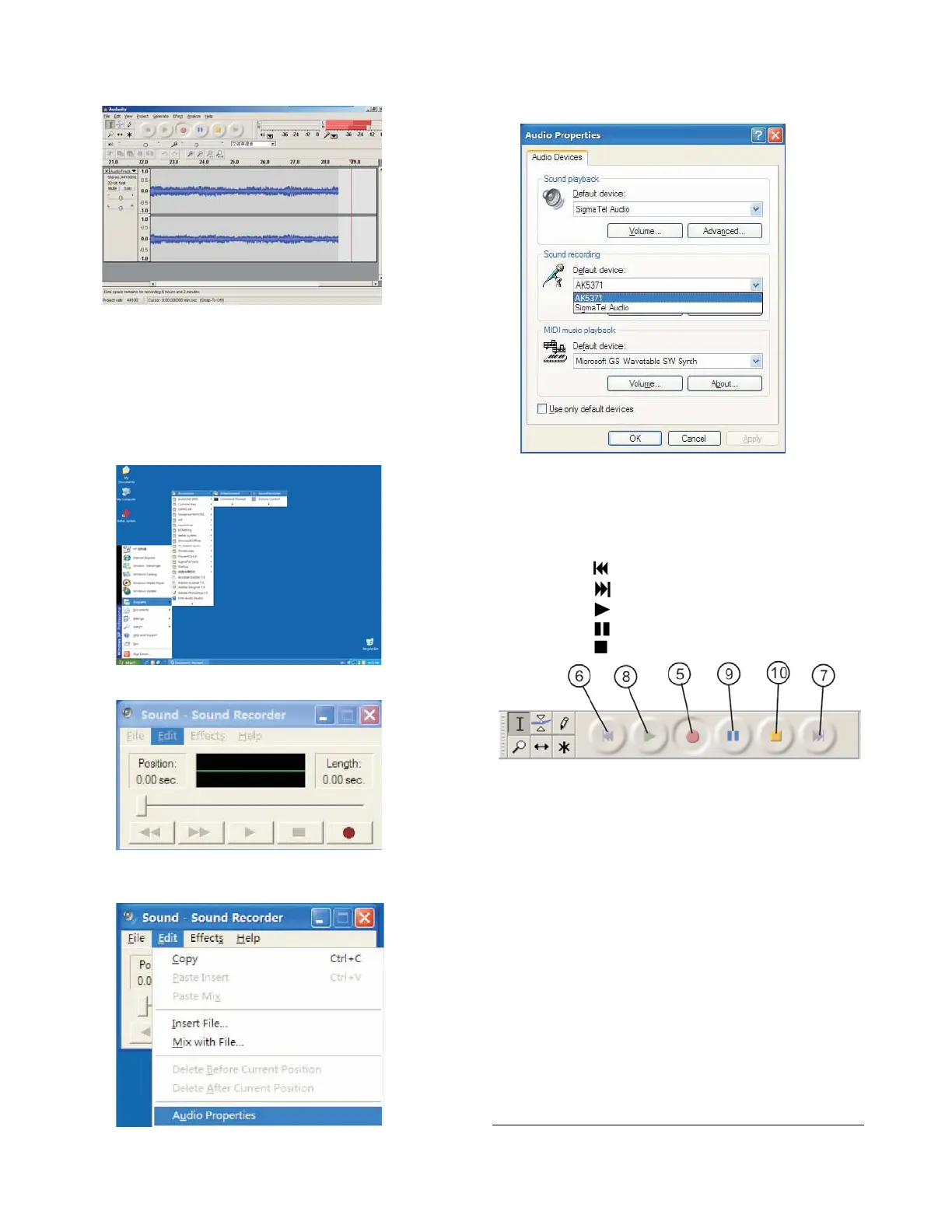
If no fluctuant wave on the interface during
recording, please adjust the line in volume as
follows:
(i)Click “start” in left corner of the computer, Select
“Programs” , “Accessories”, “Entertainment” ,
“Sound Recorder” and go into the sound record
interface.
(ii) Sound Recorder Interface
(iii) Select Edit and click “Audio Properties” in bottom
of the menu to go to “Audio Properties” interface:
Audio properties Interface
(iv) Select sound recording volume and go to
“Recording Control” interface:
Adjust the line in volume to most or middle, the
fluctuant wave will show on the interface when
recording.
6. Click the (
) button to skip to start;
7. Click the (
) button to skip to end;
8. Click the (
) button to play;
9. Click the (
) button to pause the record play;
10. Click the ( ) button to stop the Record.
11. Export music files to WAV, MP3, Ogg format.
Once you finished the record, you should save your
music to the computer.
Click File menu and move down to Export as
WAV format, MP3 format or Ogg format.
Click anyone format to save the music, and you
will ask for the file name of the music recorded.
Note:
- Audacity does not export MP3 files directly, you
should download the LAME MP3 encoder, which
named lame_enc.dll.
- If the drop down box cant be accessible then it is
because of the operating system and sound card.
The unit will still work properly as long as the
correct inputs and outputs have been selected.
- For 1
st
encoding, file export to default folder only.
- Unplug USB cable to listen to exported music file.
Specification
Power Supply : AC 240V ~ 50Hz
4


 To Next Page