6
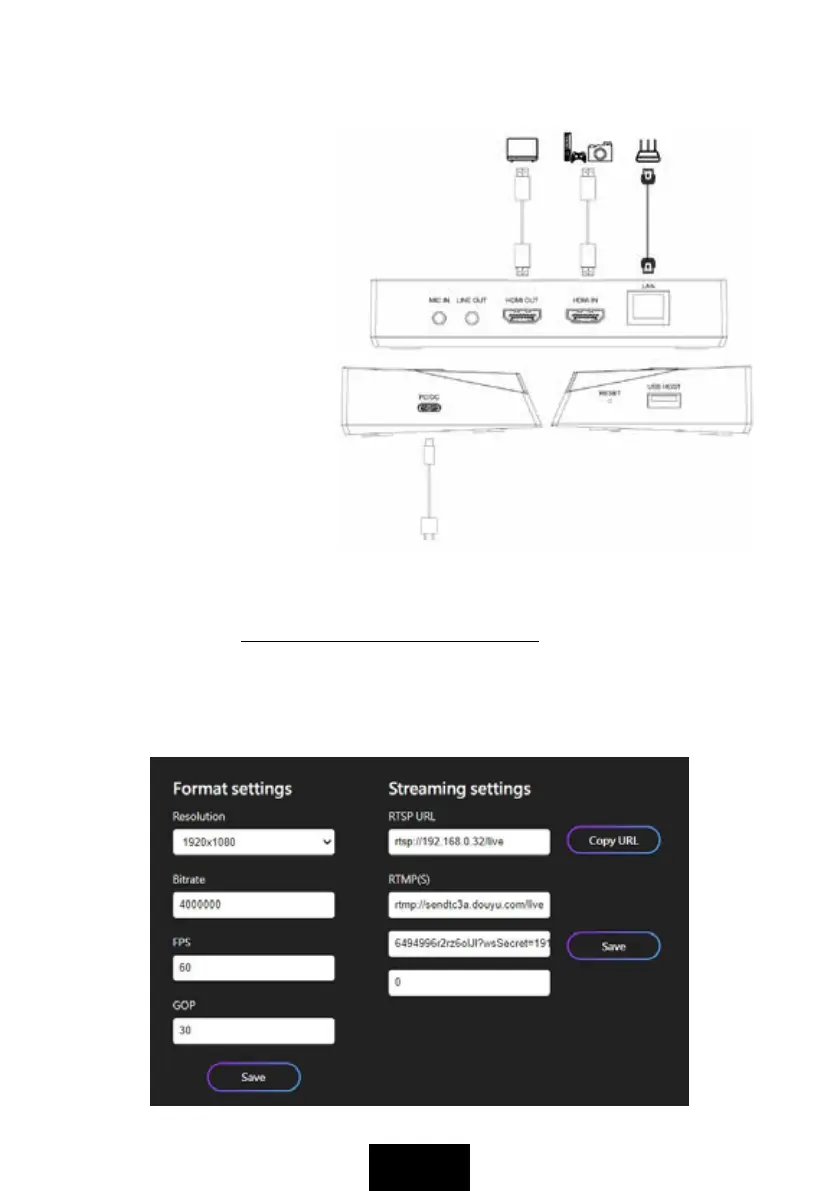
1. Plug USB Type-C connector
of included USB cable to PC/
DC port, and USB Type-A
connector to your USB DC
adapter (5V2A, included) to
power on device. STREAM
button will flash in RED, it
means device is not ready to
stream.
2. Use a HDMI cable to connect
HDMI IN port and HDMI video
source.
3. Use a HDMI cable to connect
HDMI OUT port and TV or
monitor. You should get video
and audio on TV right now.
4. Use a network cable to connect
your network and LAN port of
device, and GREEN LAN port
indicator will beilluminated,
means connected well, and ORANGE indicator flashes, means network is ready.
5. Please make sure that the device is in the same LAN as the computer where you set
RTMP. Please go to http://www.cddownload.top/hdpvrpro.zip, download and get HDMI
PVR XC4663-win and HDMI PVR XC4663-mac folders. Please select according to your
computer’s operating system. Open the folder and double click HDMI PVR XC4663.exe and
a window will appear. It will start to scan the device until it shows your HDMI PVR XC4663
with a MAC address. Please click on HDMI PVR XC4663 and a web page will open as below.
Stream live video on YouTube with network bonding (RTMP)



 To Next Page