8
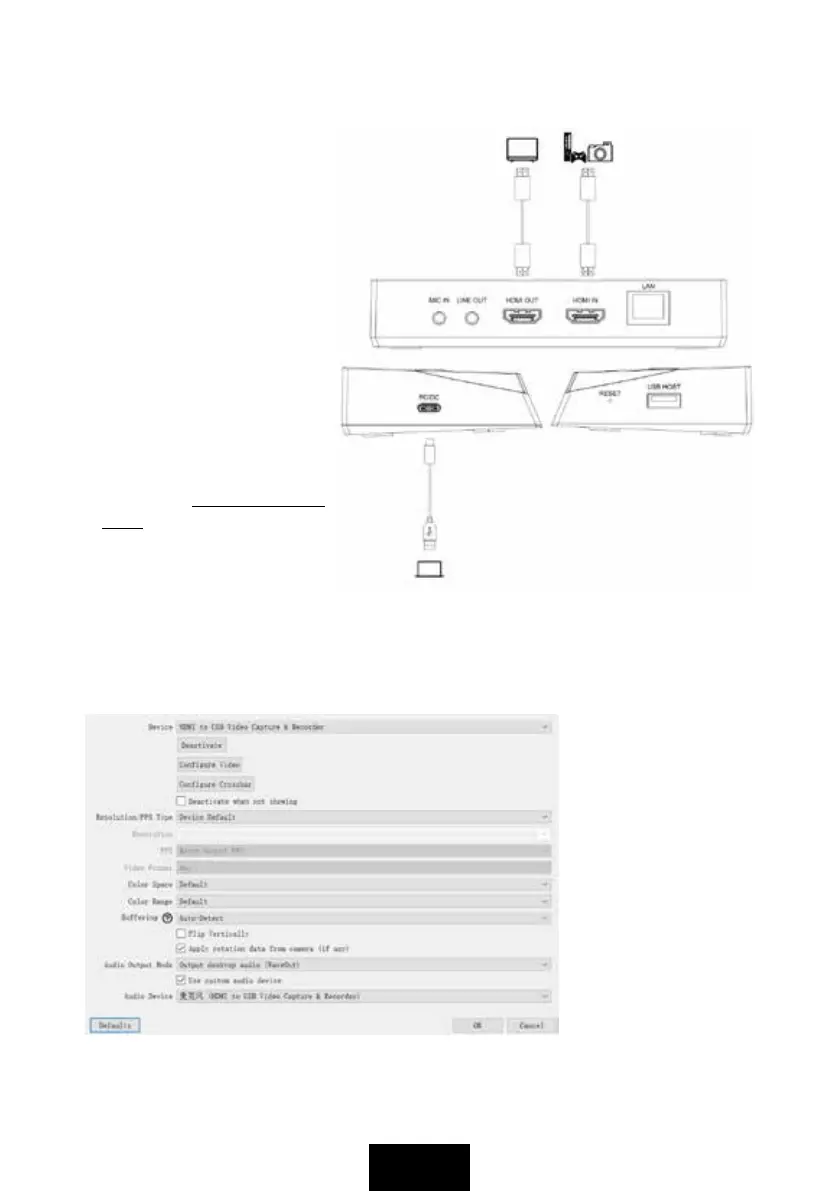
1. Plug USB Type-C connector
of included USB cable to PC/
DC port, and USB Type-A
connector to computer USB
3.0port. Please use the
included USB adapter with
cable together if computer is
USB 3.0 Type-C port.
2. Use a HDMI cable to connect
HDMI IN port and HDMI video
source.
3. Use a HDMI cable to connect
HDMI OUT port and TV or
monitor according your need.
You should get video and audio
on TV right now.
4. Please go to https://obsproject.
com/ to download OBS and
install on your computer. Click
on the +icon of OBS, and select
Video Capture Device, and click
OK of new window, then select
Digitech HDMI to USB Capture & Recorder in Device list. Please select Output desktop
audio (WaveOut) in the Audio Output Mode list. Tick Use custom audio device, and select
Digitech HDMI to USB Capture & Recorder in the Audio Device list. You will see the video
from Digitech HDMI to USB Capture & Recorder appear in the preview window.
5. We do not suggest
recording video in USB
flash drive and capturing
streaming video by
software on computer at
the same time. This may
cause the video to freeze
or even fail to achieve.
But if you do that, please
setup Video Format to
H.264 on software.
6. You can click the Help
icon to learn more how to
record and stream video
on OBS.
Capture and stream HDMI video by software on computer



 To Next Page