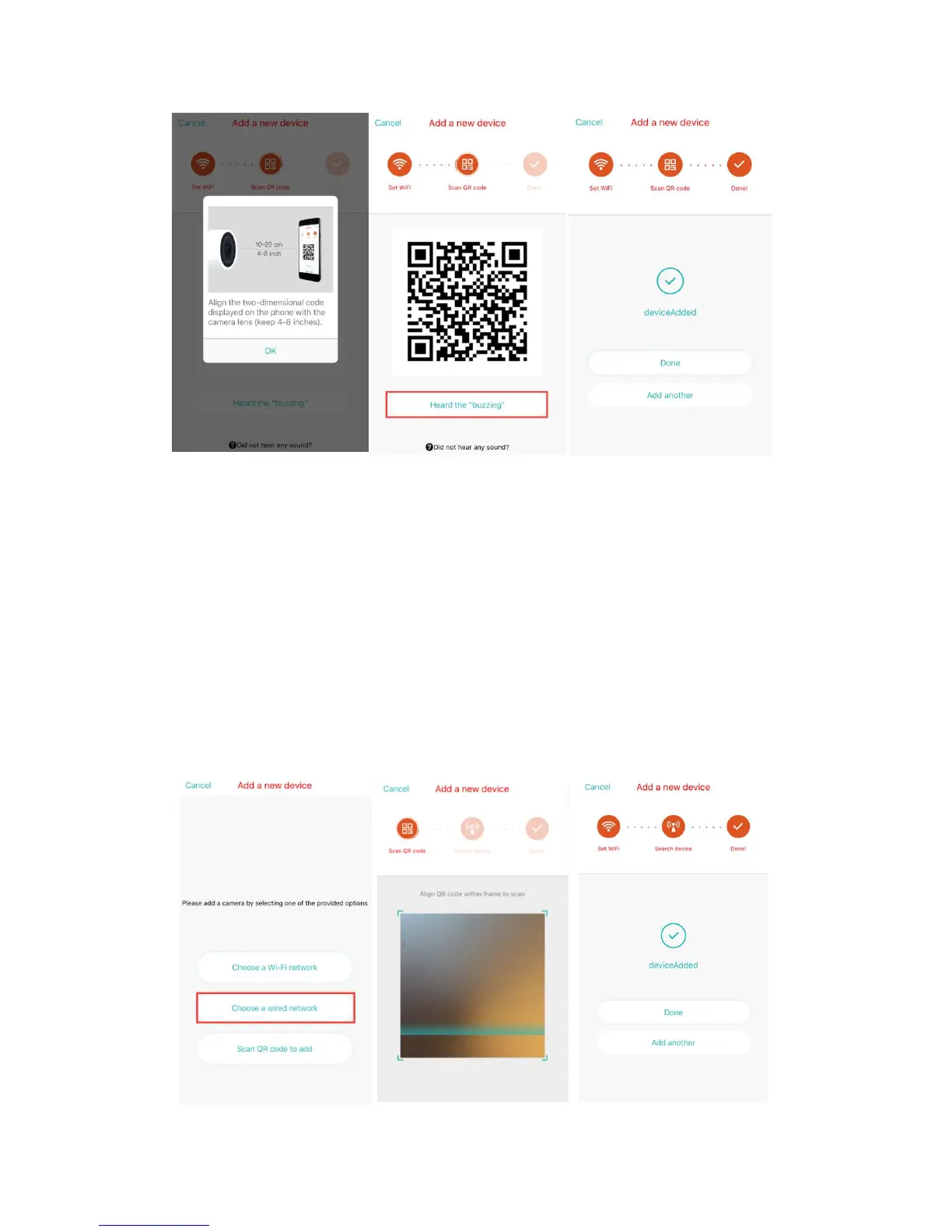
A, Please make sure your phone has connected to the Wi-Fi, and then click “Scan QR
code to add”, reset the camera, after hearing the sound “Please use mobile phone for
Wi-Fi configuration”, please click the “Press the SET button”
B, Select the same WIFI your phone use and login with the WIFI password.
C, Align the two-dimensional code displayed on the phone with the camera lens,
maintain a distance of 4-8 inches and keep balance.
D, Click “Hear the buzzing” after hearing the Beep, a few seconds later, you will hear
the voice “Internet connected, welcome to use cloud camera”
2) Choose a wired network
(
Only support LAN port device
)
A, Please connect network cable between camera and Wi-Fi router.
B, After your phone connect to the Wi-Fi, Click “Add device” and “Choose a wired
network”


 To Next Page