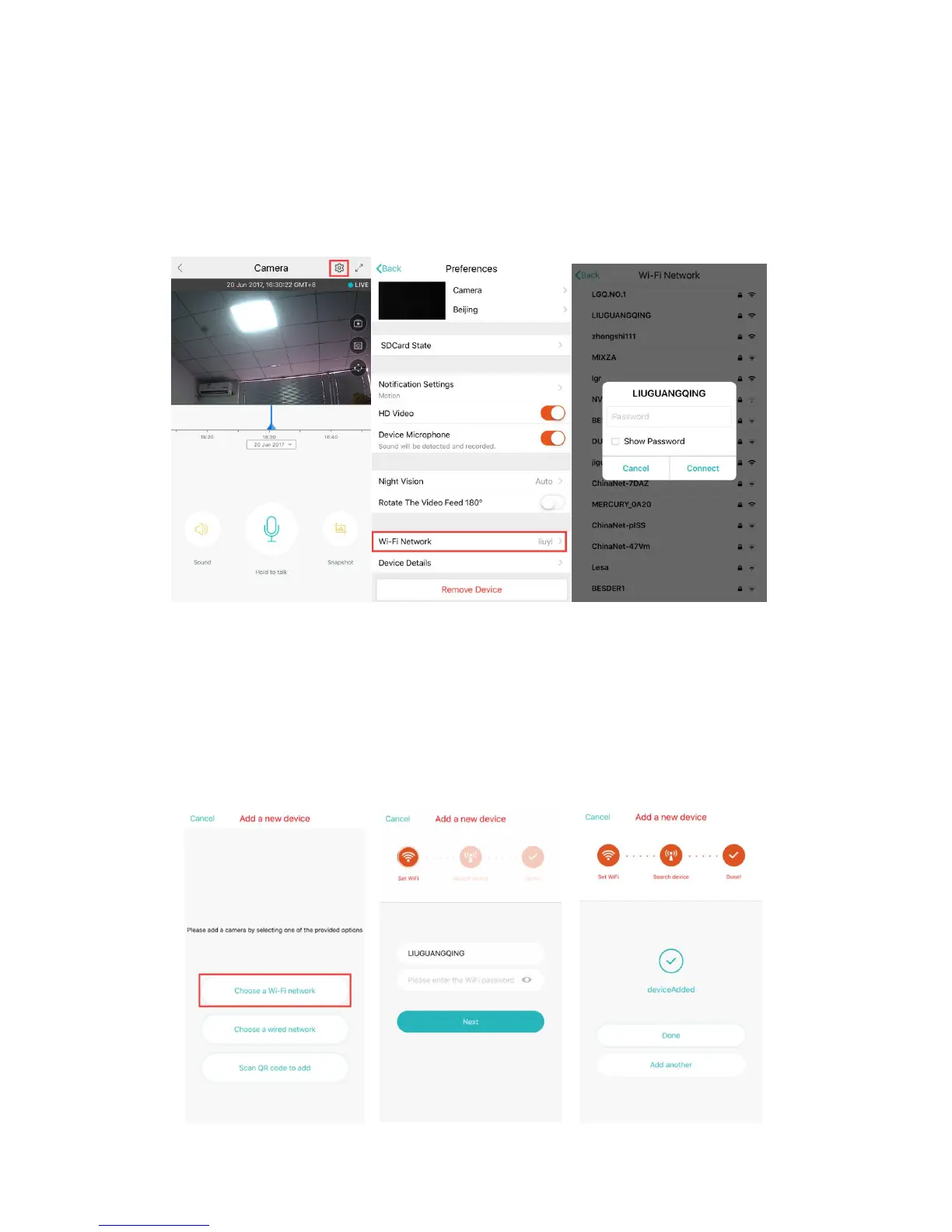
C, Please scan the QR code on the device and wait for the network connection to
succeed.
D, Open the video, click the set icon to the settings page
E, Select “Wi-Fi Network” and choose the same WIFI your phone use, login with your
password, then click “Connect”
F, Unplug the network cable.
A、After your phone connect to a Wi-Fi, please click “Add device” and “Choose a
Wi-Fi network”
reset the camera, after hearing the voice “Please use mobile phone for Wi-Fi
configuration”, please click the “Press the SET button”
B、Select the same WIFI your phone use and login with the WIFI password.
C、Hear the voice “Internet connected, welcome to use cloud camera” and wait for the
Wi-Fi connection succeed.


 To Next Page