3 • System Setup
Doc. 22181-97001 02/18
85
4. Connect the tablet power, if it is not already connected (see
Section 3.9.3).
3.10.4 Installing a Wireless Tablet
The wireless tablet does not require any physical connections to send data to
the IPC, although it is necessary to install a wireless router (see
Section 3.10.1).
Connecting the Tablet OS
1. Verify that the tablet power is on.
2. On the Windows taskbar, locate the network icon in the system tray (in
the lower-right corner of the startup screen). Tap the icon to display a list
of available networks.
3. On the Wi-Fi menu, tap Locate SSID.
4. Find the entry for the router SSID, and tap the corresponding Connect
automatically option.
5. Tap Connect to close the menu.
6. When prompted for a password, enter the router password copied from
the bottom of the router.
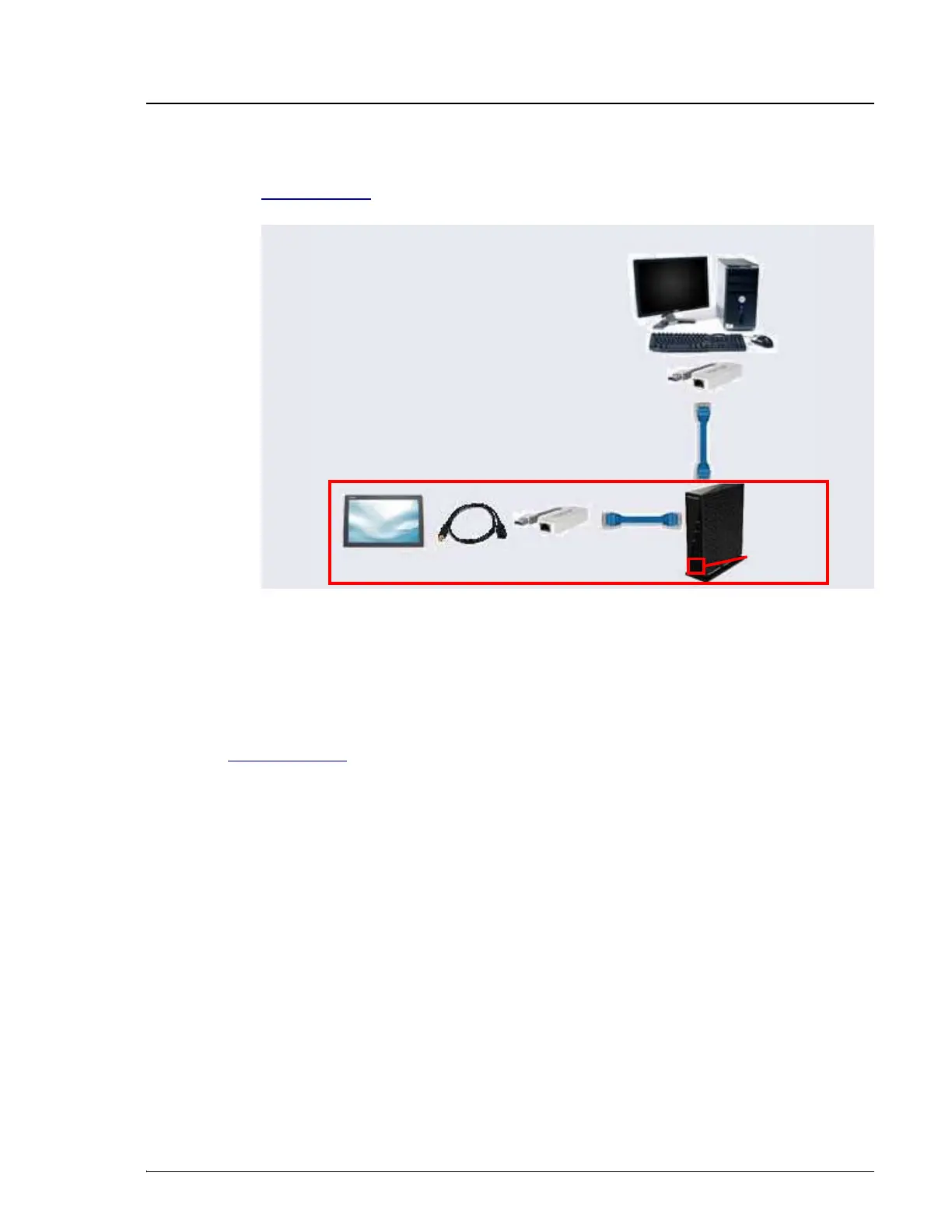
Figure 3-44. Ethernet Connections from the Tablet to the Router
Ethernet Cable
Tablet
Ethernet
Cable
Router
IPC
USB
Adapter
Optional USB
Adapter
Wi-Fi
On/Off
Optional USB
Extension


 To Next Page
 Loading...