Dionex ICS-6000 Installation Instructions
90
Doc. 22181-97001 02/18
•
If the tablet was not purchased from Thermo Fisher Scientific, verify that
the ICS-6000 Setup Utility is installed (see Section 3.11.2).
3.12.1 Automatically Pairing the Tablet and Instrument PC
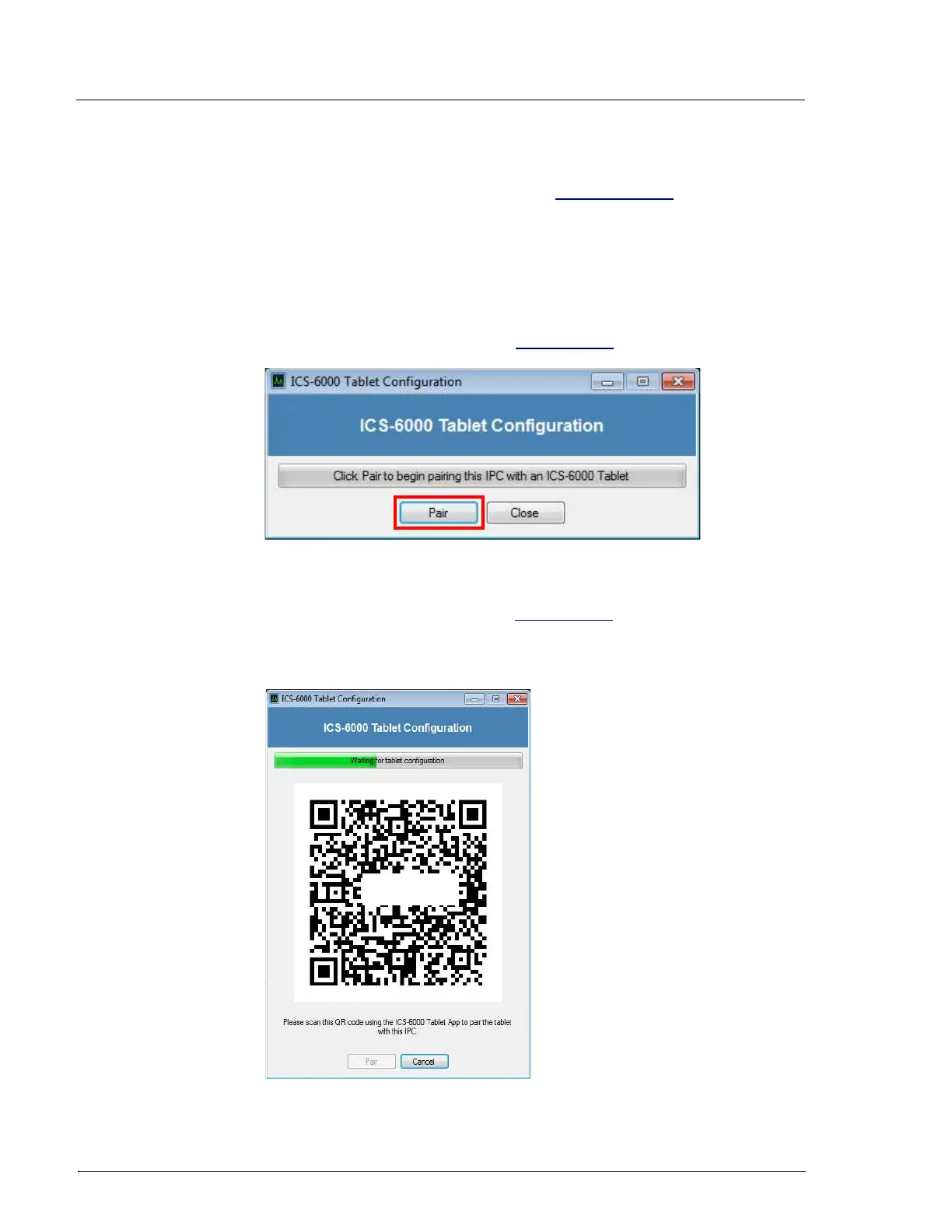
1. On the Windows taskbar, click Start > All Programs > Thermo
Chromeleon 7 > ICS-6000 Tablet Configuration. The ICS-6000 Tablet
Configuration dialog box appears (see Figure 3-48).
2. Click Pair to generate a QR code (see Figure 3-49). The QR code is a
two-dimensional barcode that contains the information needed for the
tablet to connect to the IPC.
Figure 3-48. ICS-6000 Tablet Configuration Dialog Box
Figure 3-49. QR Code for the ICS-6000 Tablet Configuration
SAMPLE



 To Next Page