23
Troubleshooting Tip: If you still do not see the Wireless Adapter Found screen, then press the “MENU” button on your DIRECTV Remote Control.
Select “Parental, Fav’s & Setup”, then “System Setup”, then “Network Setup”. Then select “Repeat Network Setup”
or “Connect Now”. Follow the on-screen instructions and choose “Wireless” for the method you will use to connect.
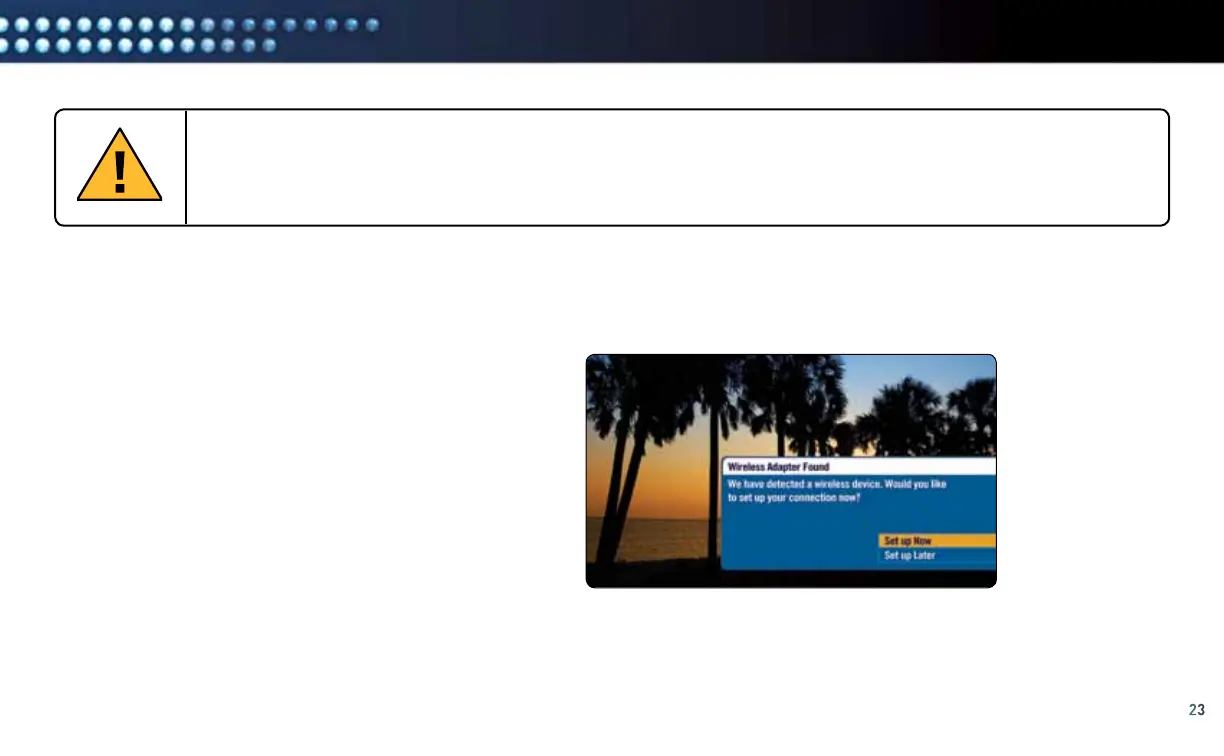
A. Within 60 seconds, the TV should present a screen
that prompts you to configure your wireless device.
Select “Set up Now” to continue.
Select “Set up Now”
manual wireless setuP
IMPORTANT: If you have successfully completed WPS setup in the “Completing Wireless Protected Setup” section above,
then you do not need to follow the instructions in this section. Your setup is complete.
Otherwise, if you did not attempt or could not successfully complete the WPS setup, continue with this section.
After you connect your DCCK device to your DIRECTV
®
Receiver, instructions will automatically be displayed on your TV screen.
Follow the steps below to complete your wireless setup. Use the “SELECT” button on your DIRECTV
®
Remote Control to make your choices.



 To Next Page