2.3.1.3 Edit
User can edit the program name, maximum length is 20 characters.
(1) Press <Left/Right> button to select Edit option and <Up/Down> button to select the
program.
(2) Press <OK> button to display program info and press it again to edit
program name.
(3) Press <Up/Down/Left/Right/0~9/RED/GREEN> button to select the character.
(4) Press <OK> button to finish the editing and return to previous program info page.
(5) Press <RED> button to save the editing and return to List or press <Exit> button to
return to List without saving.
2.3.1.4 Move
Move will allow you move the position of the channels in the list.
2.3.1.5 Sort
Sort will allow you sort the channels by A<->Z or Pay<->Free.
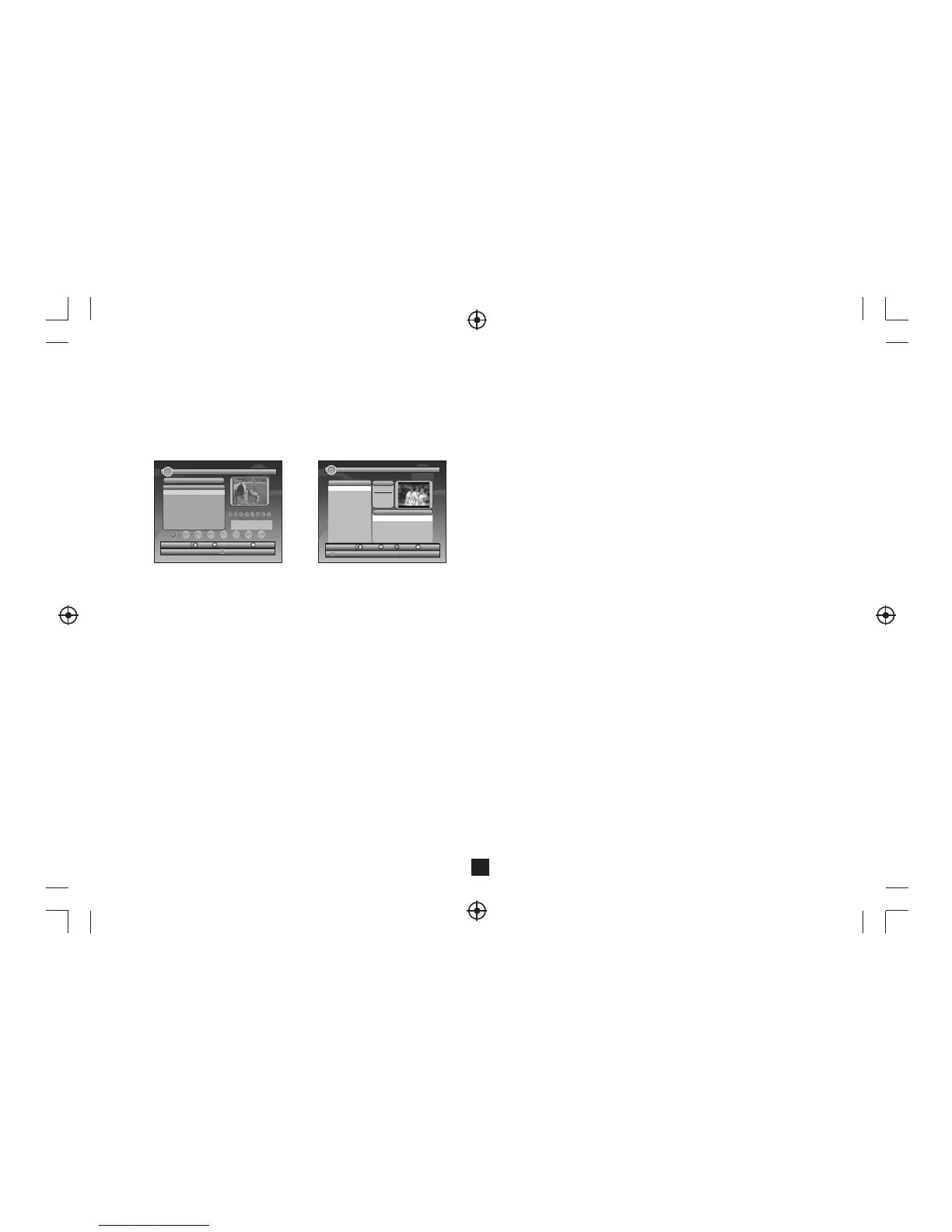
Figure 9. TV List
5
2.3.1.6 Skip
Skip will skip the program when changing program by CH+/-. Press <OK> button to set or
clear skip status when Skip option selected.
2.3.1.7 Delete
Delete will delete the program permanently from database. User must rescan to recover it.
Press <OK/GREEN> button to set delete one or delete all when Delete option selected.
2.3.1.8 Search
User can search the program name by partial keyword.
(1) Press <Left/Right> button to select Search option.
(2) Press <OK> button to entry search page.
(3) Press <Up/Down/Left/Right/OK/0~9/RED/GREEN> button to input keyword.
(4) Press <OK> button to Search and return List. The matched program will be focused.
(5) Press <GREEN/YELLOW> button to the next or previous matched program.
2.3.2 Guide
Guide is also naming EPG (Electronic Program Guide). See Figure 10.
(1) Press <Up/Down> button to select program or EPG event.
(2) Press <Left/Right> button to change event or date.
(3) Press <OK> button to exit all the menus or show the detail
information of selected event.
(4) Press <Exit> button to exit to previous menu.
"
"
" "
(5) Press <RED> button to enter Book page and <YELLOW> button to save after edited.
If it conflict with itself or other event, a conflict message will be displayed.
The successful booking will be added to Main Menu-> SETUP->Advance Timer
(see section 2.2.4).
2.4 MULTIMEDIA
Multimedia must be used with external USB device inserted, otherwise the Device is not
ready! message will be displayed, remove device when playing photo or MP3/WMA,
the Device is removed! message will be displayed and return to Main Menu.
2.4.1 My Album
My Album can display JPG/BMP/GIF photos and operate it. If there are photos in device root
folder, it will start at Thumbnail mode, otherwise it will start at Folder mode. Press <BLUE>
button can switch to Folder mode and <Exit> button to Thumbnail mode again.
Figure 10. Guide - Event
All
No. P rogra m Name Sta tus
000 1 CT SPORT
000 2 A plika ce MHP
000 3 CT 1
000 4 CT 2
000 5 CT 24
000 6 NOVA
CH+ /-
Tool
Exit
Sav e
1-8 : Favorite Gro up Edit
Fav orite s
CH2 3/490 166 KHz
PID :V 1025 , A 104 1
TV Lis t
01/0 1/20 08 02:1 9
TV Gu ide
17/0 7/20 07 02:1 9
EPG +/-
Date
Exit
Boo k
Deta il
080 0 TVE 1
080 0 TVE 2
080 2 24H TVE
080 3 CLAN TV E
Date
Wed .
200 7
10/1 7
Today 1 8 19 20 21 22 2 3
11:3 0 Por L a Manan a 2007
13:1 5 EI Neg ociad or
14:0 0 Info rmativ o Madrid 2007
14:3 0 Cora zon De Oto no 200 7
2
15:0 0 Tele diario 1 Edic ion 200 7
No.P rogra m Name
OK
2.3.1 List
User can operate some functions in List. See Figure9.
2.3 TV/RADIO
There are two types of program: TV and Radio. The operation of the List and Guide of
TV and Radio are almost the same. Herein take TV as example.
2.2.5 Set Default
Restore STB to factory default. All settings did by user will be restored to factory default
values and the database will be erased together.
2.3.1.1 Favorites
User can quickly channel up/down the favorite programs by favorite filter. There are 8 groups
of favorite for user setting: News, Sport, Movie, Music, Shopping, Travel, Boy and Girl.
Press <1~8> button to set or clear the favorite group when Favorites option selected.
2.3.1.2 Lock
Lock will ask password before watching this program when SETUP -> Password ->
Channel Lock is turned on. Please see section 2.2.3.2 for details. Press <OK> button to set
or clear lock status when Lock option selected.


 To Next Page
 Loading...