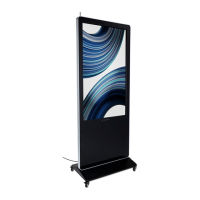
This document describes the Displays2go 43" Indoor Floor Standing Digital Signage, model DGSNFSTCH43, version V20.08. This is a high-performance, multi-functional LED backlight digital signage unit designed for displaying various media content.
Function Description
The digital signage is an indoor floor-standing unit primarily used for displaying images, videos, and music. It operates on an Android 7.1 smart operating system with a unique UI design, providing a convenient and visually appealing user experience. It supports USB mouse and keyboard for easy manipulation, similar to a computer, with a mouse being recommended for setup. The device features a built-in Wi-Fi module, high-capacity memory, and cache, ensuring smooth playback of 1080P HD movies and games. It utilizes a high-quality LCD screen that is flicker-free and low-radiation, designed to reduce eye fatigue. The screen offers high brightness, high contrast, a wide viewing angle, and an ultra-fast response time to minimize ghosting in fast-moving images. Advanced image processing and motion compensation technologies improve clarity and reduce flickering and blurring at the edges of motion pictures. Dynamic contrast technology further enhances screen clarity and contrast. The unit also includes multi-channel USB interfaces for HD media streaming.
Important Technical Specifications
Panel:
- LCD size: 43 inches
- Light source: LED backlight
- Resolution: 1920x1080 pixels
- Brightness (typ.): 400 cd/m²
- Contrast (typ.): 1200:1
- Response (ms): 10 ms
- Pixel pitch: 0.16 (H) mm x 0.49 (V) mm
- Refresh rate: 60 Hz
- Viewing angle: 178° (H)/178° (V)
- Color saturation: 70%
- Viewable area: 940.9 (H) mm x 529.3 (V) mm
- Chromaticity: 16.7M
Power Supply:
- Voltage: 100V~240V, 50-60Hz
- Power Consumption: ≤95W
Environment:
- Operating temperature (°C): 0°C~40°C
- Storage temperature (°C): -10°C~60°C
- Storage humidity: 10~60% RH Non-condensing
- Operating humidity: 20~80% RH Non-condensing
- Maximum operating time (hrs/day): 18 hours
Functions:
- Operating system: Android 7.1
- Processor: RK3288, quad-core
- RAM: 2G
- Built-in memory: 16G
- Decoding resolution: 1080P UHD compatible
- Playback mode: Support loop, inter-cut, timer, shim, etc.
- Touch support: IR Touch, 10 points
- Supported Video Files: AVI, MPEG4, WMV, MKV, FLV, MP4, MOV
- Supported Photo Files: JPG, JPEG, BMP, PNG, GIF
- Audio output, supported files: Left and right audio channel, MP3
- RTC (real-time clock): Yes
- Schedule power on/off: Yes
- System update: USB compatible
- App installation: Support download and installation
- TF: N/A
- Ethernet (RJ45): 1
- HDMI: 1
- VGA: N/A
- Headset: N/A
- USB: 3
- SIM: N/A
I/O Interfaces:
- 1x USB interface
- 2x RJ45 interface (Ethernet)
- 3x HDMI input
- 4x Power port
- 5x On/Off button
Structure:
- Net weight: 50kg
- Gross weight: 64kg
- Unit dimensions (WDH): 640661760mm
- Package dimensions (WDH): ≈1830240790mm
- Shell material: Aluminum profile/sheet metal
- Shell color: Silver/Black
Language:
- OSD: English/Simplified Chinese
Usage Features
Assembly: The unit requires assembly of the base and the digital poster. Casters can be added to make it a mobile unit, requiring 4 casters threaded into the metal base and secured with a 14mm wrench, followed by connecting the base to the digital poster with provided screws and an Allen wrench.
Remote Control: A remote control is included for various functions such as power on/off, source selection, volume control, navigation (up, down, left, right), confirmation, home, back, menu, and OSD setup. Batteries (two AAA 1.5V) need to be inserted, ensuring correct polarity.
Basic Operation:
- Power on/Standby: Insert the power plug into the outlet. The digital signage enters standby state. Press the power switch button "I" to turn it on, or "O" to enter standby. The "power" button on the remote control or the "System Assistant" app can also be used.
- Launch Desktop: The desktop provides icons for main applications, back, home page, background applications, sound control, and hiding the home button.
- Wallpaper Switch: To change the wallpaper, connect a mouse via USB, then navigate to "Setting" > "Display" > "Gallery" or "Wallpaper," select an image, and confirm by clicking "Set wallpaper."
- File Manager: Access media files by clicking the "Main Apps" button, then the "Explorer" icon in the "APPS" menu interface. Files can be read from different devices.
- Local Settings: Access system settings by clicking the "Main Apps" button, then the "Settings" icon in the "APPS" menu interface. Options include Wi-Fi switch, Bluetooth, data usage, display, notifications, sound, apps, screenshot setting, storage, battery, memory, users, location, security, accounts, Google, languages & input, backup & reset, and date & time.
- Status of Menu Bar: The menu bar can be hidden by clicking the "down arrow" icon.
- DiViEx APP Introduction:
- System Requirements: CPU RK3288, ROM 16GB, Operating system Android 7.1.
- Uploading Media Files: Plug a USB drive into the computer, create a new folder named "MediaFolder" in Windows Explorer. Inside "MediaFolder," create three subfolders: "Images," "Videos," and "Music." Copy respective media files into these folders. Plug the USB drive into the device and click the DiViEx app. When "USB Disk:" shows "Copy finished," media files are ready to be displayed.
- Settings:
- Set time each picture is to be shown: Drag the bar to the desired time.
- Select how you would like the images to display: Select the desired transition effect.
- Auto Boot: DiViEx app automatically opens when the digital signage is turned on.
- Auto Play: DiViEx app automatically plays the slideshow when opened.
- Choose Picture display mode: Check a fit option for how pictures are displayed.
- Set Picture switch mode: Choose an animation option for fade in and fade out effects.
- Edit Picture: This function allows editing pictures.
- Crop: Four corner handles and four border handles to crop the picture.
- Filter: Browse and try different filters (AUTO_FIX, BLACK_WHITE, BRIGHTNESS, CONTRAST, CROSS_PROCESS, DOCUMENTARY, DUE_TONE, FILL_LIGHT, FISH_EYE, FLIP_HORIZONTAL, FILP_VERTICAL, GRAIN, GRAY_SCALE, LOMISH, NEGATIVE, PSTERIZE, ROTATE, SATURATE, SEPIA, SHARPEN, TEMPERATURE, TINT, VIGNETTE).
- Reset: Click "Reset" to remove all editing.
- Save: Click the icon to save the edited image.
- Image Deletion: Click "X" to delete unwanted pictures.
- Music: Add music to "Playing List Music" (Background music) from "Playlist Library." Click the "right arrow" to show the music title in "Playlist Music." To remove music, click the "left arrow."
- Factory Reset: Go to "Settings" > "Backup & reset" > "Factory data reset" > "ERASE SD card," then click "RESET DEVICE" to restore default settings.
- Screen Rotation: Click the "Main Apps" button, then "System aide" in the "APPS" menu interface. Click "Rotate screen" and "Confirm" to restart the device with the screen rotated.
- Choose System Language: Go to "Settings" > "Language & input" > "Add a language." Select the desired language and drag it to the top of the list.
Maintenance Features
Safety Warnings and Precautions:
- Always use a surge protector or power strip with an internal circuit breaker to prevent damage.
- Do not use power supply other than AC 110V, 60Hz.
- Cut off power supply before connecting or disconnecting any cables.
- Do not place the Digital Signage on unstable positions or where it may be damaged or cause fire.
- Ensure the environment is suitable (not direct strong sunlight, moisture, extreme temperature, or too much dust).
- Avoid flammable or explosive materials near the unit.
- Do not use damaged or inappropriate power outlets, plugs, or extensions.
- Do not damage the power cords; do not modify them, place heavy objects on them, or pull them to remove the plug.
- Do not connect too many plugs to one outlet.
- Do not approach the Digital Signage with open flame.
- Do not put any sharp objects, metal, or liquid into the vents.
- Ensure proper ventilation and cooling; do not block openings.
- Do not touch plugs with wet fingers.
- Unplug during stormy weather.
- Do not disassemble the Digital Signage without permission.
- Do not let children climb onto the Digital Signage.
- Keep small parts away from children to prevent them from swallowing.
- If the Digital Signage won't be used for a long time, turn it off and pull out the power plug.
- Adjust the position of the Digital Signage to disconnect all power cords and move slowly to avoid rollover.
- Do not scratch or knock the LCD with hard objects.
- Do not turn on the unit immediately when it is moved from a place with low temperature to high temperature, or else it will cause condensation and malfunction.
- Before cleaning, pull out the power plug. Use a soft cloth with mild cleaning solution (such as cleaning solution, water). Avoid damaging the product, erasing printed information, or causing damage to components if fluids flow in.
- If the unit displays a screen for a long time or the moving picture has fixed text or icon, it will leave ghosting on the screen and won't disappear when the unit is turned off; it is normal and isn't covered by the warranty.
- The power of the Digital Signage can be cut off by pulling out the plug.
- If LCD screen ruptures and liquid splashes on the skin, rinse for 15 minutes with clean water and consult your doctor.
- To carry the Digital Signage with hands, grab and hold the edges; do not apply pressure on the panel.
- Use the Digital Signage properly: Use in proper lighting conditions; insufficient lighting or long time watching will impair your eyesight.
- When the plug is a coupler or used as disconnection device, it should be easy to operate the device.
- Insert the plug into the outlet properly, or else it may cause sparks and fire.
- The technical specifications printed herein and on the packaging are subject to change without prior notice. The Manual may be slightly different from actual operation, and the latter is applicable.
Troubleshooting: The manual provides a comprehensive troubleshooting guide for common issues such as no picture or sound, no sound (but picture is working), no picture (but sound is working), remote control not working, no Wi-Fi signal, missing or damaged parts, having problems with installing software or getting content to play, and issues using pre-installed apps. Each issue lists probable causes and corresponding solutions, including checking connections, adjusting volume, verifying content format, replacing batteries, checking Wi-Fi settings, contacting customer service, and following specific app instructions.
Cleaning and Maintenance:
- Avoid strong vibration or impact on the product.
- Keep the product dry to avoid possible damage by moisture.
- Don't place the product under direct sunlight which may shorten the service life of the screen.
- Clean screen and product by using a glass cleaner.
- If the product will not be used for a long time, pull out the power cord to prevent the internal short circuit or other potential dangers.
Toxic and Hazardous Substances: The manual includes a table detailing the names and contents of toxic and hazardous substances or elements in the product, such as Pb, Hg, Cd, Cr6+, PBB, and PBDE, for various parts like the display, shell, circuit board assembly, wires, metal parts, packaging materials, remote control, and accessories. This information is provided in compliance with GB/T 26572-2011 standard. The EFUP (Environmental Friendly Use Period) of the product is ten years.
FCC Compliance Notice: The device complies with Part 15 of the FCC Rules. It is designed to provide reasonable protection against harmful interference in a residential installation. Users are advised to reorient or relocate the receiving antenna, increase the separation between the equipment and receiver, connect the equipment into an outlet on a different circuit, and consult a dealer or an experienced radio/TV technician for help if interference occurs. The equipment complies with FCC radiation exposure limits set forth for an uncontrolled environment and should be installed and operated with a minimum distance of 20 cm between the radiator and your body.

 Need help?
 General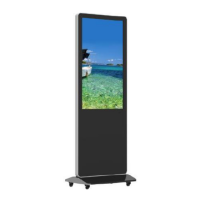

 To Next Page