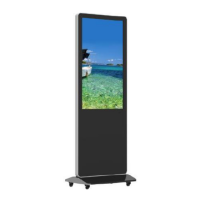
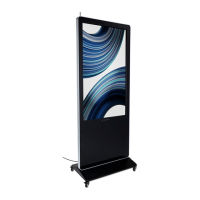
This document describes the Displays2go 55" Indoor Floor Standing Digital Signage, model DGSNFSTCH55, a high-performance, multi-functional LED backlight digital signage unit. It operates on Android 7.1 and features a unique UI design for convenient operation and a better visual experience.
Function Description:
The digital signage is designed for displaying various media content, including images, videos, and music, in a floor-standing format. It supports USB mouse and keyboard for easy manipulation, similar to a computer, with mouse usage recommended for setup. The device is equipped with a built-in Wi-Fi module, high-capacity memory, and cache, ensuring smooth playback of 1080P HD movies and large games. It utilizes a high-quality LCD screen that offers no flicker, low radiation, reduced eye fatigue, eye protection, high brightness, high contrast, and a wide viewing angle. Its ultra-fast response time minimizes ghosting in fast-moving images. The unit incorporates progressive image processing and industry-leading motion compensation technology to improve flickering and blurring at the edges of motion pictures. Dynamic contrast technology further enhances clarity and contrast across various screens. It also features multi-channel USB interfaces for HD media streaming.
Important Technical Specifications:
- Model: DGSNFSTCH55
- Description: 55” Indoor Floor Standing Digital Signage
- LCD size: 55"
- Light source: LED backlight
- Resolution: 1920x1080 (pixels)
- Brightness (typ.)/(min): 400cd/m² (typ.)
- Contrast (typ.): 1200:1 (typ.)
- Response (ms): 10ms (typ.)
- Pixel pitch: 0.63 (H) mm * 0.63 (V) mm
- Refresh rate: 60Hz
- Viewing angle: 178° (H)/178° (V)
- Color saturation: 70%
- Viewable area: 1209.6(H) mm * 680.4(V) mm
- Chromaticness: 16.7M
- Voltage: 100V~240V, 50-60Hz
- Power Consumption: ≤150W
- Operating temperature: 0~40°C
- Storage temperature: -10~60°C
- Storage humidity: 10~60% RH Non-condensing
- Operating humidity: 20~80% RH Non-condensing
- Maximum operating time (hrs/day): 18 hours
- Operating system: Android 7.1
- Processor: RK3288, quad-core
- RAM: 2G
- Built-in memory: 16G
- Decoding resolution: 1080P UHD compatible
- Playback mode: Support loop, inter-cut, timer, shim, etc.
- Touch support: IR Touch, 10 points
- Supported Video Files: AVI, MPEG4, WMV, MKV, FLV, MP4, MOV
- Supported Photo Files: JPG, JPEG, BMP, PNG, GIF
- Audio output, supported files: Left and right audio channel, MP3
- RTC (real-time clock): Yes
- Schedule power on/off: Yes
- System update: USB compatible
- App installation: Support download and installation
- Ethernet (RJ45): 1
- HDMI: 1
- USB: 3
- Net weight: 69kg
- Gross weight: 88kg
- Unit dimensions (WDH): 810701980mm
- Package dimensions (WDH): ≈2160240950mm
- Shell material: Aluminum profile/sheet metal
- Shell color: Silver/Black
- OSD Language: English/Simplified Chinese
Usage Features:
The device comes with a remote control for power on/standby, source menu access, volume control, mute, cursor navigation, switching options, home, back, main menu, and OSD menu setup.
Basic operation includes:
- Power on/Standby: Insert the power plug and turn on the power switch. The device enters standby mode by pressing the "O" switch or the standby button on the remote control.
- Launch Desktop: The desktop features icons for main applications, back, home page, background applications, sound control, and status bar visibility.
- Wallpaper Switch: Users can change the wallpaper by connecting a mouse via USB, navigating to "Settings" > "Display" > "Gallery" or "Wallpaper," selecting an image, and confirming "Set wallpaper."
- File Manager: Access files from different devices (Internal Memory, SD Card, USB) through the "Explorer" app, found in the "APPS" menu.
- Local Settings: Configure Wi-Fi, Bluetooth, data usage, display, notifications, sound, apps, screenshot settings, storage, battery, memory, users, location, security, accounts, Google, languages & input, backup & reset, and date & time.
- DiViEx APP Introduction: This application is used for media playback. Users must ensure the device meets system requirements (CPU: RK3288, ROM: 16GB, OS: Android 7.1). Media files are uploaded by creating a "MediaFolder" on a USB drive, with subfolders "Images," "Videos," and "Music." After copying media, plug the USB drive into the device and launch the DiViEx APP. Once "Copy finished" appears, media is ready for display.
- Settings within DiViEx APP:
- Image display time: Adjust the duration each picture is shown.
- Auto Boot: Automatically opens the DiViEx APP when the digital signage is turned on.
- Auto Play: Automatically plays the slideshow when the DiViEx APP is opened.
- Choose Picture display mode: Select how pictures are displayed (e.g., "Rashaped by the original size," "Set image center adaptation display").
- Set Picture switch mode: Choose animation effects for picture transitions (e.g., Depth, Zoom, Cube, Foreground, FlipHorizontal, RotateDown, Accordion, Stack).
- Edit Picture: The DiViEx APP allows editing pictures with features like:
- Crop: Reshape images using corner and border handles.
- Filter: Apply various filters (e.g., AUTO_FIX, BLACK_WHITE, BRIGHTNESS, CONTRAST, GRAY_SCALE, ROTATE, SHARPEN).
- Reset: Remove all applied edits.
- Save: Save the edited image as a new file.
- Image deletion: Delete unwanted pictures.
- Music: Add background music from the "Playlist Library" to the "Playing List Music" within the DiViEx APP. Music can also be removed from the playlist.
- Factory Reset: Reset the unit to default settings via "Settings" > "Backup & reset" > "Factory data reset." Users can choose to "Erase SD card" before confirming "RESET DEVICE."
- Screen Rotation: Rotate the screen by accessing "System aide" from the "APPS" menu, selecting the desired rotation degree, and confirming. A restart is required for changes to take effect.
- Choose System Language: Change the system language via "Settings" > "Language & input" > "Languages" > "Add a language." Users can then drag the desired language to the top of the list.
Maintenance Features:
- General Care: Avoid strong vibration or impact. Keep the product dry to prevent moisture damage. Do not place the unit under direct sunlight to prolong screen life.
- Cleaning: Clean the screen and product using a glass cleaner.
- Long-term Storage: If the product will not be used for an extended period, unplug the power cord to prevent internal short circuits or other potential dangers.
- Troubleshooting: The manual provides solutions for common issues such as no picture/sound, remote control not working, Wi-Fi signal problems, missing/damaged parts, software installation issues, and content upload failures. For unresolved issues, contact customer service.
- Toxic and Hazardous Substances: The manual includes a table detailing the presence of toxic and hazardous substances (Pb, Hg, Cd, Cr6+, PBB, PBDE) in various components, indicating compliance with GB/T 26572-2011 standard. The Environmental Friendly Use Period (EFUP) of the product is ten years, provided it operates under normal conditions.
- Recycling: Users are advised to follow local Waste Electrical and Electronic Products Recycling and Disposal Regulations for recycling the product at the end of its service life to protect the environment.


 To Next Page
 General