6
Power
HDZero Monitor provides two different power supply interfaces: DC(5.5mm*2.0mm) and XT30. And
built-in polarity protection.
The voltage range input is 2S-6S(6-25V). Power consumption is approximately 9.0 watts when receiving
HDZero video and recording.
HDZero Monitor will automatically identify cell counts based on voltage when powered on, and will
alarm when the cell voltage is lower than 2.8v(flashing OSD voltage display).
You can also manually set cell counts and warning cell voltage in the HDZero Programmer App.
Firmware Update
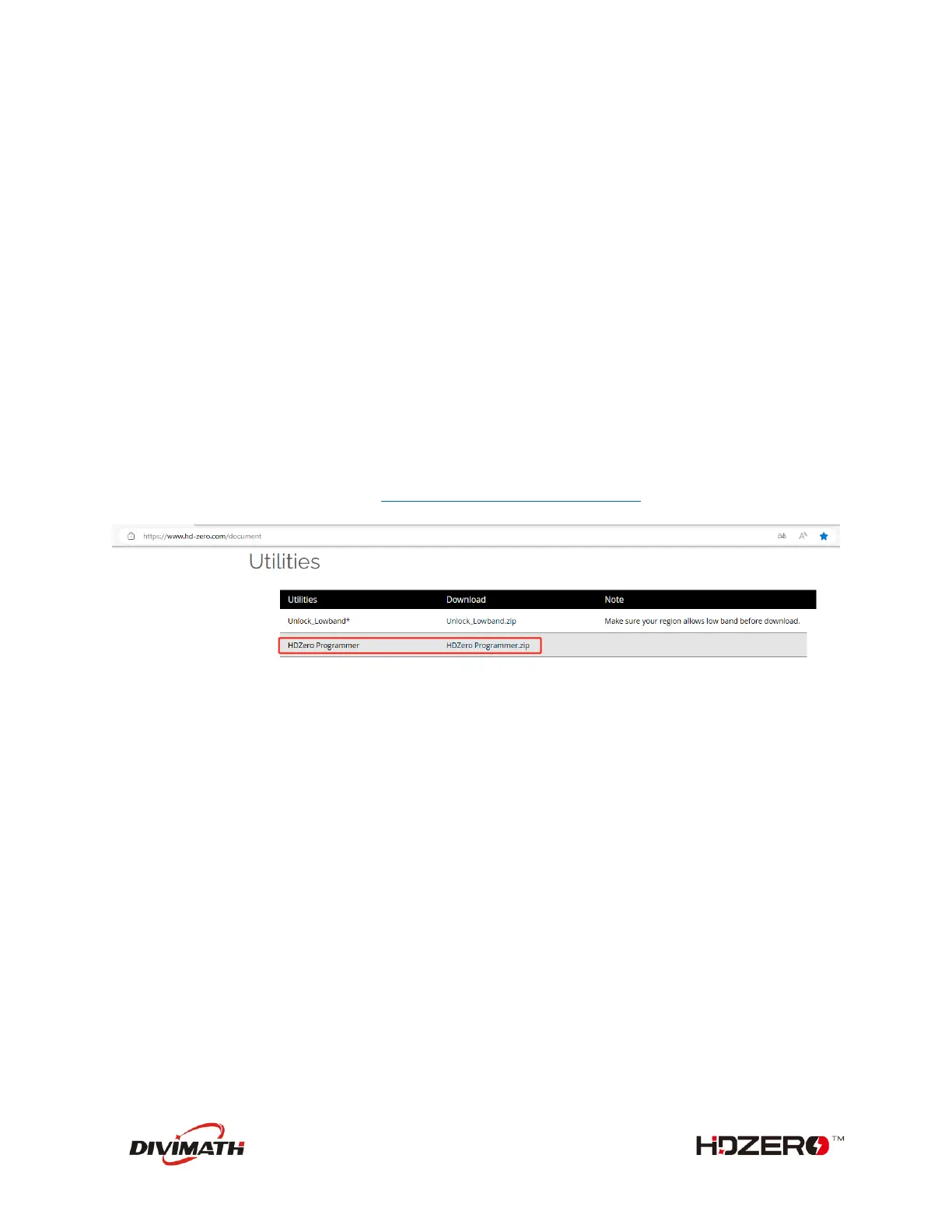
Before updating the firmware, make sure you have downloaded the latest HDZero programmer.
You can download it from the website https://www.hd-zero.com/document
- Open HDZeroProgrammer.exe and switch to Monitor Tab.
- Click Load Online Firmware and select the latest version, Then Click Flash Monitor.
- Power on the hdzero monitor and connect it to the PC through a USB cable with a type-c interface.
- The firmware will be downloaded and updated automatically. Do not disconnect the monitor power
supply or USB cable before the update is completed.
- Re-power hdzero monitor after the update is completed.
Band & Channel
HDZero Monitor does not have a scanning function, you need to set Band & Channel manually.
Band and channel are set separately, which means you can switch to the channel you want faster.
For HDZero, following channels are supported:
- E1
- F1, F2, F4
- R1 - R8
- L1 - L8
For Analog, following channels are supported:
- A1 - A8
- B1 - B8



 To Next Page