DivX 10
35
DivX, LLC User Guide
YOUR FIRST
DIVX FILE
To begin we will use VirtualDub to opena MPEG-1 video file and
convert it to DivX format. For the purposes of simplicity our video
will not include an audio track at this point.
STEP 1
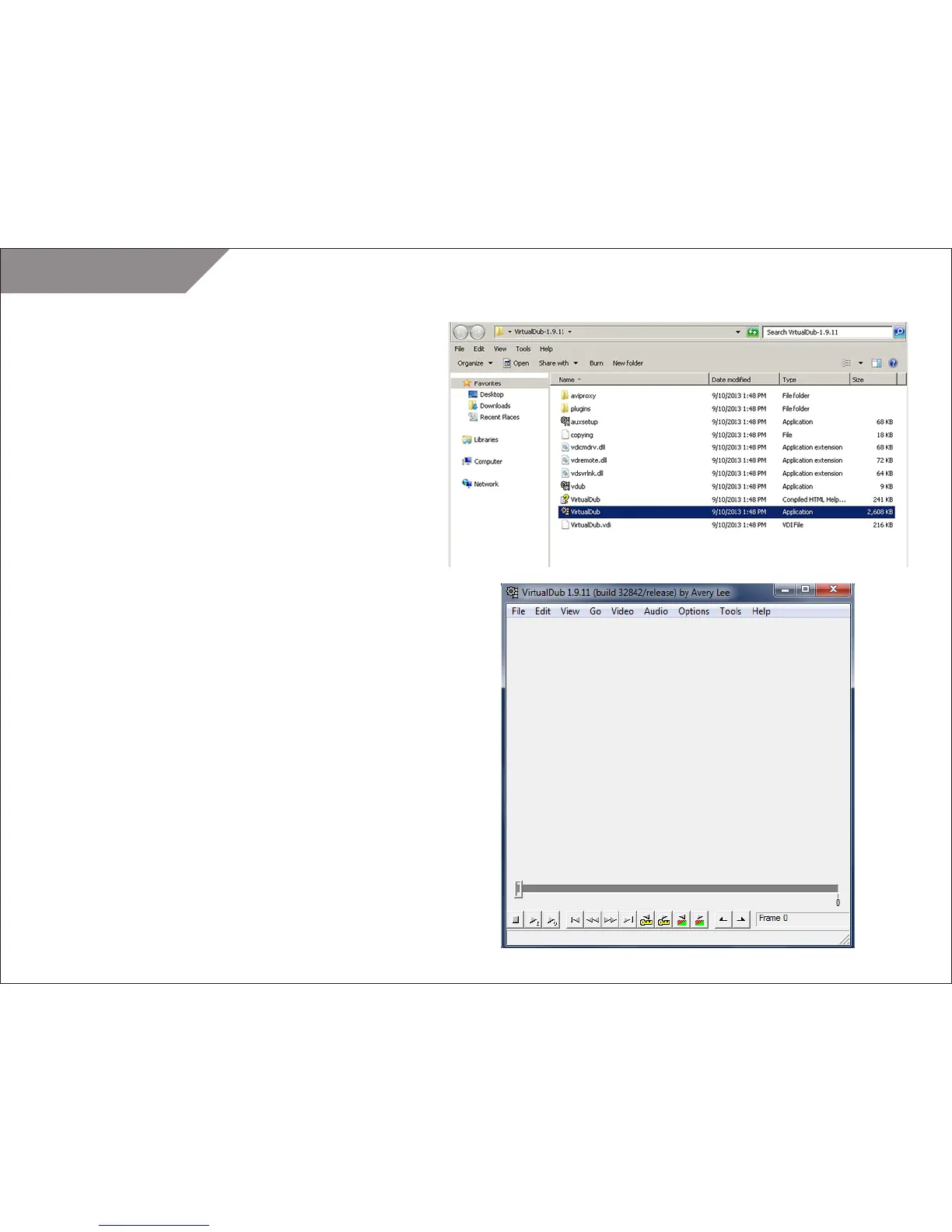
Load VirtualDub by double-clicking on the VirtualDub program icon
In the VirtualDub main window (from top to bottom) you will see:
• Program menu
• Video display area (currently empty)
• Timeline and seek control
• Timeline control buttons
• Tool tips bar
From left to right the timeline control buttons are:
• Stop
• Play input
• Play output
• Go to start
• Backward
• Forward
• Go to end
• Previous key-frame
• Next key-frame
• Find last scene change
• Find next scene change
• Set mark-in
• Set mark-out



 To Next Page