Web Power Switch Pro
digital-loggers.com
12
System Log
The Pro keeps an internal event log including logins, outlet switching,
power interruptions, and AutoPing events. Recent events are stored in
the log and accessible from the System Log page. SYSLOG export is
supported. For more information: digital-loggers.com/syslog.html
Logout
Browser logout is automatic when a session is closed or after a time-out
period. Use this link to log-out in advance.
Programmable Web Links
User-dened web links are provided. Set names and destination URLs for
these links on the Settings page. These are convenient for connecting to
other power controllers, linking to page hosted elsewhere, and for starting
scripts.
Switching and Cycling Outlets
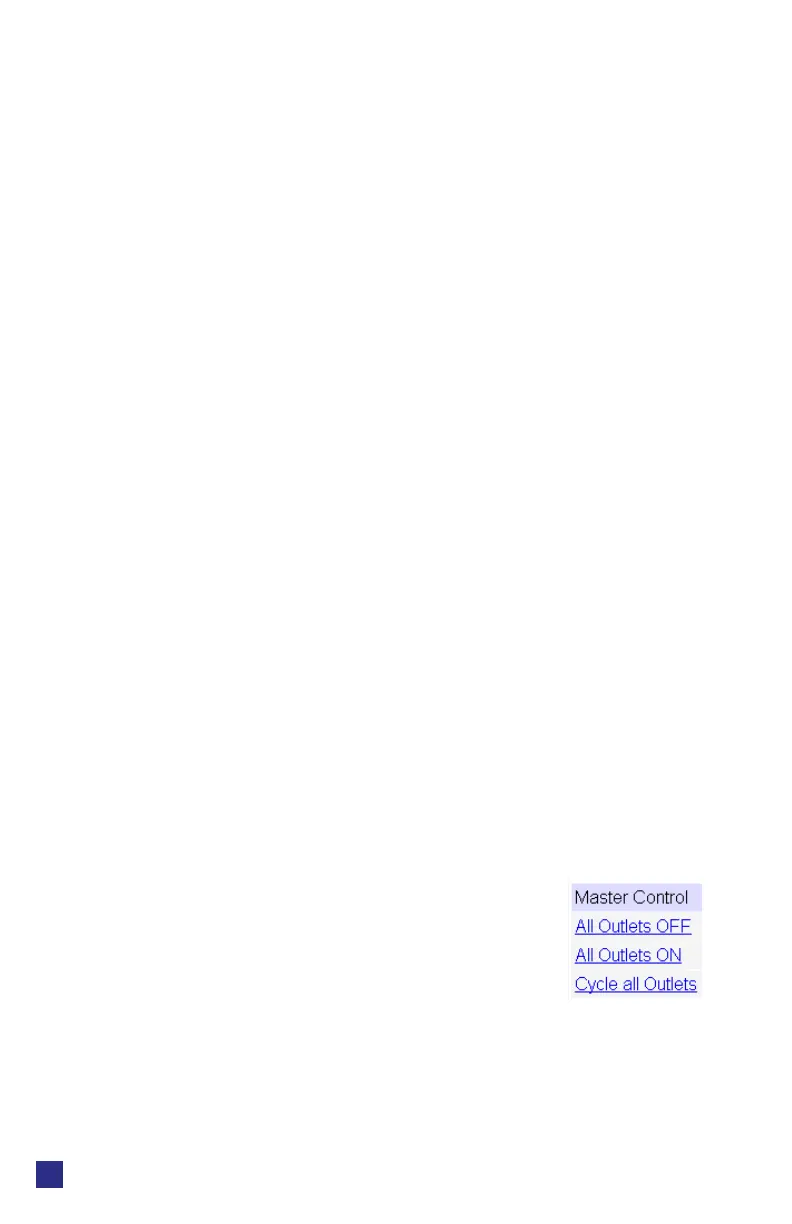
The outlet control page lets you control any outlet (except the always-on
pair). A master control lets permitted users switch all outlets on or o.
To switch an outlet, simply click to the right of the outlet name or number.
On->O switching is immediate O->On switching speed is limited by the
adjustable On Sequence Delay setting.
Use the keypad for local control: Select an outlet using the arrow keys,
then press on, o, or cycle. Press ON or OFF for 5 seconds to lock or
unlock an outlet. Locking prevents web access. To change the display
mode, press the up and down arrows simultaneously. The keypad may be
disabled on the Setup page.
You may want to Cycle a device which is connected to the Pro. This feature
is useful for rebooting Ethernet devices which may interrupt the web link to
the controller. Clicking Cycle switches power o, waits for the Cycle time,
and then switches power back on while conforming to the ON Sequence
Delay. This reboots the attached device.
You can also cycle all outlets using the Master Control on the bottom of the
page. An adjustable ON sequence delay takes eect when outlets are
turned on one after another, ehether when using the
All Outlets On button, on power-up, or when
switching manually using the front panel. This
prevents power surges. A separate Cycle delay
setting is provided on the setup page.
Depending on your web browser settings, you may
need to click the Refresh button or F5 key to update the on-screen status
display after changing settings. Screen refresh rate is adjusted in two
places: on the Setup page and in your browser settings.


 To Next Page
 Loading...