Symptoms
DNP Imagingcomm America Corporation 4 of 8
Always clean and maintain the system in the prescribed manner as instructed in this manual.
Always use this equipment in the specified manner as recommended by the manufacturer.
Failure to observe safety precautions voids your warranty and may cause damage to the unit and could
result in personal injury or death.
Symptoms
SOLID RED error status light (Not blinking).
The printer does not produce two beeps when the paper is properly loaded in the paper feed path.
Common Causes
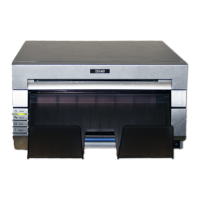
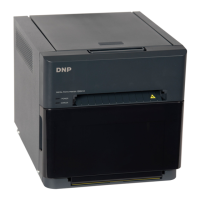
Paper for the DS40, DS80, and DS620A printers comes in rolls and is cut to length after each print. The paper
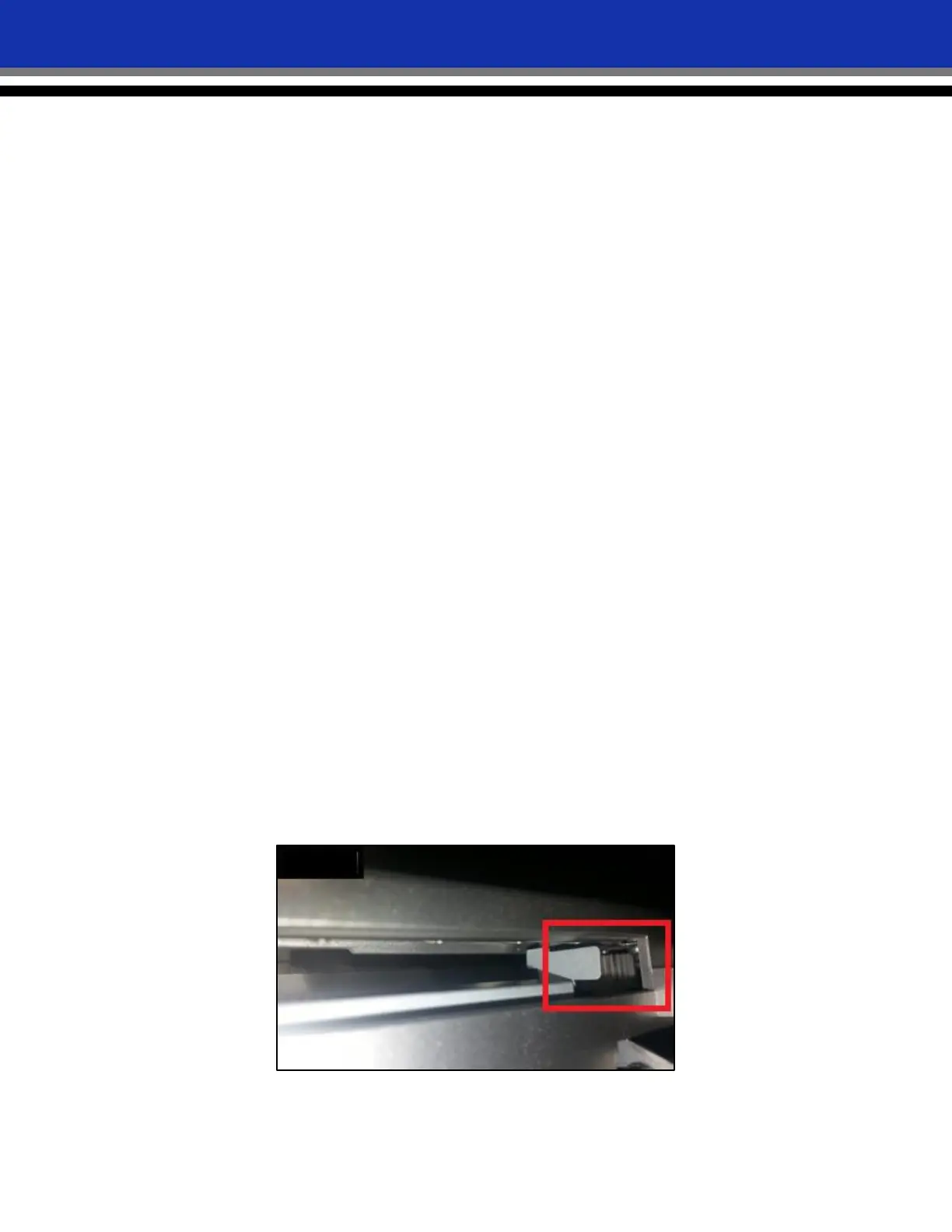
cutting mechanism (referred to as the cutter) is just slot where the final print is ejected. A black notched belt
runs around a gear on the right side of the cutting mechanism, moving the cutter from left to right as needed to
cut the photo. Scrap paper can wrap around the gear, jamming it so that the cutter cannot move not move. This
causes an error state in the printer. This is shown with a solid red error status light on the front of the printer
that remains on continuously. The error status light is the bottom of the four indicator lights on front of the
printer.
The following are the most common causes of a cutter error:
Scrap paper or other debris blocking the cutter path or gear assembly (either during printing or during
transport).
Printer is not level during printing.
Troubleshooting
Method 1: Cleaning the Cutter Path
1. Turn the printer OFF and unplug the power cable and USB cables from the back of the printer.
2. Use the blue handle on the front of the printer to open the media compartment drawer.
3. Press the blue release lever on the left side of the media drawer to open the paper compartment.
4. On the paper compartment cover, look inside the wide gap on the bottom of the cover.
5. Locate the cutter gear in the far right corner.



 To Next Page