The DNP IDW520 Photo ID System is a comprehensive solution designed for capturing, processing, and printing ID photos, with a specific edition tailored for use with the Panasonic FZ80 camera. This Quick Start Guide provides essential information for setting up and operating the system, serving as both an initial setup guide and a daily reference.
Function Description
The IDW520 system's primary function is to streamline the creation of compliant ID photos. It integrates a digital camera (Panasonic FZ80 in this edition), a processor console, and a dedicated photo printer to manage the entire workflow from image capture to final print. The system is designed for ease of use, allowing operators to quickly take photos, verify compliance, and produce high-quality prints.
The core of the system involves capturing an image with the Panasonic FZ80 camera, transferring it wirelessly to the IDW520 console, processing it to meet specific ID photo requirements, and then printing it on the DNP photo printer. The console acts as the central hub, displaying the captured images, offering editing options, and managing the printing process.
Usage Features
The IDW520 system offers several features to facilitate efficient and accurate ID photo creation:
- Guided Setup and Operation: The Quick Start Guide provides step-by-step instructions for initial setup, including unpacking the camera, installing the Wi-Fi SD card and battery, charging the camera, and connecting the camera strap and lens lanyard. It also details how to set up the printer, including identifying its components (ribbon compartment, paper compartment, paper tray, paper scrap bin), installing paper spools and media, and loading the ink ribbon. The guide emphasizes the proper orientation of the paper roll and ribbon for correct operation.
- Processor Console Integration: The console is central to the system's operation. It receives images from the camera, processes them, and sends them to the printer. The guide explains how to unpack the console, connect the printer's USB cable to the console's bottom port, and plug in the power cord.
- System Power-On Sequence: A crucial usage feature is the specified power-on sequence: first the photo printer, then the IDW520 console, and finally the passport camera. This sequence ensures proper communication and initialization of all components. The system indicates readiness through visual cues, such as a green power light on the printer, the console displaying its main screen with a green printer window outline, and the camera icon turning green on the console. A POST test image is printed upon successful connection of the printer and console, confirming readiness.
- Photo Capture Workflow: The system guides users through the photo-taking process. It recommends placing the subject against a white or off-white background without textures, ensuring the subject is close to the background to minimize shadows, and using proper lighting or camera flash. Users are instructed to stand 6 feet (2 meters) away, hold the camera at eye-level, and center the subject's head within the on-screen guide using the zoom function. After taking the picture, users review it on the camera screen, press the Fn2 button to access the print count menu, verify the print count (typically 1), and press MENU/SET to send the image to the console. The camera displays a printer icon during image transfer.
- Image Transfer and Processing Verification: The console provides real-time feedback on image transfer. Messages like "DOWNLOADING IMAGE," "PROCESSING," and "DOWNLOAD COMPLETE" indicate the status of the image transfer and processing.
- Image Gallery and Printing: Transferred images appear in the console's image gallery. Users can select an image to open the Image Results screen, which offers options to "PRINT PREVIEW" (to review and print), "EDIT" (to modify color, brightness, contrast, and rotation), "DELETE" (to remove the image), and "COPY TO USB" (to save the image to a USB drive). From the print preview screen, the "PRINT" button initiates printing. The system also supports reprinting images directly from the main screen or inspection screen.
- Image Editing Capabilities: While discouraged unless absolutely necessary, the system allows for basic image editing. Users can press the "EDIT" button to adjust color, brightness, contrast, and rotation. "ACCEPT" prints the edited image, "RESET" reverts to the original, and "CANCEL" returns to the main screen.
- Flash Management: The camera's flash settings are automatically configured for ID photo use. Users simply open the flash hood and press the Lightning Bolt button on the back left of the camera to enable the flash, indicated by a flash symbol on the LCD screen.
- Default Camera Settings: The guide provides a comprehensive list of default settings for the Panasonic FZ80 camera, including Aspect Ratio (4:3), Picture Size (S.4.5.M), Meter Mode (CENTER), Burst Rate (L), Shutter Type (AUTO), ISO Increments (1/3 EV), Record Format (AVCHD), Beep Vol (LOUD), Shutter Vol (LOUD), Shutter Tone (#2), Sleep Mode (5 minutes), Sleep Mode WIFI (ON), and Auto LVF Monitor (5 minutes). It also details PLAYBACK MODE settings (Fn1 PRINTER ICON, Fn2: PRINTER ICON) and CUSTOM settings for Focus Release Priority (FOCUS), MF Assist (OFF), MF Guide (OFF), Peaking (OFF), Center Marker (ON), Expo.meter (OFF), Auto Review (HOLD), Fn Button Set (as per FN BUTTON SETTINGS), Lens Position Resume (ON), Video Button (OFF), and Touch Setting (OFF). Specific RECORD MODE Fn button settings are also provided: Fn1: FLASH MODE, Fn2: GUIDE LINE, Fn4: PREVIEW, and Fn6: SILENT MODE. This ensures consistent and compliant image capture.
Maintenance Features
The IDW520 system incorporates features and guidelines to ensure its longevity and optimal performance:
- Ordering Supplies: The guide provides contact information (http://www.dnpphoto.com or support@dnpphoto.com) for ordering replacement media kits, which typically contain 300 sheets (2 rolls @150 sheets) and 2 ink ribbons (@150 images).
- Proper Shutdown Procedure: To prevent system issues, users are instructed to always shut down the console using the software menu's gear icon and "SHUTDOWN" option, then turn off the camera, and finally the printer. Restarting the console by pressing the power button on the side is discouraged.
- Battery Management: Users are advised to recharge camera batteries often, noting that battery drain accelerates once it reaches 50%. Checking battery charge is a primary troubleshooting step if the camera is not detected by the console.
- Scrap Bin Management: If the printer is used for non-ID photo printing, the print scrap bin must be emptied when reloading media to prevent jams.
- SD Card Integrity: A critical maintenance note emphasizes that the SD card is unique to the camera and console system. Users are warned not to use other cards or reformat the received card, as this could impact system functionality.
- Troubleshooting Guidance: The guide includes a dedicated troubleshooting section for common issues, particularly "Images aren't printing." It prompts users to check if the app is working, if they are within 15 ft of the console, if the image was sent to the console (indicated by a print icon in PLAYBACK mode), and if the camera is connected (listening for a "PING," looking for "CAMERA FOUND" message, or checking the camera gauge on the console). If the camera isn't connected, users are advised to power cycle the camera or restart the console via the GEAR icon and SHUTDOWN option.
- System Sync and Initialization: Users are reminded to wait for the camera and console to sync, which can take up to two minutes. The presence of a POST test image after restarting the system confirms that the printer is working and the system is ready.
- Image Deletion: To manage storage and prevent issues, the guide provides instructions for deleting images from the SD card using the camera's PLAYBACK mode and DELETE button, offering options to delete a single image, multiple images, or all images. Users are explicitly warned not to format the camera card.
- Paper Tray Management: While the paper tray can hold up to 20 prints, it is recommended to remove prints at regular intervals to prevent paper jams.

 Need help?
 General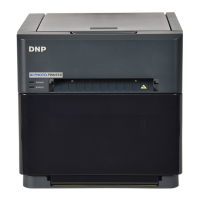

 To Next Page
