–
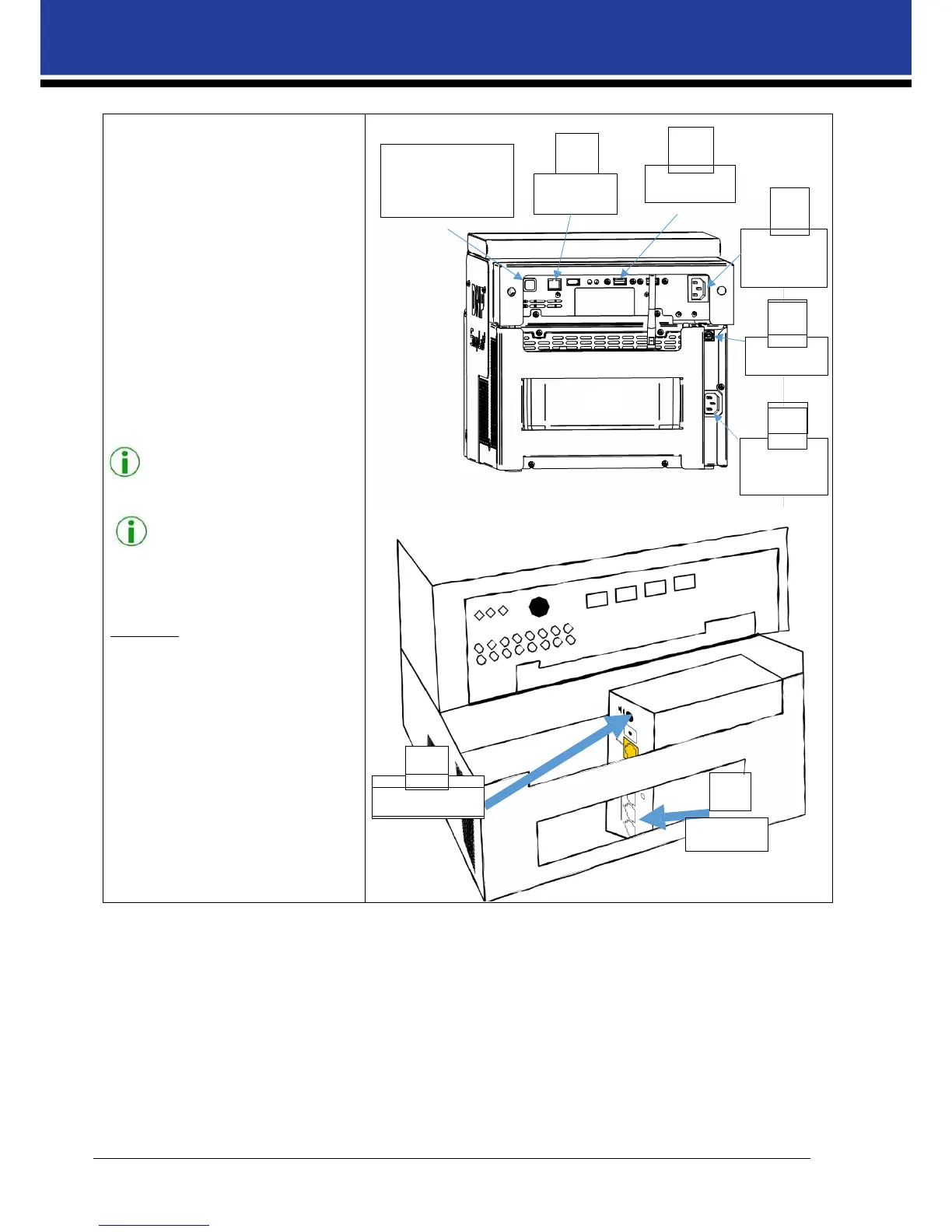
15. Connect the USB cable from the
DS-Tmini to the DS620A printer.
16. If you have not already done so,
connect the ethernet cable to
the DS-Tmini and the router LAN
port 1-4 (NOT the yellow internet
port).
17. Connect the power supply cable
to the DS-Tmini.
18. Connect the power supply cable
to the DS620A printer.
19. Connect the power supply
adaptor to the Netgear Router.
NOTE:
Network
USB port
DS-Tmini
AC Power
USB port
NOTE:
The steps above enable SnapLab to
receive files from a user’s cell phone
using the DNP PhotoPrints.
The SnapLab can also be configured
to enable functionality such as
printing images from a user’s social
DS620A
power
media account. To do so, connect the SnapLab
Wi-Fi router to the outside network using a
separate Ethernet cable. The network cable
must be connected from the router yellow
internet port to the in-house network modem.
After making the connection, always turn ON
the router before turning on the SnapLab
terminal.
DS-Tmini power
ON/OFF button
16
15
17


 To Next Page