This document is a user manual for the DOPO DPW7A-BT 7" Windows 8.1 2-in-1 PC tablet, providing comprehensive instructions for its operation, maintenance, and safety. The tablet is designed to offer a fast, seamless, and immersive personal computing and rich media content experience, making it a versatile companion for various tasks.
Function Description
The DPW7A-BT tablet serves as a 2-in-1 PC, running on Windows 8.1. Its primary function is to provide a portable computing experience, enabling users to accomplish everyday tasks, enhance productivity on the go, and enjoy various forms of entertainment. The tablet features a touch screen display, allowing for intuitive interaction through finger gestures.
For productivity, the tablet comes pre-installed with Microsoft Office 365 Personal, which includes essential applications like Word, Excel, Outlook, PowerPoint, OneNote, and Publisher. This suite of applications facilitates document creation, data management, email communication, and presentation development, catering to both personal and professional needs.
Entertainment functions are robust, allowing users to play video games, access Xbox Music and Video, and surf the internet using Internet Explorer. The dual cameras (0.3MP front-facing and 2.0MP rear-facing) enable users to take photos and record HD videos, as well as engage in video chats and "selfies." The camera app provides options for photo and video capture, with additional features for viewing and editing images.
Connectivity is a key aspect of the DPW7A-BT. It supports WiFi 802.11b/g/n networks for internet access, enabling web browsing, email communication, and app downloads. Bluetooth connectivity allows for pairing with compatible devices such as external mice, keyboards, or other accessories. The tablet also includes a Micro USB port for connecting USB flash drives or external hard drives, expanding its storage and peripheral capabilities. A memory card slot further enhances storage options, supporting TF style memory cards up to 64GB.
The tablet's operating system, Windows 8.1, provides a familiar interface with a Start Menu that displays apps, alerts, messages, and announcements through live tiles. Users can navigate through apps, search for files and programs, share content, and access system settings via the Charm Menu.
Usage Features
The DPW7A-BT is designed for ease of use, incorporating various touch gestures and interface elements to enhance user interaction.
Power Management:
- Power On: Press and hold the side POWER button for approximately 3 seconds until the logo screen appears.
- Power Off: Press and hold the side POWER button until the POWER OFF window appears, then slide down to turn off.
- Standby Mode: A quick press of the POWER button turns off the display, putting the tablet into a sleep mode to conserve battery. Another quick press wakes the tablet.
- Alternative Power Options: Swipe left from the right edge of the screen and tap SETTINGS to access Power, Shut Down, or Update and Restart options.
First-Time Setup:
Upon initial power-on, the tablet guides users through a setup process to choose a language, color scheme, and name, all of which can be customized later.
User and Password Setup:
Users can set up passwords for their accounts. The Charm Menu, accessed by swiping inward from the left edge of the display, allows for password management. Under PC settings > Accounts > Sign-in options, users can choose password policies for Microsoft accounts or local accounts, including options for time frames or always requiring a password.
Charging the Battery:
The tablet is charged by connecting the provided power adapter to a wall outlet and then to the tablet. A battery status indicator in the lower left corner shows the remaining power percentage. A full recharge from a depleted state takes approximately 2-3 hours. The tablet may feel warm during recharging and use, which is normal.
Basic Operation and Navigation:
- Lock Screen and Start Menu: Press the Power button, then swipe up on the touch screen to unlock. Sign in with your password. The Start Menu is the central hub for apps, web access, and social media.
- App Management: Press the Start button to launch all apps. Swipe inward from the left edge to view open apps. Swipe inward from the right edge to access the Charm menu (Search, Share, Date & Time, Battery Level, Settings).
- Moving/Removing Apps: Touch and hold an app to drag it to the desired screen or to the "Remove" icon at the top of the screen.
- Microsoft Account: It is recommended to use or set up a Microsoft account for enhanced enjoyment of Microsoft services like Xbox, Outlook.com, OneDrive, and Skype, as many apps and services rely on it for content and settings synchronization.
- Adding Email Accounts: From the Start screen, tap Mail, then open the Settings charm, tap Accounts > Add an account, and follow the on-screen instructions.
Common Finger Gestures:
- Swipe to Right (Access Open Apps): Swipe inward from the left edge of the screen. Each swipe switches between open apps. To select a specific app, swipe inward, hold your finger on the touchscreen, move it back towards the left edge, and then tap the desired app.
- Swipe to Left (Search, Share, Settings): Swipe inward from the right edge of the screen to access the Charm menu.
- Pinch & Zoom: Place two fingers on the screen and pinch them together to zoom out, or spread them apart to zoom in (applicable in apps like Maps, Browser, and Gallery).
- Swipe Downward: Swipe down from the top edge to access app commands.
- Swipe Side to Side: Move an image by swiping your finger horizontally.
- Swipe the Bottom Edge: Swipe upward from the bottom edge to choose an item from the bar of app commands.
- Displaying Apps Menu: Tap and drag your finger upward from anywhere below the Start Menu tiles.
- Adding to Start Screen: Tap and hold a desired app for 2 seconds; a checkmark will appear.
- Returning to Start Menu: Tap and drag your finger downward from the top of the screen.
- Closing Desktop Apps: Apps can close automatically when a second app is used, or they can be manually closed by dragging them to the bottom of the screen and holding until they flip over. Task Manager can be used to view open apps and services.
View Apps Side by Side:
To display two apps simultaneously, swipe an open app inward from the left edge, drag it, and hold. Release it to one side, and a dual-screen interface will appear for a second application. To change an app, go to the Start Menu or Apps view and tap on a new app. To undo the dual screen, drag the middle partition line to the right or left edge.
Connecting to the Internet:
Access the Settings charm (swipe inward from the right edge, tap Settings), then tap the wireless network icon. Select the desired network under WiFi and tap CONNECT. Enter the password if prompted. To disconnect, tap the connected network and then DISCONNECT.
Charm Menu Column (Search, Share, Connect, Settings):
Accessed by swiping inward from the right edge of the screen, this column provides:
- Search: Find files and application programs.
- Share: Share programs via social media or email.
- Start: Return to the Start screen or the last opened application.
- Devices: Read, write, and share files; connect external screens or printers.
- Settings: Personalize and set up the tablet.
Skype for Calls and OneDrive for Additional Storage:
- Skype: Add contacts, make calls, and video chat. Sign in with a Microsoft account to automatically add Messenger friends or merge an existing Skype account.
- OneDrive: Online cloud storage for documents, photos, music, and other files, accessible from any web-connected device. Files can be uploaded from a computer to OneDrive.com and then accessed from the tablet via the OneDrive app on the Start screen.
Using Micro USB, Bluetooth Devices, & Viewing on HDTV:
- USB Devices: Insert a USB flash drive or external hard drive into the USB port using the included transfer cable. External mice, keyboards, or other USB-compatible devices can also be connected. Windows will install necessary software for new USB accessories.
- Bluetooth Devices: Power on the Bluetooth device and make it discoverable. Open the SETTINGS charm, tap Change PC Settings > PC and devices > Bluetooth. Ensure Bluetooth is powered on and wait for Windows to search for the device.
Using the Cameras:
- Front and Rear Cameras: The 0.3MP front-facing camera is for video chat and "selfies," while the 2.0MP rear-facing camera is for recording meetings, HD videos, and photographs.
- Taking Photos/Videos: Open the Camera app and tap the on-screen Photo or Video button.
- Viewing/Editing Photos: In the Camera app, swipe right to view recent photos/videos or swipe down from the top edge and tap Camera Roll. Photos, File Explorer, or OneDrive app can also be used to access the Pictures folder and Camera roll.
- Photo Editor: Swipe down from the top edge when viewing a photo to access editing options:
- AUTO FIX: Various adjustments to improve photographs.
- BASIC FIXES: Rotation, crop, straighten (no Red Eye feature).
- LIGHT: Brightness, contrast, highlights, shadow adjustments.
- COLOR: Temperature, tint, saturation, and enhancement adjustments.
- EFFECTS: Selective focus and vignette.
- Camera Function Guide:
- Take Photograph: Tap the camera icon.
- Start Video: Tap the video camera icon (red light appears); tap again to stop.
- Change Camera: Tap to switch between front and rear cameras.
- Timer: Tap repeatedly to adjust the timer interval (3 or 10 seconds).
- Flash: Not supported as there is no LED light feature.
- Exposure: Adjust the bar up/down to allow more light into the photograph or video.
Windows Store:
The Windows Store offers a wide range of apps, including games, entertainment, music, sports, eBooks, news, food & dining, and travel. Both free and premium apps are available.
Maintenance Features
Proper maintenance ensures the longevity and optimal performance of the DPW7A-BT tablet.
Safety Instructions:
- Environmental Conditions: Avoid using the tablet in extremely hot, cold, dusty, damp, or wet environments.
- Earphone Usage: Limit earphone usage at high volumes to prevent hearing impairment. Adjust volume to a moderate level and do not use while walking or driving.
- Data Disconnection: Do not suddenly disconnect the tablet during formatting, uploading, or downloading data to prevent program errors or "freezing."
- Cable Damage: Stop using immediately if the AC adapter, AC cord, or provided cables are damaged, as this can cause malfunction or corrupt files.
- Dismantling: Do not dismantle the tablet, as it voids the manufacturer's warranty and poses a hazard. Refer to the Troubleshooting section or Customer Support for problems.
- Battery Safety: Improper use of the battery may result in explosion. Refer to the Battery Care section for safe charging.
- Touch Screen Care: The touch screen is made of glass. Avoid dropping or forcibly placing the tablet on hard surfaces. Do not use alcohol, thinner, or benzene to clean the screen, as this can damage components and void the warranty.
- Power Sources: Use only non-overloaded, standard power sources and power cables provided with the device.
Battery Care:
- Operating Temperature: The tablet is designed to work between 32°F and 95°F (0°C to 35°C). Lithium-ion batteries are sensitive to higher temperatures, so keep the tablet out of direct sunlight and closed environments susceptible to extreme temperatures.
- Recharge Frequency: The internal battery can be recharged at any time. However, it is recommended to discharge the battery down to 10% or lower at least once a month before recharging.
TF Memory Card Slot:
An optional TF style memory card can be used to add up to 64GB of additional storage capacity when needed.
The manual includes FCC and IC compliance statements, outlining regulations for radio frequency emissions and exposure. It specifies that the device complies with Part 15 of the FCC Rules, ensuring it does not cause harmful interference and accepts any received interference. The SAR (Specific Absorption Rate) information indicates that the device meets government requirements for RF exposure, with a highest reported SAR value of 0.747 W/kg for body-worn use. For IC compliance, the EUT meets SAR limits for general population/uncontrolled exposure and should be operated with a minimum distance of 0.5cm between the radiator and the body.
Warranty:
DOPO provides a one-year limited warranty on parts and 90 days on labor for non-commercial usage, and 90 days for commercial use, covering defects in materials and workmanship. During the first 90 days, parts and labor are covered. After 90 days and up to one year, only parts are covered, with a labor fee for repairs. The warranty does not cover cosmetic damage, dropped units, normal wear and tear, improper operation, voltage issues, shipping damages, acts of God, customer misuse, modifications, or repairs by unauthorized service centers. Products with unreadable or removed serial numbers, or those sold "AS IS" or "FACTORY RECERTIFIED" by non-authorized resellers, are not covered. To obtain warranty service, users must contact DOPO Technical Support, obtain pre-authorization, and provide proof of purchase. Products must be shipped in original or equally protective packaging.

 Need help?
 General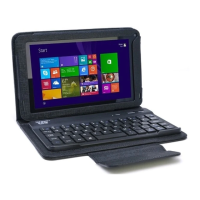

 To Next Page