English
2. Press :
• My info to enter your personal contact details, such as First
name, Surname, Phone and Email.
• Default account for new contacts to set where you save new
contacts by default.
• Sort by to set in what order you sort and display your contacts.
Select First name or Surname
• Import to copy contacts from/to phone, SIM card and shared
memory.
• Export to export contacts from the phone to the shared memory.
• Blocked numbers handle the blacklist of phone numbers so that
any phone number on your blacklist is blocked when calling or
texting you.
• Press Add a number to add a number to list of blocked
numbers.
• Press Block to confirm.
Press Unblock to remove .
• Set contact to Speed dial to set speed dial numbers to
0
and
2
–
9
. Select the wanted speed dial number and add/replace/
remove contacts.
Press and hold the corresponding key to speed dial.
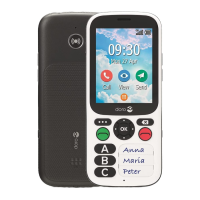
Assistance button
The assistance button can now be used in two different modes, the normal
assistance mode or let the MyDoro service handle it. With MyDoro setup,
relatives/helpers can receive assistance alarm via the smartphone app
MyDoro.
In some markets you can also increase personal safety by adding the serv-
ice Response by Doro, First the alarm contacts the relatives, and if no rela-
tive is able to answer it is automatically sent to one of our alarm centres,
where there is staff on duty 24/7. The service is available on selected Doro
phones. However, you as relatives can use any iOS or Android smartphone.
23


 To Next Page